
RaiderCanvas Support
RaiderCanvas Peer Review Assignment
A peer review assignment enables students to provide feedback on another student's assignment submission. Peer reviews are a tool that allows communication between students and can help students master the concepts of a course and learn from each other.
Create Peer Review Assignment
Open Assignments
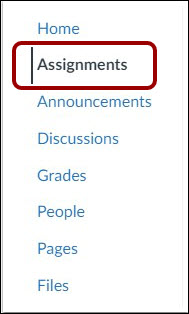
In Course Navigation, click the Assignments link.
Add Assignment

Click the Add Assignment button.
Add Assignment Details
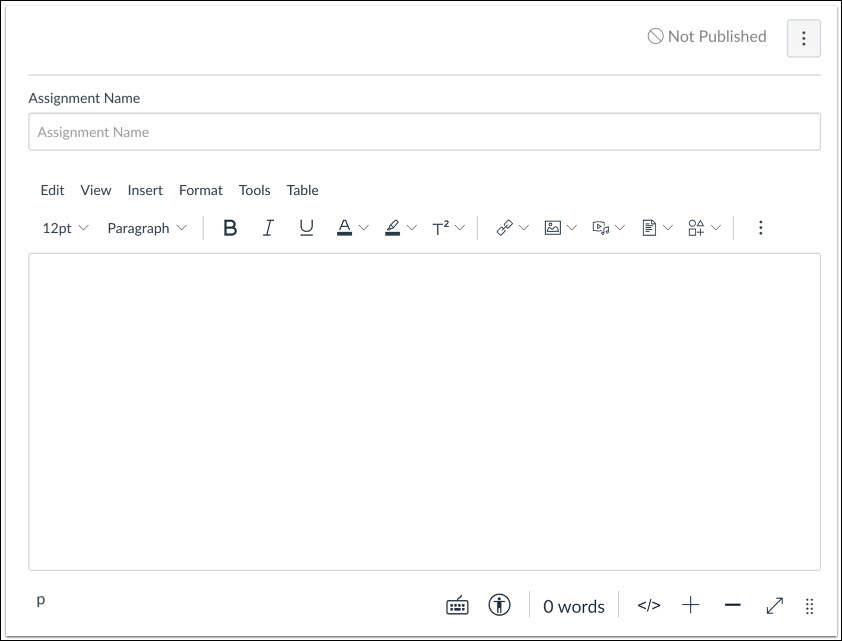
Add details to the assignment.
Select Submission Type
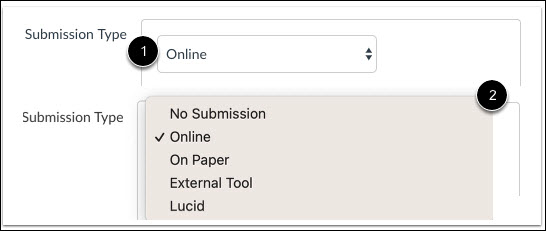
Click the Submission Type drop-down menu [1], and select your preferred submission type [2].
Note: The External Tool and Lucid submission types do not support peer review assignments. Students assigned a peer review for an On Paper or No Submission assignment can see the peer review assignment, but they cannot submit feedback online.
Select Online Entry Options
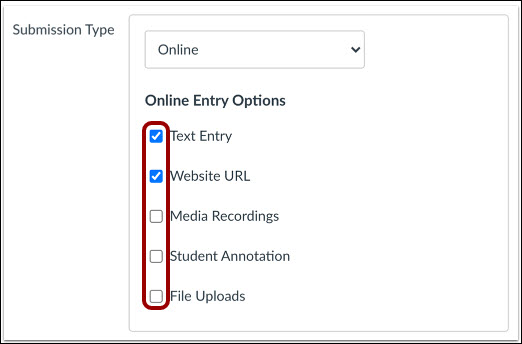
Select the checkboxes for the types of online entries allowed in the assignment.
Add Group Assignment
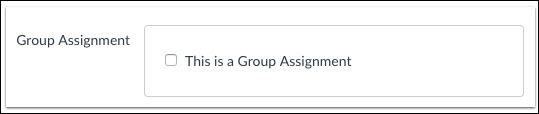
Peer reviews can be used with group assignments. If you want to make this a group assignment, click the This is a Group Assignment checkbox.
Note: Cross-group reviews are not automatically supported (for example, Group A reviewing Group B), but they can be set up manually using Allocation Rules
Require Peer Reviews
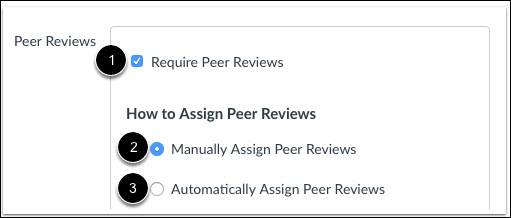
Select the Require Peer Reviews checkbox [1]. Enter the number of required reviews [2], then enter the number of points per peer review (optional) [3].
Note: Regardless of whether you assign points per peer review or not, a separate peer review assignment Gradebook column is created in addition to the Gradebook column for the peer review assignment students submit. You will access SpeedGrader for the peer review assignment to view (and grade) the peer review comments from the reviewer to the student peer they reviewed.
You can set the following Advanced Peer Review Configurations:
- Allocations [4]
- Allow Peer Reviews across sections (enabled by default)
- Allow Peer reviews within groups
- Grading [5]
- Use complete/incomplete instead of points for grading
- Anonymity [6]
- Reviewers do not see who they review
- Submission required [7]
- Reviewers must submit their assignment before they can be allocated reviews
Note: By default, peer review allocations automatically pair students based on available submissions rather than by student, unless manually allocated.
Add Due Date
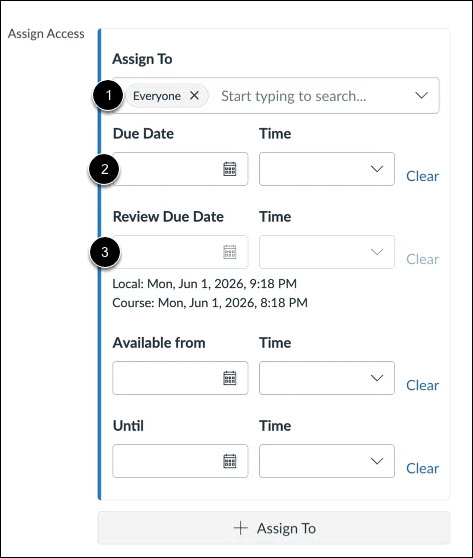
For the assignment, configure the Assign To settings [1] as desired. Then optionally add the assignment Due Date [2] and Peer Review Due Date [3].
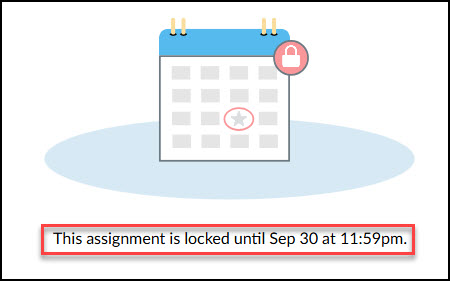
Note: If you assign a Due Date, students will not be able to access their Peer Review until that due date has passed. If they attempt to access the Peer Review before the submission due date has passed, they will receive a message that the assignment is locked until the submission’s Due Date/Time.
Note: Peer reviews continue to be automatically allocated until the Available Until date, if one is set.
Save and Publish Assignment
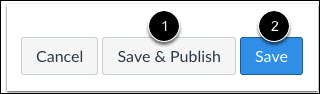
If you are ready to publish your assignment, click the Save & Publish button [1]. If you want to create a draft of your assignment and publish it later, click the Save button [2].
View Published Assignment
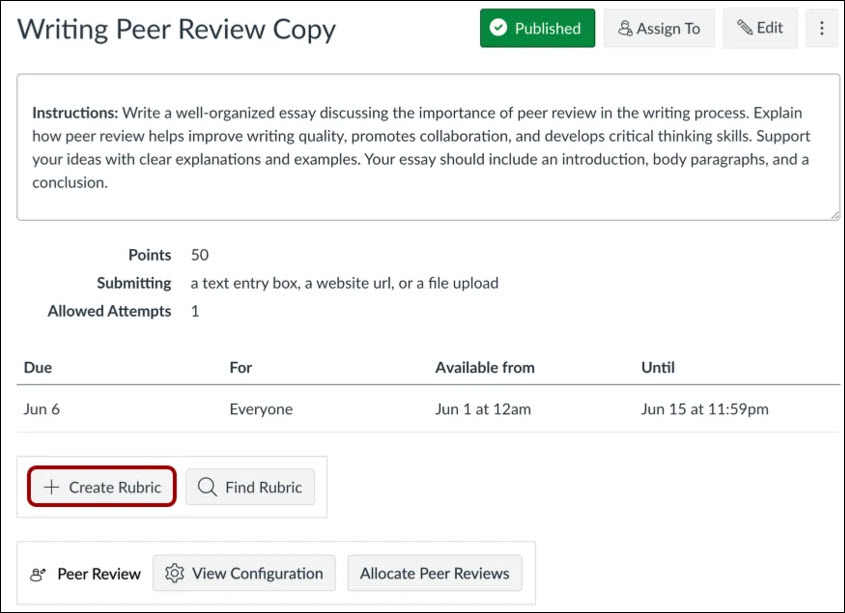
View Published Assignment
You can also attach a rubric to the assignment for students to fill out when completing peer reviews. To add a rubric to the assignment, click the + Create Rubric button.
Manually Assign Peer Reviews
When managing peer reviews, you can manually control how students are paired for reviewing each other's work using Allocation Rules.
Peer reviews continue to be allocated until the Available Until date, if one is set.
Open Assignment
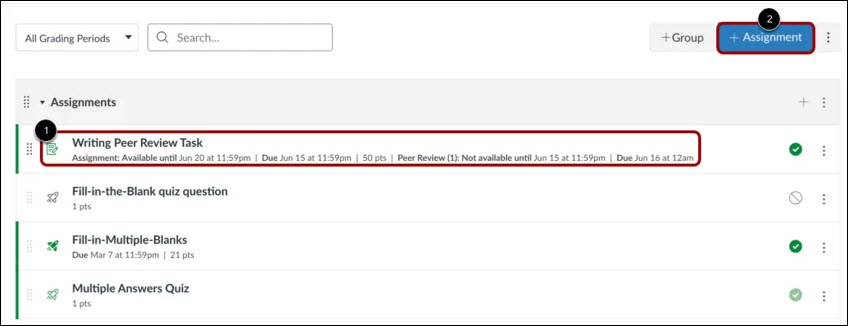
To open an existing assignment, click the Assignment name [1]. To create a new assignment, click the Add Assignment button [2].
View Allocate Peer Reviews

To manually allocate peer reviews, click the Allocate Peer Reviews button [1]. Then click the Add Rule button [2].
Note: By default, no action is required from instructors for automatic allocation.
Create Rule
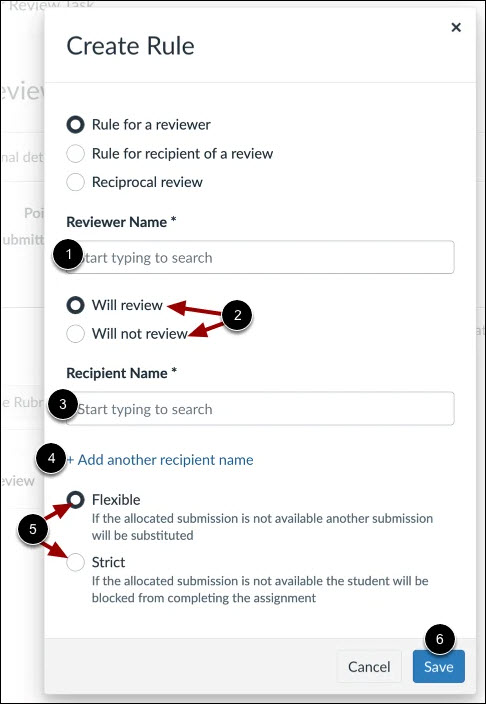
To create an allocation rule for a reviewer:
- Enter the Reviewer Name [1].
- Choose whether the reviewer will review or will not review the specified recipient(s) [2].
- Enter the Recipient Name [3].
- To add additional recipients, click the Add another recipient name link [4].
- Select either a Flexible or Strict rule type [5].
- To save your selection, click the Save button [6].
You can manually manage reviewer pairings using Allocation Rules.
- Strict rules:
- Require or prevent specific reviewer-to-submission pairings.
- If this option is selected and no submission is available, the student will not have a peer submission to review.
- Flexible rules:
- Prioritize preferred pairings while allowing alternate assignments when needed.
- If this option is selected and no submission is available, the student will be assigned another student's submission to review.
Allocation rules are saved and continue to be used every time the Allocation Engine runs. Rules apply on a per-assignment basis and are not shared across assignments.
Note: As an instructor, you can add as many rules as desired.
Create Rule for Recipient of a Review
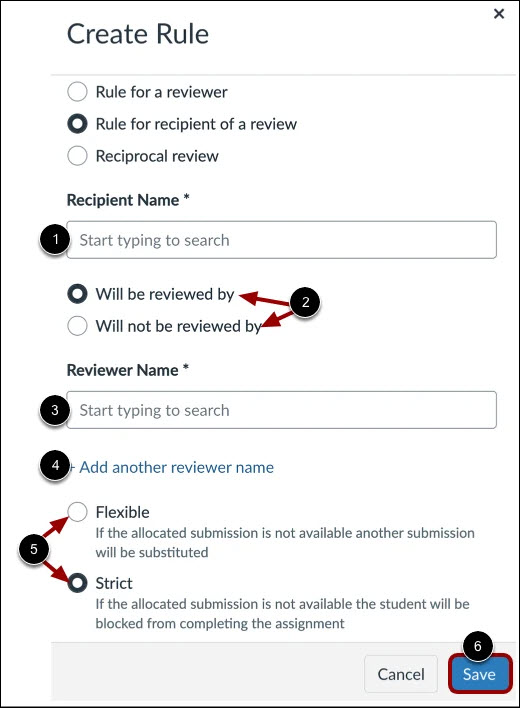
To create an allocation rule for the recipient of a review:
- Enter the Recipient Name [1].
- Choose whether the recipient will be reviewed by or will not be reviewed by the specified reviewer(s) [2].
- Enter the Reviewer Name [3].
- To add additional reviewers, click the Add another reviewer name link [4].
- Select either a Flexible or Strict rule type [5].
- To save your selection, click the Save button [6]
Create Rule for Reciprocal Review
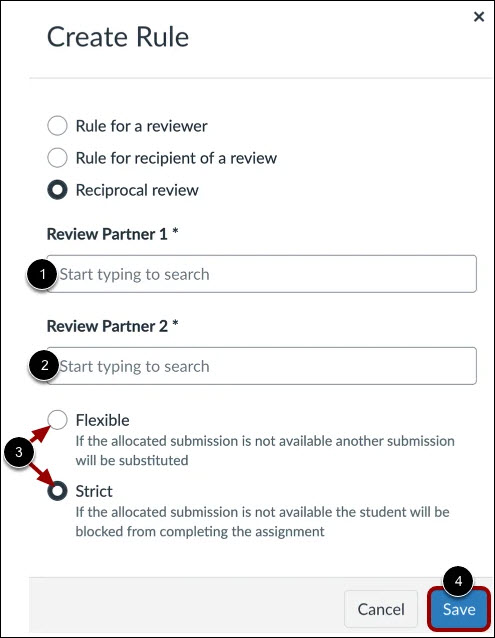
To create an allocation rule for a reciprocal review:
- Enter the name of Review Partner 1 [1] and Review Partner 2 [2].
Select either a Flexible or Strict rule type [3].
To save your selection, click the Save button [4]
View Allocation Rules
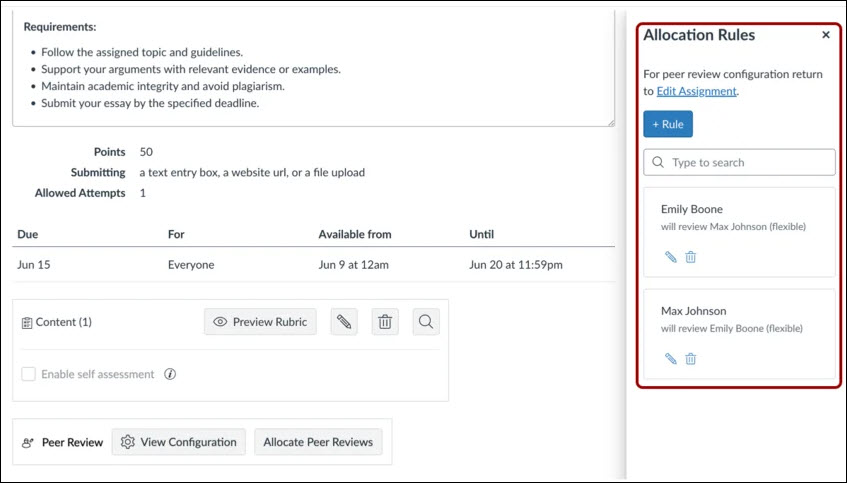
In the Allocation Rules tray, you can view, edit and delete your allocation rules.
Use Peer Review Assignments in a Course
View To Do List
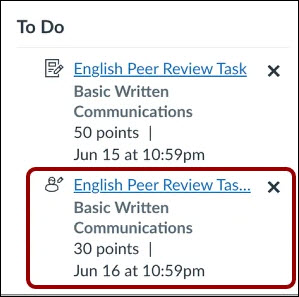
When a peer review has been assigned, students can view a notification in their Dashboard To Do sidebar or Activity Stream.
Note: Students assigned a peer review for an On Paper or No Submission assignment can see the peer review assignment, but they cannot submit feedback online.
Open Assignments
In Course Navigation, click the Assignments link.
View Peer Review Assignment

Click the peer review assignment.
Open Peer Review Assignment
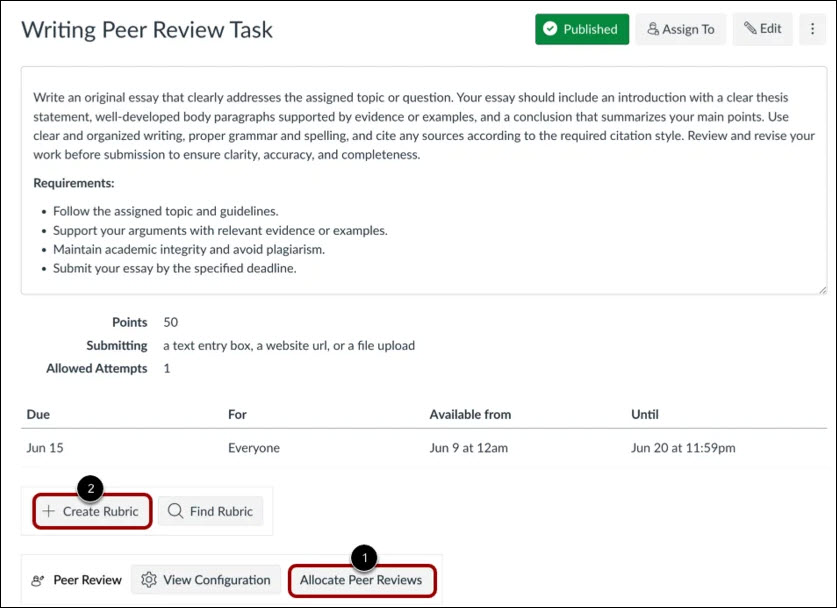
When you or a Teaching Assistant (TA) create a peer review assignment, you can assign peer reviews manually or you can have Canvas assign them automatically [1]. Group assignments can also be assigned peer reviews.
You can also assign a rubric to the assignment [2].
View Peer Review Details

In Assignment details, you can view the peer review configuration [1] or allocate peer reviews manually [2].
View Peer Review Comments
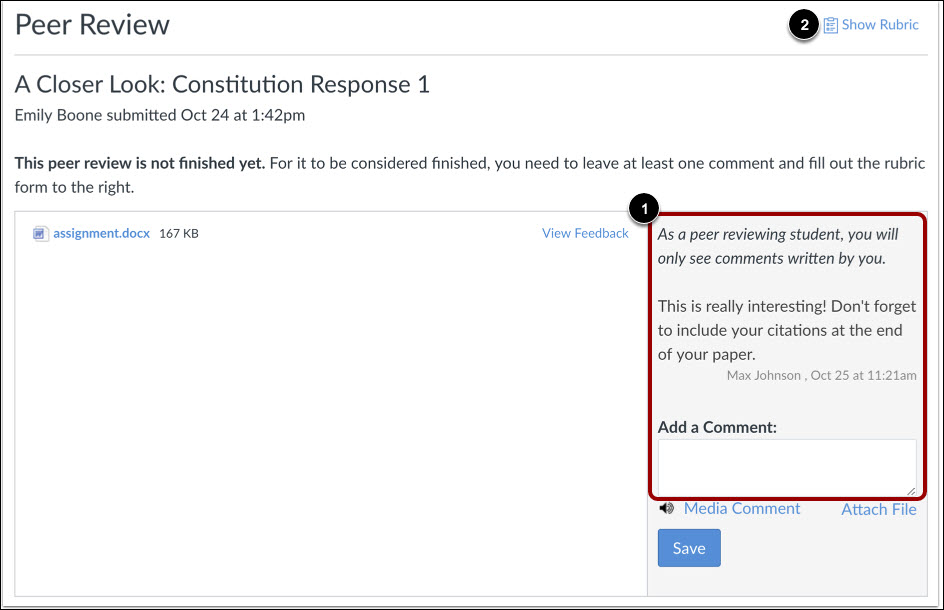
To complete a peer review, students must review the assignment and leave a comment or complete the rubric on the submission details page [1].
Students cannot view previously submitted comments by any other reviewers, including comments by teaching assistants (TAs) or other instructors.
View Peer Review Comments
Open SpeedGrader
Open SpeedGrader from either the Grades page or the Assignment page. See How do I get to SpeedGrader from an assignment, quiz, or graded discussion? for steps on accessing SpeedGrader from each location.
Select Student Assignment
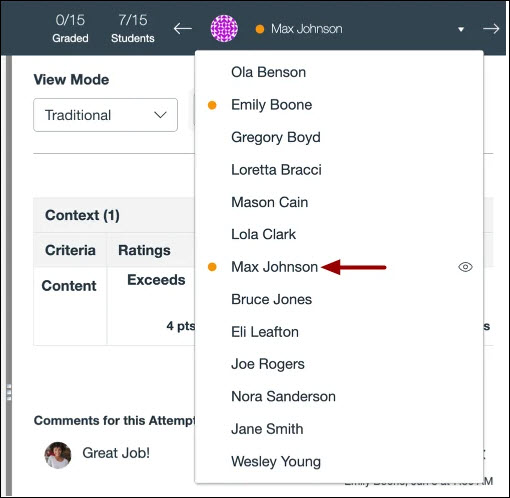
View Peer Review Comments

In the submission assignment you can view peer reviewer comments in the Comments for this Attempt section. Each comment includes the name of the reviewer and the date and time they made the comment.
View Rubric and Comments

If a rubric was added to the assignment, you can view the reviewer's comments and ratings [1]. To switch between reviews, select another name from the drop-down menu [2].
Grade Peer Review Assignment Submission
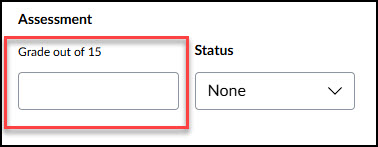
Enter the student's grade in the Assessment box.
Grade Student Peer Review
Regardless of whether you assign points per peer review or not, a separate peer review assignment Gradebook column is created in addition to the Gradebook column for the peer review assignment students submit. You can access SpeedGrader for the peer review assignment to view (and grade) the peer review comments from the reviewer to the student peer they reviewed.
Open Grades

In Course Navigation, click the Grades link.
Open SpeedGrader

Click the Options menu for the assignment’s Gradebook column and select SpeedGrader.
Note: The student peer review assignment has the same name as the peer review submission assignment followed by “Peer Review (1)”. The number in parentheses refers to the number of required reviews.
Select Student Peer Review
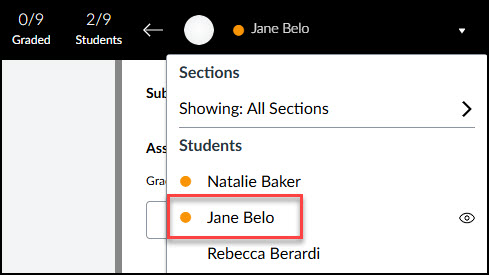
In SpeedGrader, click the name of the student whose peer review comments you want to grade.
View Peer Reviews in Comments

The student’s comments and the name of the student they reviewed appear in the Peer Review Comments section.
Grade Peer Review

Enter the student's grade in the Assessment textbox.
Peer Review Student Experience
Refer to How do I submit a peer review using Enhanced Peer Review with Assignment Enhancements as a student? for information and instructions to submit a Peer Review assignment.
RaiderCanvas Support
-
Phone
806-742-5944 -
Email
online@ttu.edu