
Training & Resources
Finance Fund Maintenance
Table of Contents
Finance Fund Maintenance
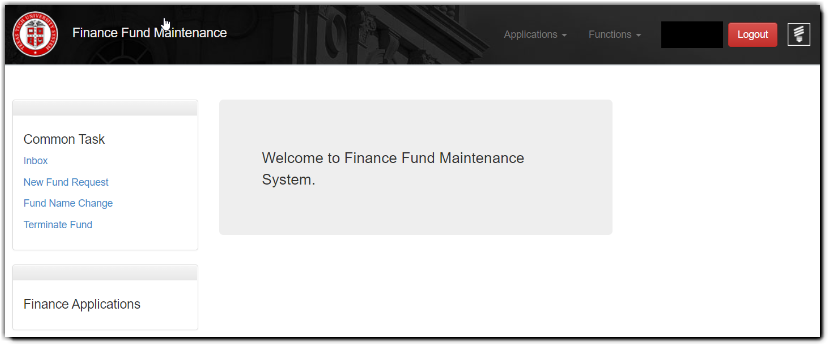
The enhanced Finance Fund Maintenance system allows departments to establish new funds in an expedited and efficient manner with the convenience of predefined approval routing and history for audit purposes.
The system is located: https://fund.app.texastech.edu
Questions regarding the Finance Fund system may be directed to Accounting Services - Financial Systems Management (FSM) at accountingservices@ttu.edu.
Fund Maintenance Home Screen
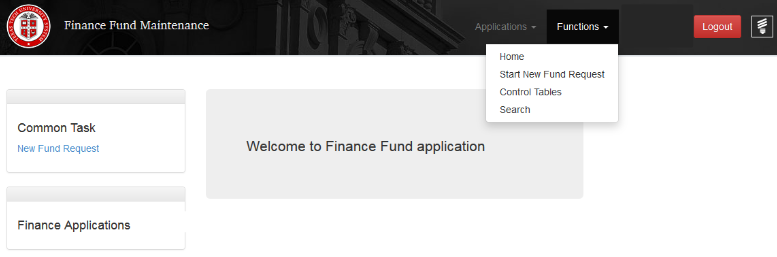
This screen offers users easy access through links to various features of the system. From the home screen, a user may begin new fund requests, view their inbox or search for requests by type and status. The ‘Applications’ dropdown allows users to toggle between different TTU/TTUS Financial Systems. ‘Functions’ allows users to ‘Start a New Fund Request’, ‘Search’ on previously entered requests, or return to the ‘Home’ screen.
The icon in the top right displays all current session notifications.
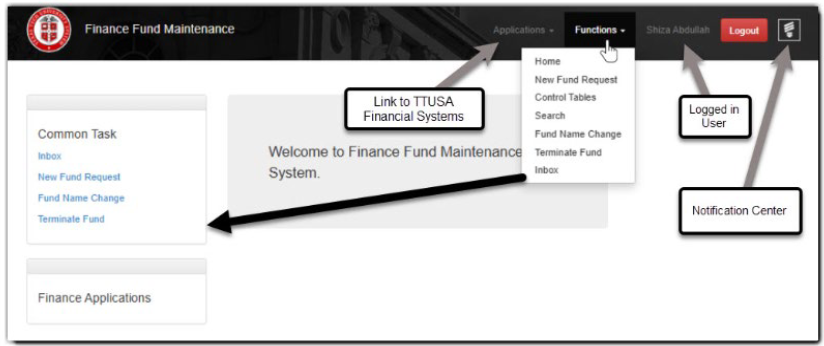
Create a New Fund Request
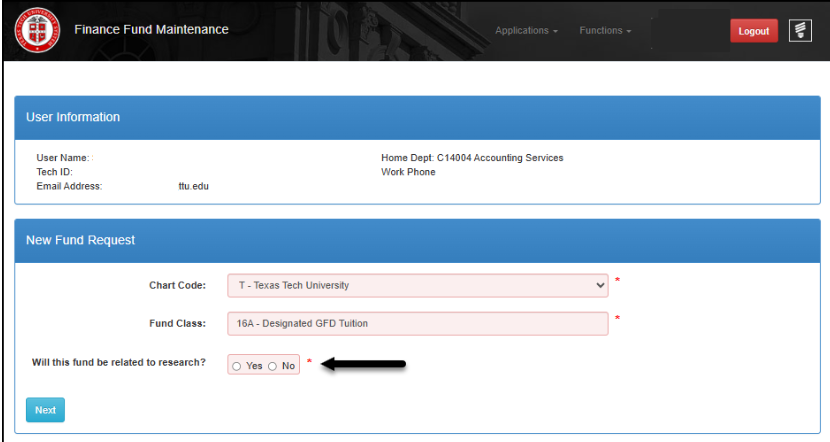
To create a new fund request, choose ‘New Fund Request’ from the home screen or ‘Start New Fund Request’ from the ‘Functions’ dropdown menu.

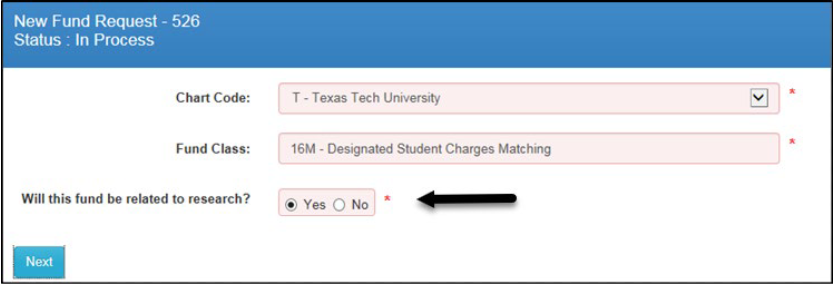
Select the applicable ‘Chart Code’ and ‘Fund Class’ from the dropdown list. Based on fund class selection, additional forms may be added to the request in order to gather information. If needed, fund class descriptions may be found at the end of this document.
If the requested new fund is related to research, select ‘Yes’ otherwise, select ‘No.’ Then click ‘Next’ to proceed to the Main Fund Information page. Some fund classes will not ask this question, in that case select ‘Next’.
Any time prior to clicking ‘Save and Submit,’ a user may select ‘Change Fund Class’ and return to the first screen.

User may then start over by selecting the applicable ‘Chart Code’ and ‘Fund Class’ from the dropdown list. Please answer the research question prior to selecting ‘Next’.
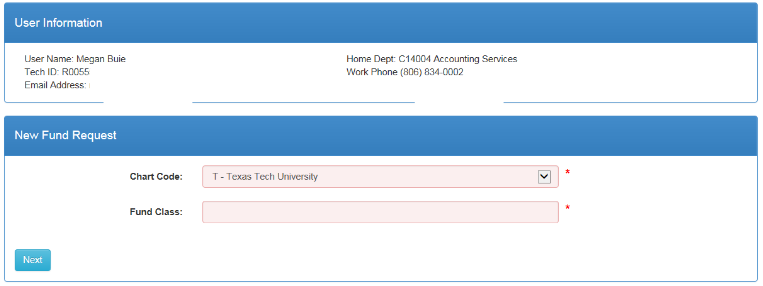
**Note: All previously entered data fields will be cleared once a ‘Change Fund Class’
has been initiated.
**Note: New fund requests for 16K fund class are restricted to Operations Division
Business Services Office.
Forms
The Finance Fund Maintenance system is designed to increase user efficiency by creating forms that are programmed to populate only under predefined conditions, thus reducing data entry. Red fields with asterisk signify a required field.
Main Fund Information Form
The Main Fund Information form populates for all fund requests. Requirements in this section are based on the fund class chosen and selection on the research question. Type Fund Manager’s name or R# to begin populating the dropdown. Click on the appropriate name.
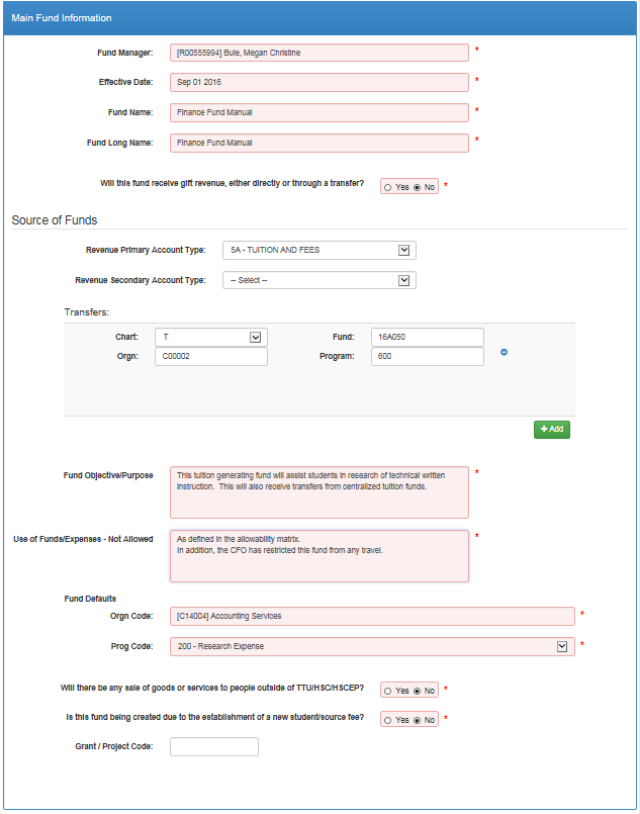
**Note: If the selection contains “(Financial Manager)”, the employee has been designated in Banner as a Financial Manager. If they do not have the designation, the Finance Fund Maintenance system automatically updates Financial Manager tables in Banner and this will be populated going forward.
‘Effective date’ auto-populates as Sep 01 current fiscal year. This is an editable field.
‘Fund Name’ is limited to 35 alpha-numeric characters. Special characters have been eliminated to conform to Banner Data Standards. For most fund classes and users, ‘Fund Name’ and ‘Fund Long Name’ are the same. Accounting Services Research, and projects originating from Facilities, Planning and Contracting (FP&C) or Operations Division, are the exceptions.
‘Will this fund receive gift revenue, either directly or through a transfer’ is only answered ‘Yes’ when current revenue or transfer-orginating fund has been processed through Institutional Advancement. All others, select ‘No’.
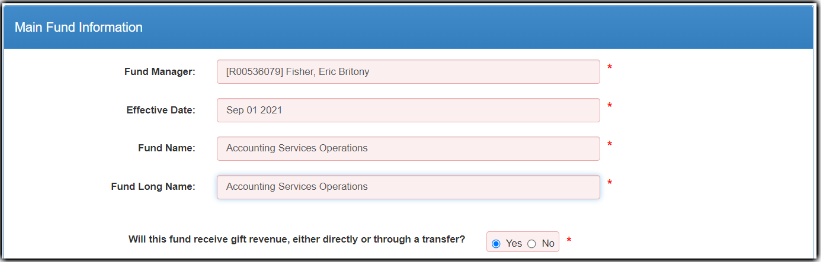
Source of Funds is a required section, either in a revenue account type or a transfer FOP. Click the green ‘+ Add’ button to add a transfer FOP, if needed.
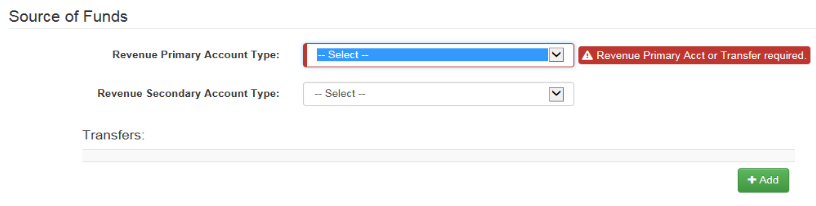
The transfer FOP must be a valid FOP. Please run Cognos report FI106 for FOP verification.
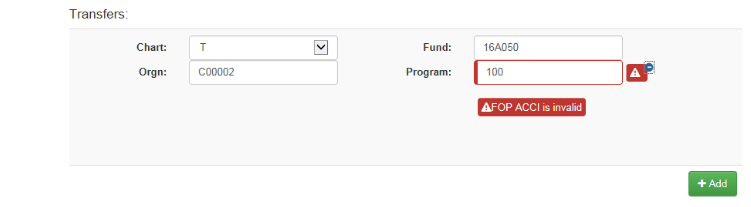
If any of the FOP elements (Fund, Orgn, Program) are not valid, an error code populates in session notifications.

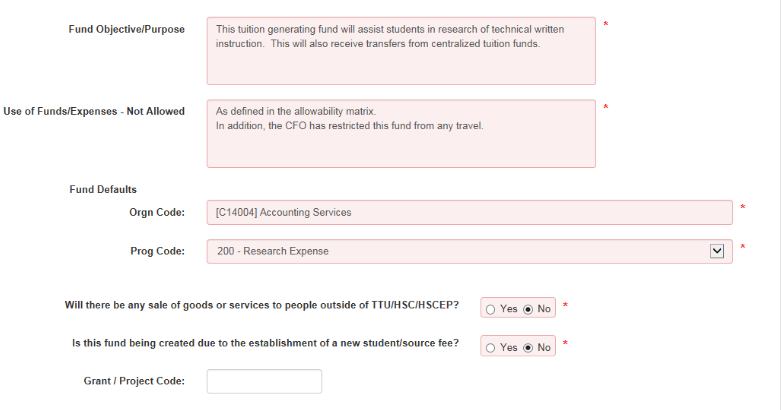
Provide a detailed description in the Fund Objective/Purpose and Use of Funds/Expenses – Not Allowed fields. Enter Orgn Code and Prog Code in Fund Defaults section.
**Note: To create a new organization, use the ‘FOP Orgn Maintenance’ selection within the New FOP System, selecting ‘Chart’ and ‘Create New Organization’. Once the New FOP request is routing, users may return to the Finance Fund Maintenance system, type the name of the requested Orgn in their new fund request and ‘Save.’ ‘Save and Submit’ should only be used once the new Orgn request has routed through all approvals and populates in Banner. Please see the New FOP training manual for guidance.
Will there be any sale of goods or services to people outside ot TTU/HSC/HSCEP? must be answered ‘Yes’ if sale of goods/services by any TTU entity, regardless of fund classification.
Is this fund being created due to the establishment of a new student/source fee? Answer ‘Yes’ if an approved fee is included in the current Global Fee Document. For more guidance, please refer to the current Global Fee Document/Executive Summary (2024-2026).
Grant/Project Code should only be used for Accounting Services Research and projects originating from Facilities, Planning and Contracting (FP&C) or Operations Division.
If documentation will be included in a new fund request, users must ‘Save’ the request prior to uploading any attachments. Allowable attachment types are .pdf, gif, jpeg, tif, bmp, Microsoft documents and emails. Users are unable to remove an attachment once the request has been submitted. To have an attachment removed, please contact accountingservices@ttu.edu.
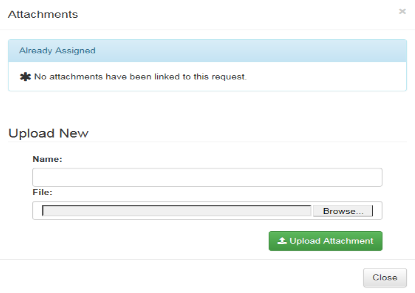
*Note: Attachments may not exceed 10MB and may not contain any confidential details or Personal Health Information (PHI) governed by HIPPA regulations.
If no other forms have generated, users now have the option to either ‘Save’ or ‘Save and Submit’. ‘Save’ allows the request to be finalized later. ‘Save and Submit’ routes the request through the appropriate approvals. Please note that unsubmitted requests will be deleted after 14 days of inactivity.

Research Form
If ‘Yes’ to the Research question at the initial new fund request entry is paired with fund number within a restricted fund class (2#), the Research form appears below the Main Form.
The Research form provides a brief definition of restricted research funds (RRE), and links to the Texas Higher Education Coordinating Board (THECB) site in order to assist Departments in determining if the fund qualifies as RRE. Please select the applicable check box. During approval routing, this information is reviewed for compliance with the THECB Standards and Accounting Methods for Reporting Restricted Research Expenditures.

Scholarship Form
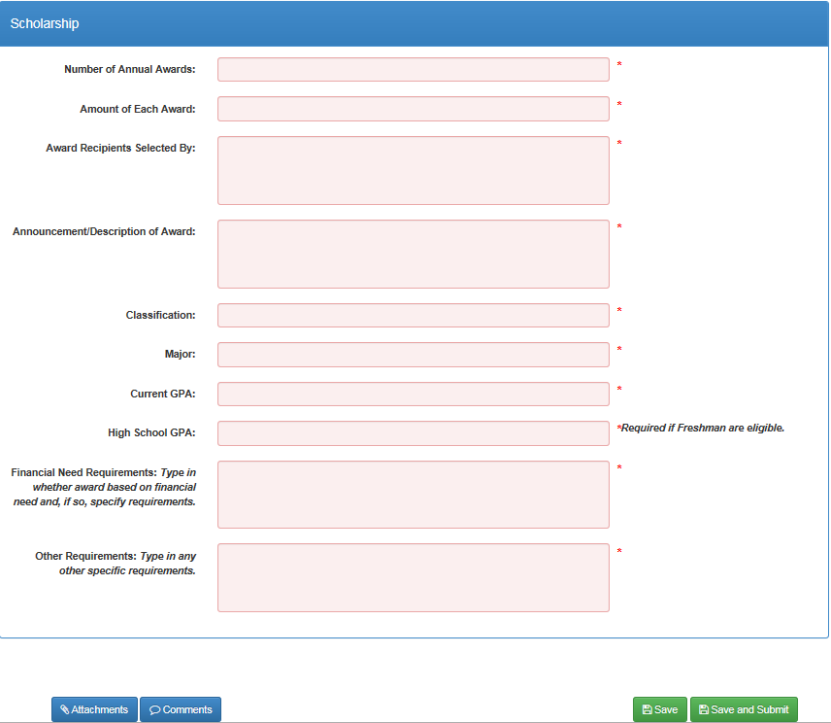
The Scholarship form opens for fund types 15 and 25. All fields are required and should match what will be used in Scholarship Universe.
Service Form
The Service form opens for fund type 17. All fields are required.
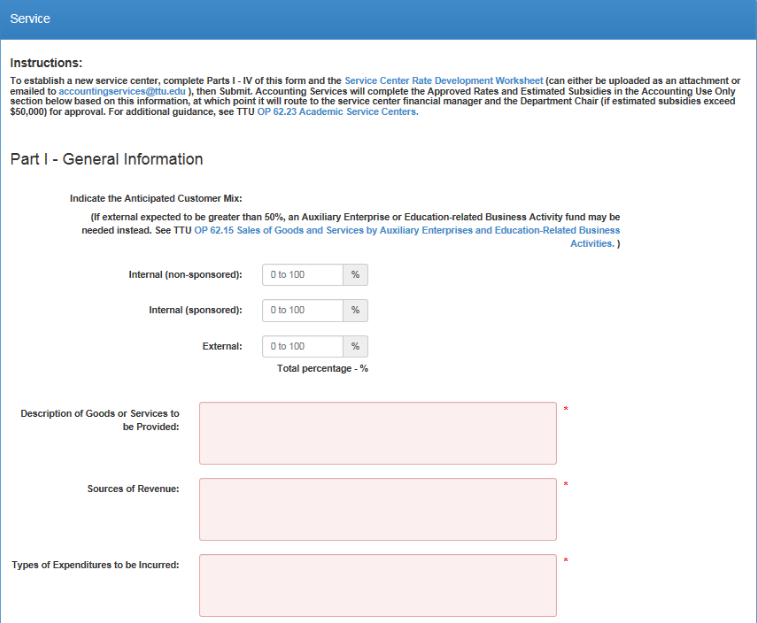
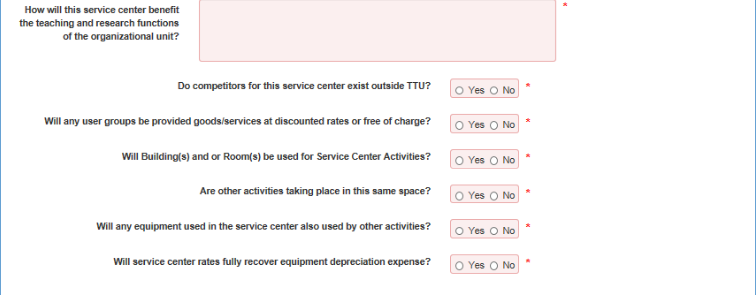
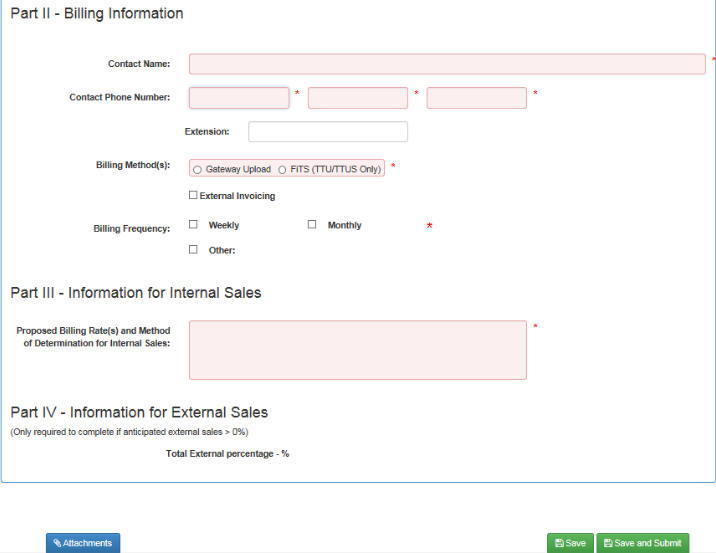
For Service (17) requests, Accounting Services will contact the employee listed in Part II – Billing Information for formalized rate development if applicable.
Endowment Form
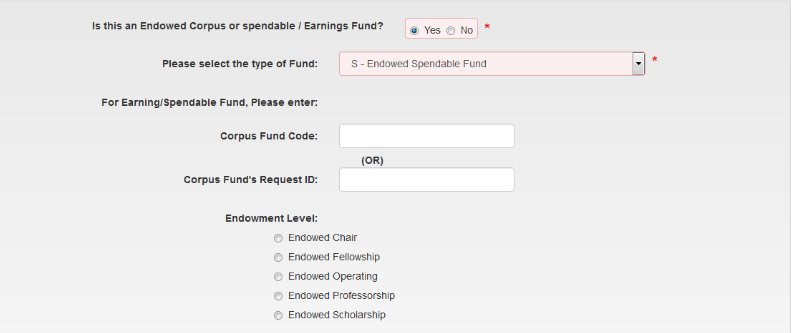
Any fund request for a new endowment corpus, spendable, or department spendable triggers
an endowment section to open under the Main Fund Information Form. If ‘No’ is toggled
for the ‘Endowed Corpus or spendable/Earnings Fund’ statement, the incorrect fund
class has been selected. All requests must include type of fund and endowment level,
as indicated below. If unsure of selection,
please refer to the glossary at the end of this manual for definitions.
**Note: Effective May 2017, if Institutional Advancement is included on endowment agreement execution, they will be responsible for submitting any new fund requests for corpus and main spendable funds. If a department spendable fund is needed, new fund request responsibility falls with the Department.
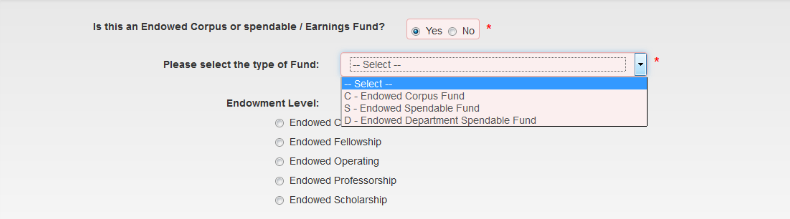
When creating an endowed spendable fund, the ‘Corpus Fund Code’ OR ‘Corpus Fund’s Request ID’ (located on the submitted corpus new fund request) must be entered.
Create Fund Name Change Request
The Fund Name Change option enables the FFM user to change the name of a fund and assign an effective date. This screen has the standard user information section at the top as is present when creating a New Fund Request. The user information corresponds to the user logged in to the FFM System.
The NEW fund name can not contain any special characters.
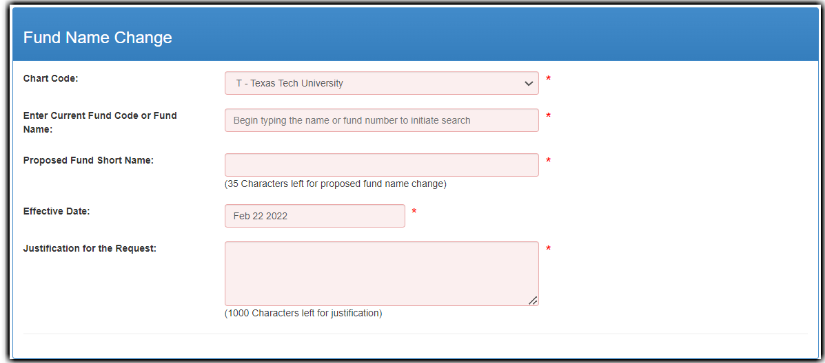
The Fund Name Change request will route to the fund financial manager and will route to Accounting Services for final processing to Banner.
Terminate Fund Request
The Terminate Fund Request will enable the FFM user to terminate a fund. This request has the standard user information section at the top of the screen as is present for the New Fund and Fund Name Change requests. The user information corresponds with the logged in user.
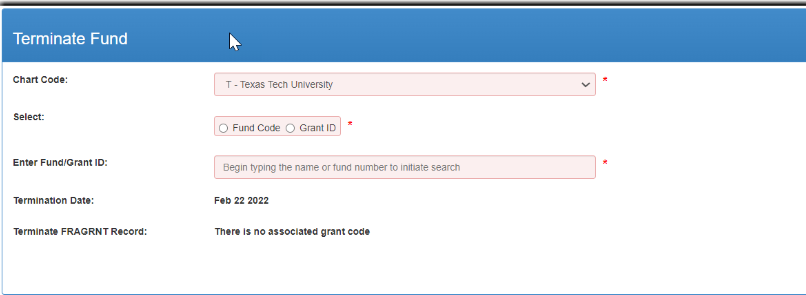
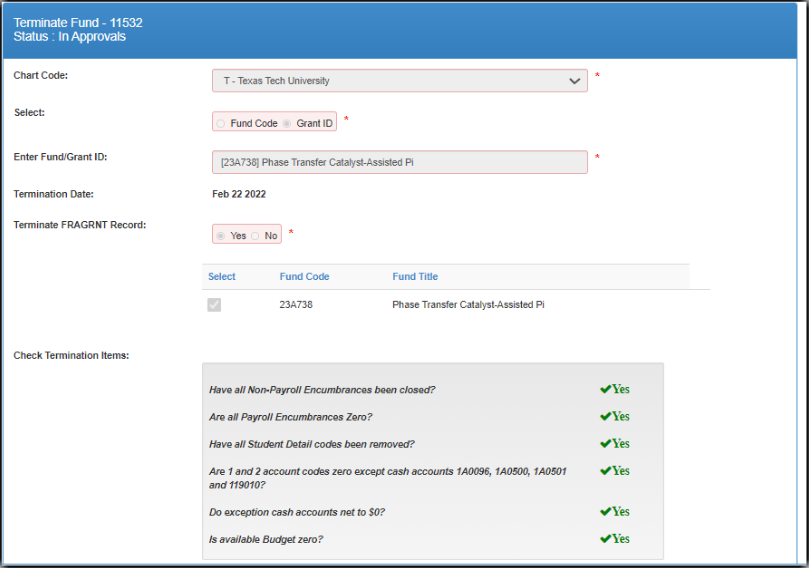
Select Fund Code when only the fund code needs to be terminated. FTMFUND record will be terminated. Select Grant ID when the grant record needs to be terminated (this will not terminate the fund code). FRAGRNT record will be marked as Inactive.
Approvals
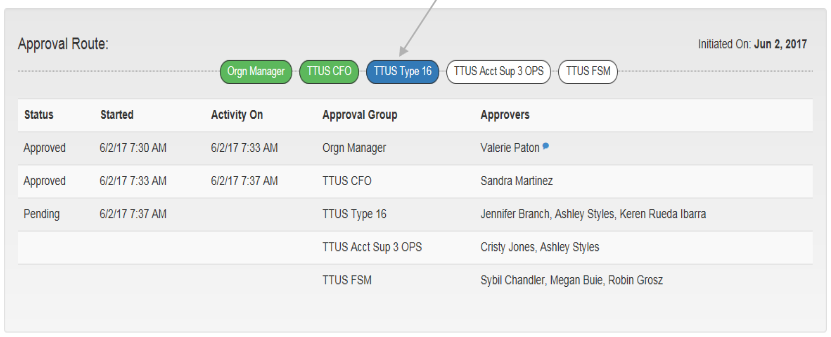
Orgn financial manager is the first to approve a new fund request once it has been submitted. Number of /level of approvers varies by request type -- scholarship, research, endowment, etc. Approvals are sequential and cannot be skipped; however, an approver may return the request back to a previous approver.
In the example below, the request is awaiting TTUS Type 16 (Blue color fill). Either of the approvers listed may select the TTUS CFO button to return the request back to the CFO’s queue. Other approval routing color designations: Green = previously approved; White = upcoming approval level; Red = approver rejected; Lime Green = notification only, no approval required.
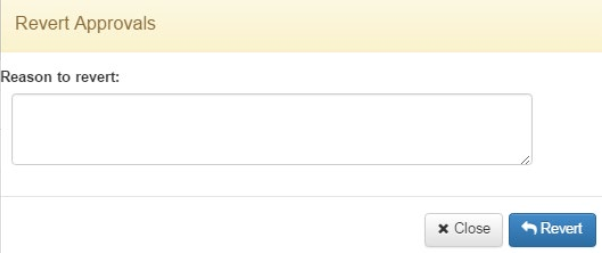
If a request is being reverted to a previous approver rather than being rejected back to the originator, current approver will be asked to provide a reason. After providing comment, click ‘Revert’ icon. These comments may be seen when the user clicks on the blue ‘Comments’ button at the bottom of the screen.
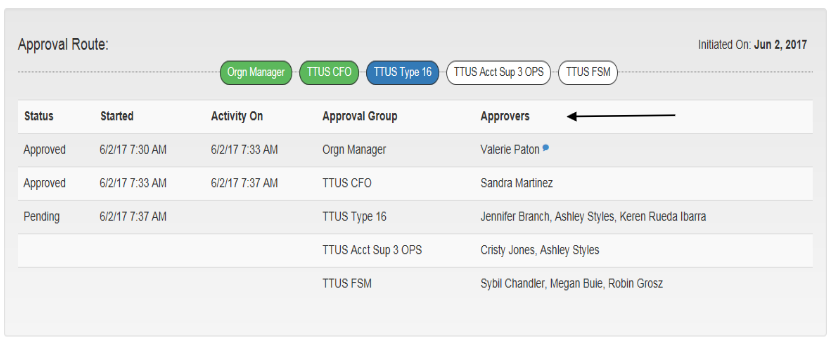
The Approver Notes box may be used as needed when approving a request. However, a rejected request requires comment. When Approver Notes box is populated, a blue bubble appears next to the approver who made the note.
Attachments and Comments
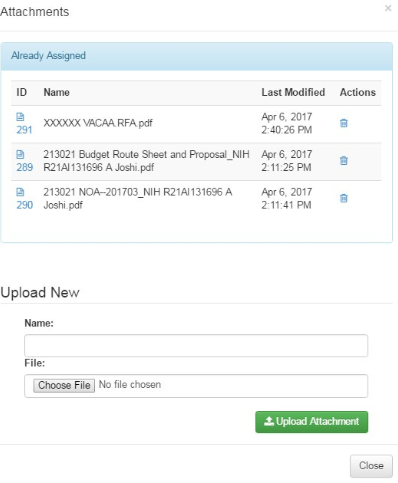
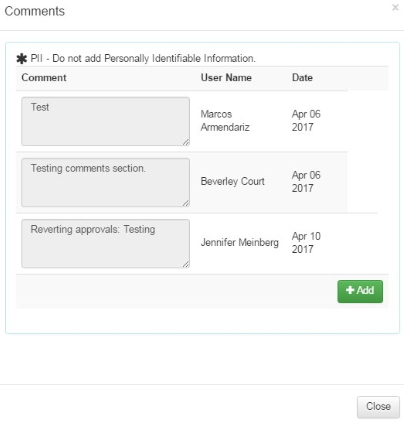
All attachments and comments will be housed in two blue buttons at the bottom of the approval screen and may be viewed at any point during the request/review process and in the document history as well.
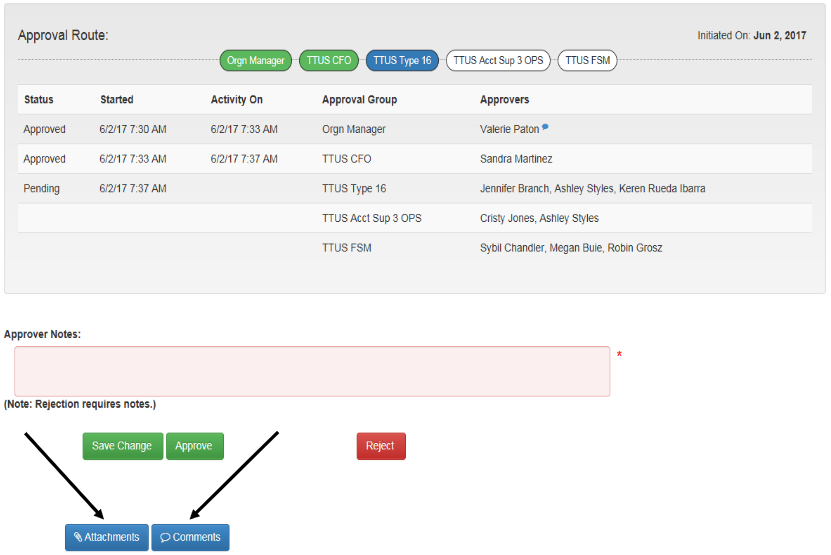
Approvers may upload attachments and make comments at any time during approval routing. To view or upload an attachment, click on the ‘Attachments’ icon. A previously added document may be viewed by clicking on the document icon under the “ID” column. A document may be added to the new fund request in the Upload New section. Choose the file and click ‘Upload Attachment’.
To view or add a comment, select the ‘Comments’ icon. To add a new comment, select the ‘+ Add’ button. Once comment has been added, click ‘+’ to save and ‘-' to remove. Then click ‘Close’.
Email Notifications
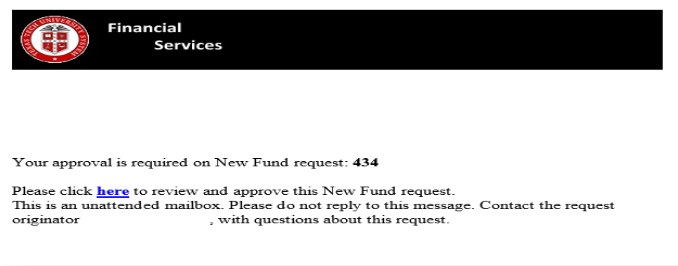
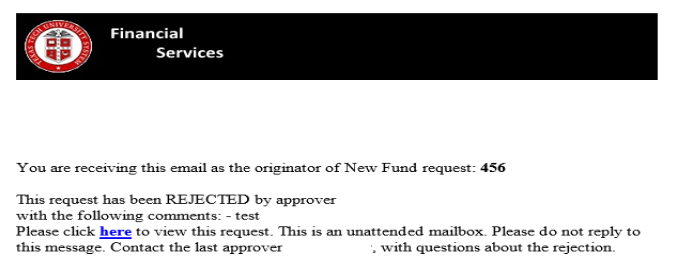
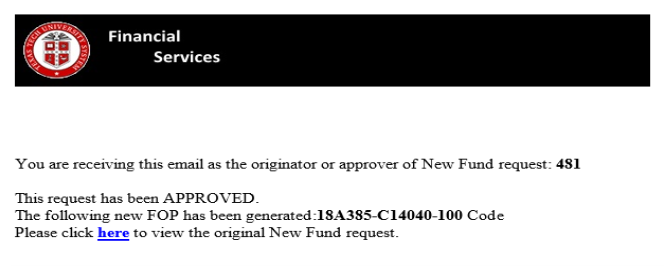
Sample email notifications are shown below. To view and/or approve the request, click on the hyperlink to directly enter the Finance Fund application.
Search
Users may check the status of a new fund request by accessing the ‘Functions’ dropdown and selecting ‘Search’.
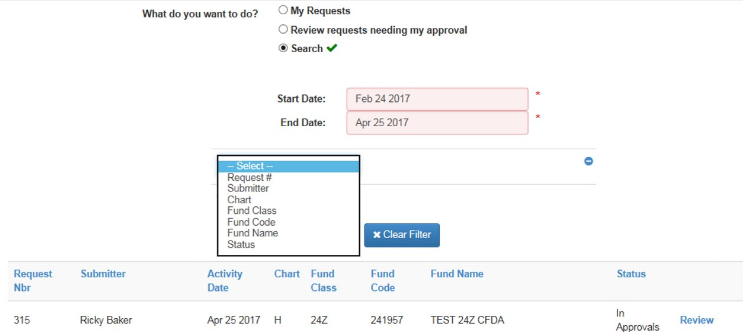
Search options:
• My Requests – requests submitted by logged in user
• Review requests needing my approval – requests pending logged in user’s approval
• Search – filter and search features

In the Search option, enter date range, click ‘Another Filter’ and select desired filter option.
Enter filter data and click ‘Apply Filter’.
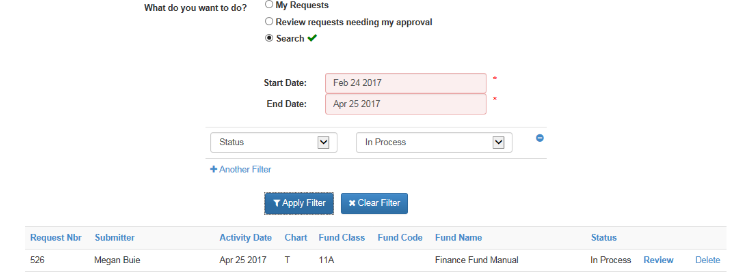
The system displays requests matching the specified parameters. Click ‘Review’ to view the request. ‘Delete’ cancels a request that has not been approved.
Glossary
- Alpha-numeric: consisting of or using both letters and numerals.
- Approver: financial manager or a designee as assigned in TeamApp.
- Chart of Accounts: a one-character, alpha field that uniquely identifies a particular chart.
- Department Spendable: created from the main endowed spendable fund. Funds may only be transferred in from the main endowed spendable. Examples of department spendables include operating, fellowships, chair, and scholarships.
- Effective Date: the date when action takes place in Banner.
- Endowed Corpus: gift funds from a donor for which the income may be expended, but the principal sum remains in perpetuity. Only a portion of the earnings are distributed or spent annually for the purpose specified by the donor so that the principal amount continues to grow.
- Endowed Spendable: created from one main corpus fund; earn their own interest, as well as 100% of interest from the corpus.
- Endowment: a donation of money or property to a nonprofit organization for the ongoing support of that organization. Usually the endowment is structured so that the principal amount is kept intact while the investment income is available for use, or part of the principal is released each year, which allows for the donation to have an impact over a longer period than if it were spent all at once. An endowment may come with stipulations regarding its usage.
- Financial Manager: an assigned employee with the fiduciary responsibility for a fund or organization level. This person is assigned in Banner screens FTMFUND – Fund Financial Manager or FTMORGN – Orgn Financial Manager.
- Financial Systems Management: an area within Accounting Services responsible for access management, TTU/TTUS finance systems creation and maintenance, customer service, and technical support for the finance systems.
- FOP (Combination): a combination of Fund, Organization, and Program. A valid FOP has an FTMACCI record to allow for budgeting and use.
- FOP Orgn Maintenance: selection in the New FOP system for creating a new FOP combination, changing an existing FOP combination, creating a new organization, or changing the name of an organization.
- FTMACCI Index: the Banner table that allows FOP combinations to be created to validate usage.
- Functional Program Codes: segment of the Banner FOAP accounting string designed to identify the function of the activity according to standard definitions developed by the National Association of College and University Business Officers (NACUBO) for higher education operating activity. The TTU/TTUS program codes are: 100 Instruction, 200 Research, 300 Public Service Support, 400 Academic Support, 500 Student Services, 600 Institutional Support, 700 Operations and Maintenance, 800 Scholarships and Fellowships, 900 Unexpended Plant, A10 Auxiliaries, E10 Endowment Funds, G10 Agency Operations, and S10 Service Departments.
- Fund: a one- to six-character code that identifies a self-balancing set of accounts, defines where the money is coming from and ownership. Fund codes may be established in a hierarchy of up to five levels for roll-up and reporting purposes. Examples include E&G 11–14, Current Unrestricted Funds 15–19, Sponsored Projects 21–23, and Endowments 87.
- Fund Financial Manager: an assigned employee with the fiduciary responsibility for a fund. This person is assigned in Banner screen FTMFUND – Fund Financial Manager.
- Inbox: the location in the New FOP system for reviewing submitted requests and/or requests for approval.
- Organization: a one- to six-character code that identifies a unit of budgetary responsibility and/or departments within an institution. It is normally used to define who spends the money. Organization codes may be established in a hierarchy of up to eight levels for roll-up and reporting purposes.
- Orgn Financial Manager: an assigned employee with the fiduciary responsibility for an organization. This person is assigned in Banner screen FTMORGN – Organization Financial Manager.
- Predecessor Organization: a segment of the organization code roll-up or hierarchy. This defines the department or level for who will spend the money. Predecessors are used for reporting purposes.
- Program: a three-character code that identifies a function and enables the institution to establish a method of classifying transactions across organizations and accounts. Most institutions follow programs defined by NACUBO. Program codes may be established in a hierarchy of up to five levels for roll-up and reporting purposes.
- Quasi Endowment: a fund functioning as an endowment. These funds are earmarked by an organization's governing board, rather than restricted by a donor or outside agency, to be invested to provide income for a long but unspecified period. The governing board may decide at any time to expend the principal.
- Research Related Expenses: an expenditure of funds for which the use of the funds qualifies as research and development.
- Valid FOP: a FOP combination which is found as valid and active in Banner table FTMACCI.
Fund Class Descriptions
Banner Program Codes
Accounting Services
-
Address
TTU Plaza Building, 1901 University, Suite 308, Lubbock, TX 79411 -
Phone
806.742.2985 | Fax: 806.742.8076 -
Email
accountingservices@ttu.edu