
RaiderCanvas Support
Canvas Moderated Grading
When creating an assignment, you can choose to set up an assignment with moderated grading. Moderated grading allows multiple reviewers to grade a student's work and create draft or provisional grades for an assignment. For instance, you may want to allow two Teaching Assistants to grade all assignments, and you can review their assessments before determining the final grade. Moderated grading is also useful for creating a sampling of students for assignment review to ensure grading is consistent and allows secondary grade reviews.
In moderated grading, anyone with assignment creation permissions can specify an assignment submission to be reviewed by one or multiple graders, edit the assignment if necessary, review the grades, and select which grade should be set as the final grade for each student. For each moderated submission, the user set as the moderator is the only user who can specify the final grade for each assignment. Any grader can be specified as the grader who can determine the final grade as long as they have the corresponding permission, but the moderator does not have to personally grade the assignment. Once the assignment is created, only the moderator and admins will be able to change the assigned final grader.
Moderated Grading
For moderated assignments, when an assignment reaches its maximum number of graders, the grading notification will be removed from the Dashboard for graders who have not yet assessed the assignment. However, submissions can still be accessed through the Gradebook, if needed. SpeedGrader displays submissions in a read-only mode to hide all student names and submission details.
Anonymous Grading
Moderated grading can be enabled with anonymous grading assignment options. If enabled in an assignment, anonymous grading is enabled by default in SpeedGrader, although anonymous grading in SpeedGrader can be enabled separately if not enabled for an assignment.
Notes:
- When you add a rubric to a moderated assignment, any associated outcome results display in the Learning Mastery Gradebook only after final grades are posted.
- Once an assignment has been set as a moderated assignment, the moderated assignment option cannot be disabled once submissions have been received, but any edits made to the moderated settings are tracked. To view edits to moderated settings as well as other grading actions, audit the assessment in SpeedGrader.
- Once an assignment has been set as a moderated assignment, course roles must have the Grades - select final grade for moderation permission to publish or edit moderated assignments.
- Grades cannot be edited in the Gradebook before grades are released as final grades to the Gradebook by the moderator. However, after grades are posted, grades can be edited in the Gradebook by any grader.
- Moderated assignments are automatically muted or hidden in the Gradebook until grades are posted.
- Moderated assignments are not supported with Peer Review assignments.
Enable Moderated Grading for the Course
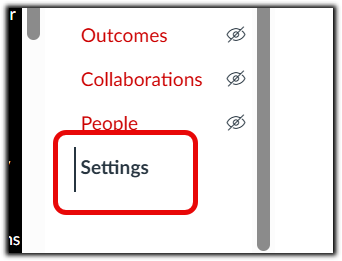
In Course Navigation, choose the Settings option at the bottom of the red left-hand menu:
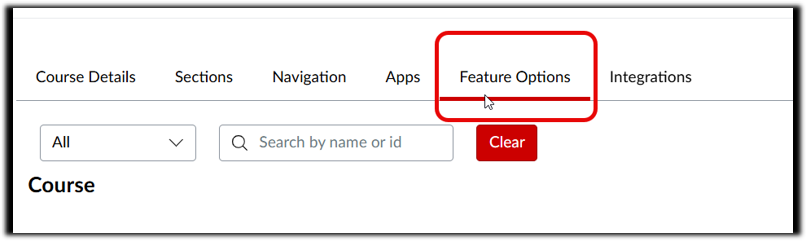
From the top bar, choose the Feature Options tab:
Scroll down to find Moderated Grading and click the red X to change it to a green checkmark:
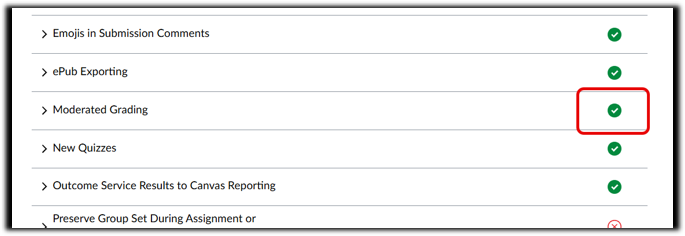
The moderated grading option will now be available in assignment settings.
Create/Edit an Assignment
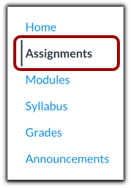
Open Assignments
Create or Edit Assignments
In Course Navigation, click the Assignments link. From here, either click the + Assignment button in the top right to create a new assignment, or click the three dots to the right of an existing assignment and choose Edit.
Note: If editing an existing assignment it must not have submissions already present.
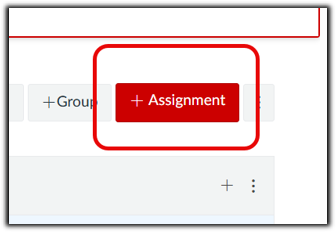
Or:
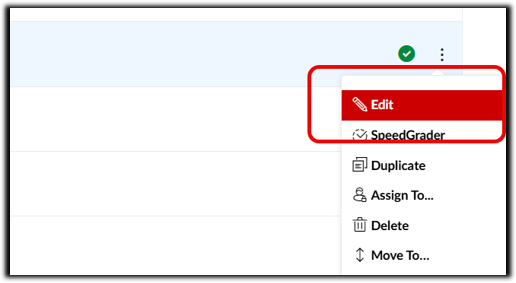
Set up Moderated Grading
From the assignment settings, scroll down and check the box for Moderated Grading:
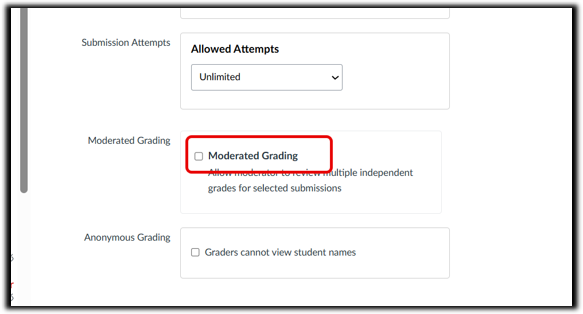
Select Number of Graders
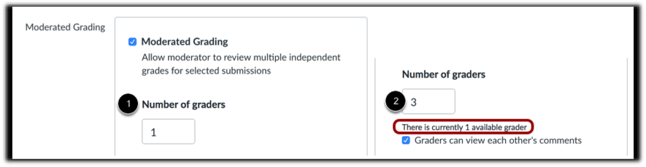
In the Number of Graders text box [1], enter the number of graders who should grade the assignment submission. If the number of graders is changed to a higher number, the page displays a message that there are not enough course users with grading permissions to fulfill the desired number of graders [2].
Notes:
- Canvas allows for a maximum of 10 graders. If you enter a number larger than 10, the page displays a message that only 10 graders are available in the course.
- A moderator does not have to specify which specific graders in the course can grade submissions. If a course includes a surplus of graders higher than the desired number of graders, any grader can assess an assignment submission until the specified number of grades has been achieved. When an assignment has reached the specified number of graders, remaining graders will not be able to access the assignment anywhere in Canvas.
- The moderator is never included in the number of available graders since the moderator does not traditionally grade individual submissions. However, the moderator may choose to provide a custom grade instead of selecting a grade from one of the graders.
- When you grade an assignment submission, other graders are locked out from grading it.
Select Grader Visibility

If you want to allow graders to view each other's comments, select the Graders can view each other's comments checkbox. This option is selected by default.
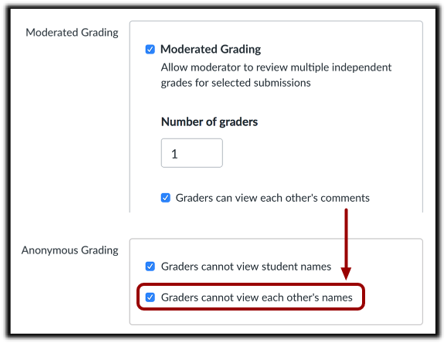
Note: If Graders cannot view student names is selected, that will have to be unselected for the information to show in Grades.
If anonymous grading is also enabled for your course, selecting this option displays the Graders cannot view each other's names checkbox in the anonymous grading assignment options. This option allows graders to view comments from other graders but not view the name associated with each comment.
Select Final Grader
The number of graders that is selected must include the final grader. Only one person can be the final grader.
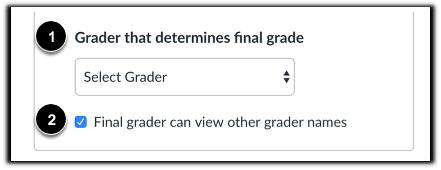
In the Select Grader menu [1], select the name of the moderator/final grader, or the grader who determines the final grade. The Select Grader menu displays the names of course graders who have been given permission to determine the final grade. This permission is assigned to one or more roles at the account level. If you have permission, you can select your own name as the final grader.
To allow the final grader to view other graders' names, click the Final grader can view other grader names checkbox [2]. This option is selected by default.
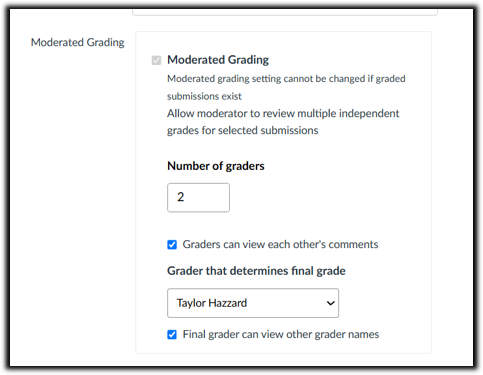
Save Assignment

If you want to notify users about any future assignment changes, click the Notify users that this content has changed checkbox [1]. Click the Save button [2].
Note: If your assignment has not yet been published, the assignment will show the Save & Publish button. The Save button will create a draft of your assignment so you can publish it later.
Grade Assignment with Moderated Grading
Users with a grading role in the course (Teacher, TA, Grader) will be able to navigate to the Speedgrader and grade submissions as is normally done:
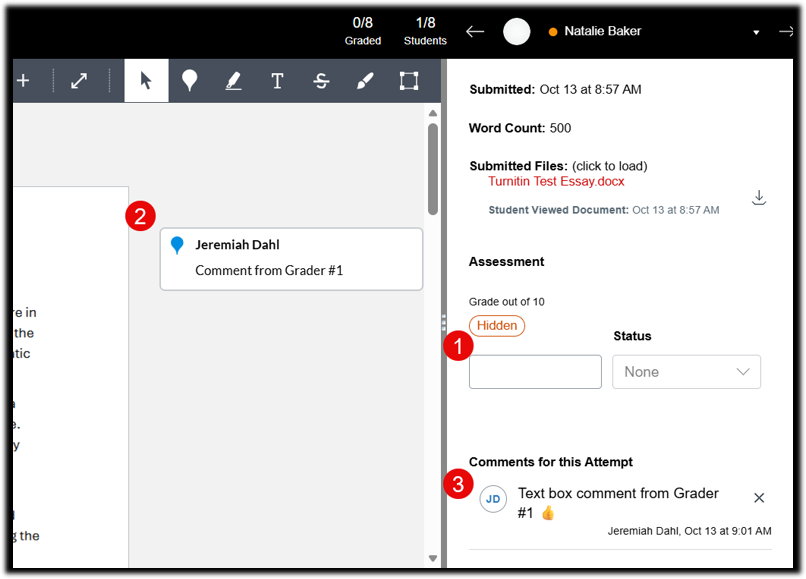
From the Speedgrader they can (1) enter a numerical score, (2) enter comments in the Speedgrader window, and (3) enter comments in the sidebar.
When the next grader opens the Speedgrader, the previous grader’s comments (2 & 3) will already be visible, however, the numerical score assigned will not be:
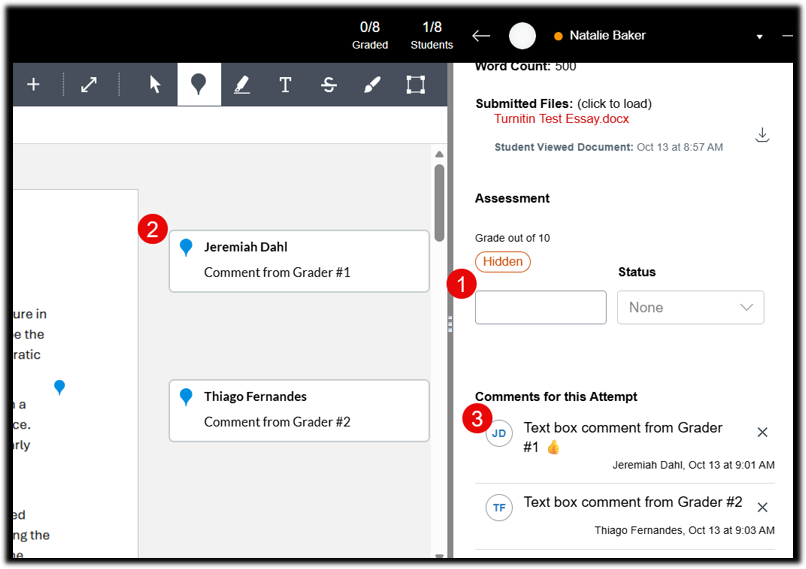
The second (or third, etc) grader can now view the prior comments, add their own, and assign a numerical grade of their choosing. Once a grade and comments have been entered, the role of the graders is now complete. The final grader may now use the Moderate button on the assignment to choose the grade which will go in the gradebook.
Moderating an Assignment with Moderating Grading (Acting as Final Grader)
Users who have been designated as the ‘Final grader’ will have a Moderate button on the relevant assignment (Note: This button is also visible to any user with a Teacher role):
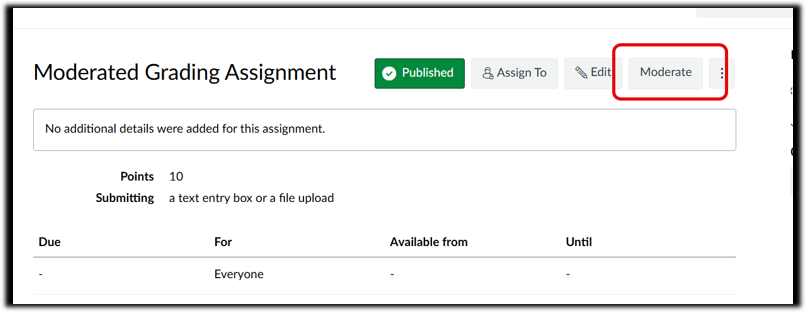
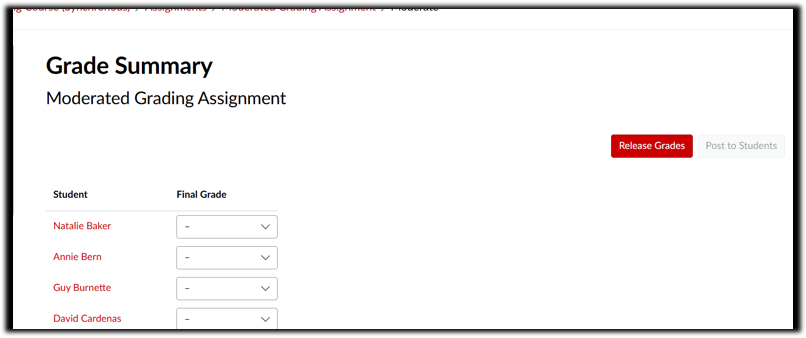
Selecting this Moderate button will take the user to the Grade Summary page. Before any graders have done their part, this page will simply list the student names along with an empty ‘Final Grade’ column:
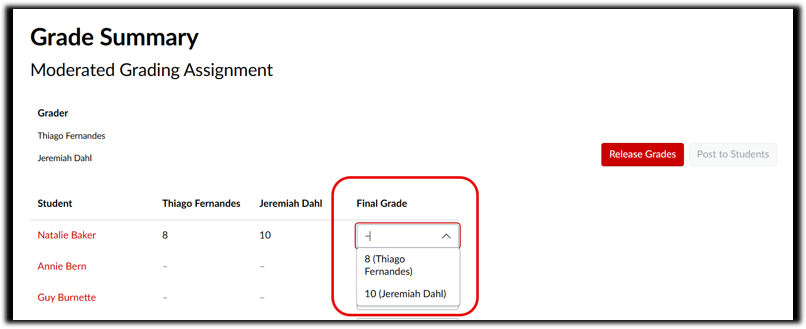
As graders enter grades, these will appear on the Grade Summary page:
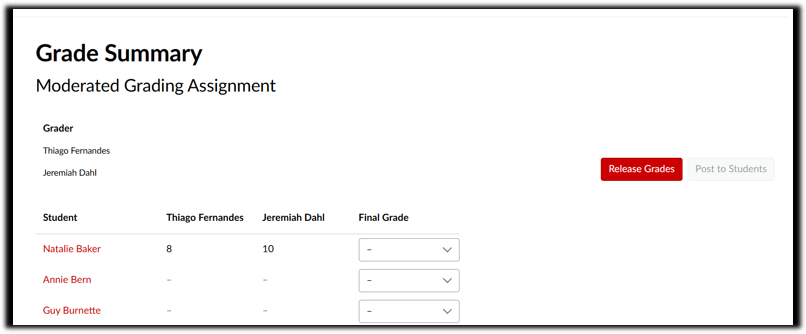
From the Final Grade column, the final grader can choose one of the options entered by the graders. Alternatively, the final grader can also choose to enter a custom grade in the Final Grade box:
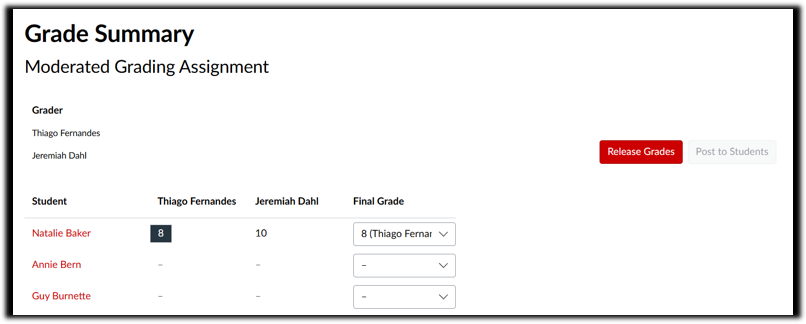
Once a selection has been made, the score will appear in the Final Grade column and [if applicable] a black square will appear around the score of the grader whose grade was chosen:
Release Grade to Gradebook
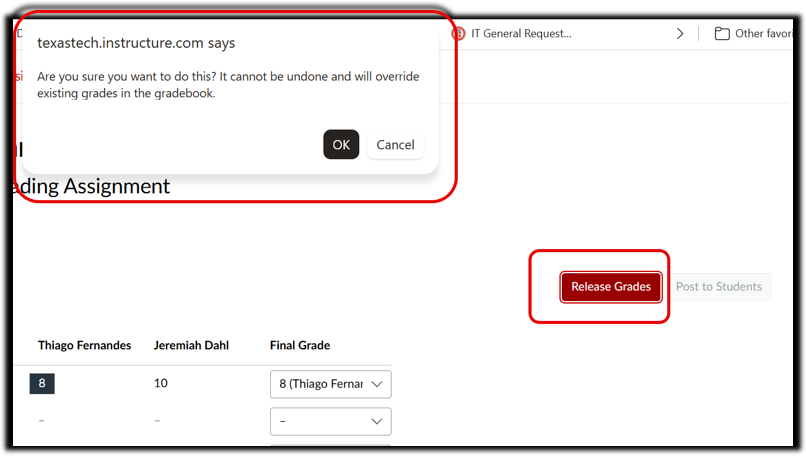
At this point, the grades will be present on the Grade Summary page, but will not be present in the gradebook. The Release Grades button adds the grades to the gradebook. Once all of the Final Grades have been chosen, the final grader can select the Release Grades button to add the grades to the gradebook. Selecting Release Grades will end the ‘moderated grading’ portion of the grading process; grades will still be editable from the gradebook as with a normal assignment, but the moderated grading function will no longer be in play.
A pop-up will appear warning the final grader that this cannot be undone.
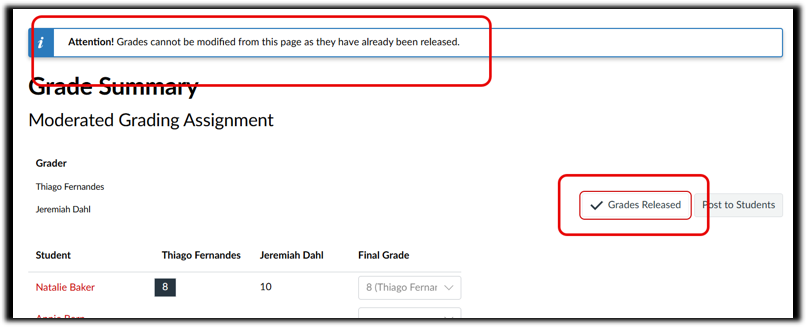
Once the grades have been released, the button will now change to say Grades Released, and a message will appear stating “Attention! Grades cannot be modified from this page as they have already been released.” The moderated grading portion of the process is now closed.
Note: Once released, grades can now be edited from the gradebook like normal assignments.
Post Grades for Student Viewing
At this point in the process, the grades are in the gradebook, but are not yet posted (not yet visible to students). To post the grades, the user can select the Post to Students button:
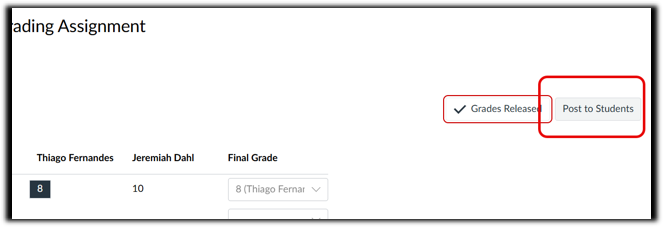
Posting can also be done normally from the gradebook.
RaiderCanvas Support
-
Phone
806-742-5944 -
Email
online@ttu.edu