
Ad Astra: How to Check Scheduled Events
Checking Status
To check the status or to see what events you have scheduled as an individual, department, or student organization, the following instructions will help you see your scheduled or canceled events.
Login to Ad Astra
- When you login, the right corner will show as sign in.
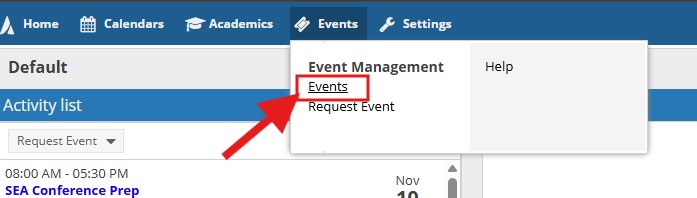
- Under the Events tab, select Events from the drop-down menu.
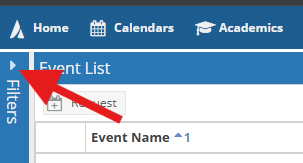
- From the left side of the screen, select the arrow above the word Filters to open the filter menu.
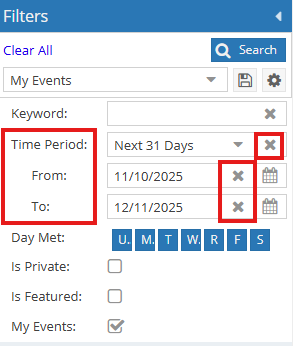
- Clear the Time Period:, From: and To: areas of the filter by clicking on the X located on the right side of the boxes.
- You can add the date range if you know the specific date your request was approved.
- Set the From: date a day before your request was submitted.
- To: date should be the day after your last event has been scheduled.
- This can limit your search if you are unsure of when your event was submitted, however if you have multiple events this can be helpful.
- You can add the date range if you know the specific date your request was approved.
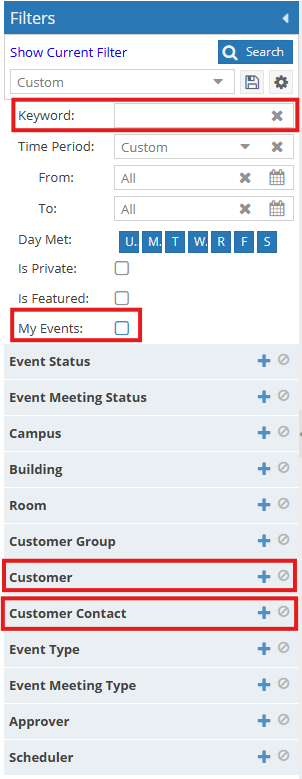
- You can search by the following methods:
- Keyword: Type (do not copy and paste) in the reservation number. Example 20240915-00005
- My Events: Click on the box on the right to show the events you have requested.
Use the plus (+) sign for: - Customer: Type in the first part of the name of the student organization (as listed in TechConnect) or department. You can scroll through the list if you are unsure how it would be listed in Ad Astra.
- Customer Contact: Type in the first part of the last name of the person who scheduled the event.
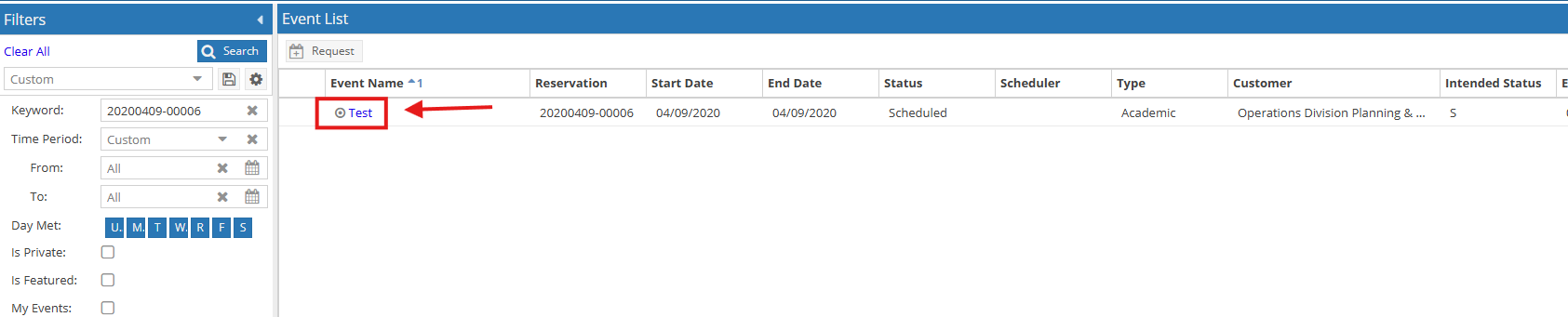
- Once your events have been displayed, you can select the event you are wanting to view by clicking on the event name.
Sorting:
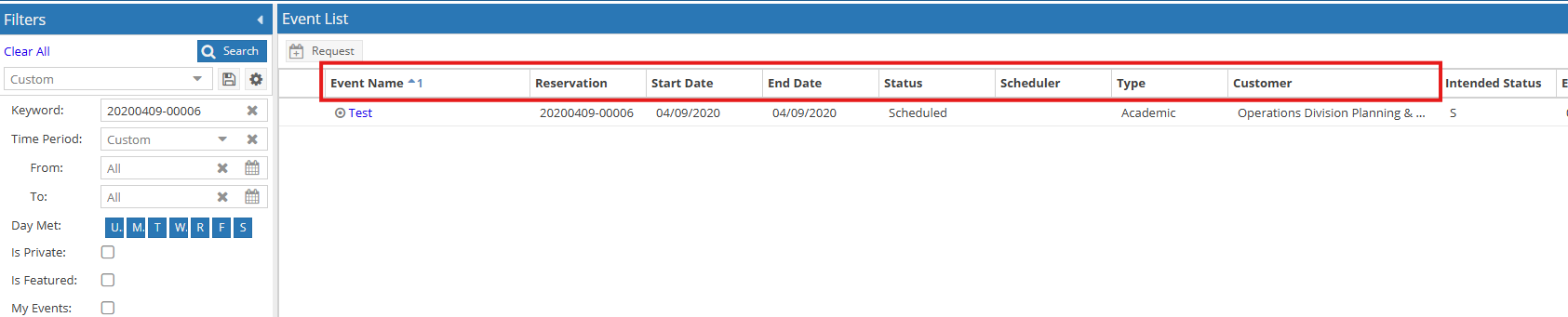
- Ad Astra sorts by Event Name by default.
- By clicking on the header name you can sort the following (you can only sort one column) :
-
- Reservation
- Start Date
- End Date
- Status
- Scheduler
- Type
- Customer
Request Changes
You will not be able to make any changes to this event. To request changes, you will need to email, Operations Events.
Operations Division: Planning and Administration
-
Address
Mail Stop: 5091, Box: 45091, Physical Plant Building, 3122 Main Street, Lubbock, TX 79409 -
Phone
(806) 742- 4677 -
Email
operations@ttu.edu