
How to View Ad Astra Calendar
- Accessing Ad Astra Calendar
- Setting Up the Calendar's Arrangement
- Building/Room Specific Search
- Viewing the Entire Room Schedule
- Viewing Different Days
- View by Day or Week
- View Room Details
Accessing Ad Astra Calendar
Log in to Ad Astra
- When you login, the right corner will show as sign in.
- To see the scheduled events and classes:
- Click on the Calendar tab
- Scroll down and click on, Scheduling Grids

Setting Up the Calendar's Arrangement
To set up the calendar to view the areas below on the Scheduling Grids, click on the drop-down arrow at the end of the box titled Room.
Next, scroll over the word Columns and select the boxes of the areas you are would like to view on the calendar.
- Room ID
- Room
- Building Code
- Building Name
- Campus
- Capacity
- Name
- Number
- Description

You can reduce the number of columns from the calendar by unchecking the boxes or dragging the vertical side bar to the left.
Building/Room Specific Search
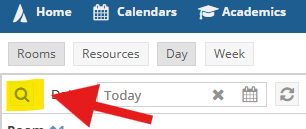
To view specific Academic Buildings and Rooms, click on the magnify glass on the far left corner of the screen.
From the left column select the following areas that apply by selecting the drop-down menu using the (+) icon.
Location Filters:
- Campus: You will need to select TLB (represents Texas Tech in Lubbock)
- Building: Select the building
- Room: Select the room number
From the pop-up box of Select Items, click Done when your selection is complete.
Capacity Filter:
You can sort rooms by how many it can seat using the Capacity filter.
- In the Between: box put in the minimum number you are looking for.
- In the and: box put in the maximum number you are looking for.
Verify that the following filters are checked:
- Events Filters: Include Events
- Academic Filters: Include Academic Scheduling
- Other Filters: Include Holidays and Include Announcements
Once the selections have been made, click on the Search box at the top of the column.

Viewing the Entire Room Schedule

- To view all of the rooms on the Scheduling Grids, go to the bottom tool bar.
- Then click on the drop-down arrow next to 500 and select 1000.

This will allow you to scroll through the page to view all of the rooms which are active in Ad Astra.
Viewing Different Days
To view different dates and/or years there are several options:
- Click on the drop-down arrow next to the date in the box and select the date you want to view.
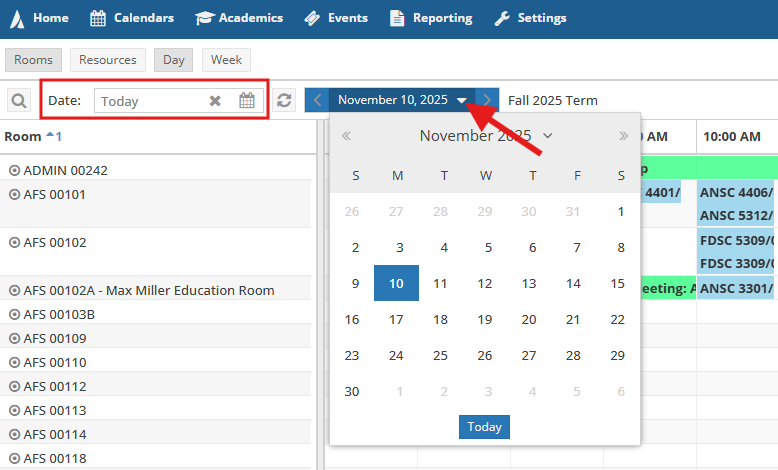
- Select ">>" from the top right of the calendar to move to the next month.

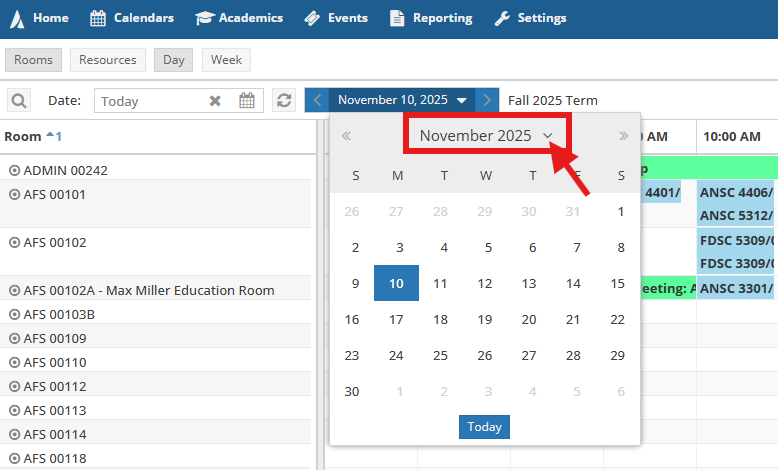
- From the pop-up calendar, click on the drop-down arrow next to the month and year
to view the Month and Year selections.
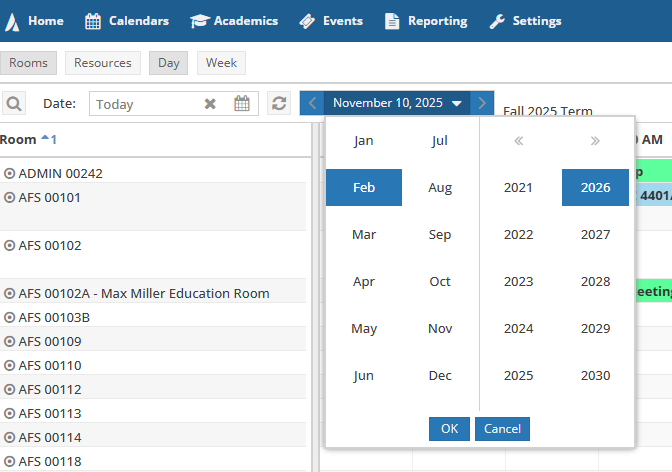
- Select the month and year to view.
- Click on OK at the bottom.
- Click on the image of the calendar which is located on the right side of the word Today in the Date: box.
-
- Please review the above for instructions on how to use the drop-down calendar.

View by Day or Week
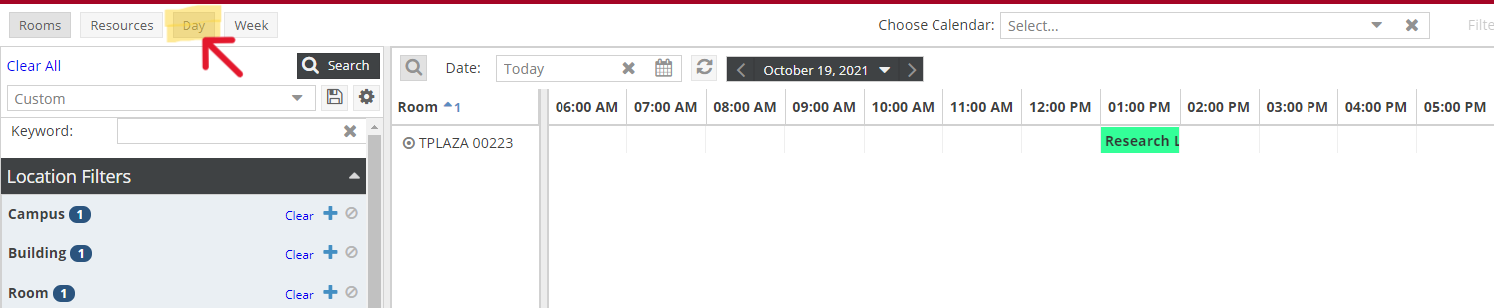
You can view the calendar by the day or by the week by clicking on the tab on the top.
DAY VIEW
Ad Astra defaults to the Day view. Please review the Viewing Different Days instructions.
The Day view will display multiple rooms or the individual rooms you have filtered.
WEEK VIEW
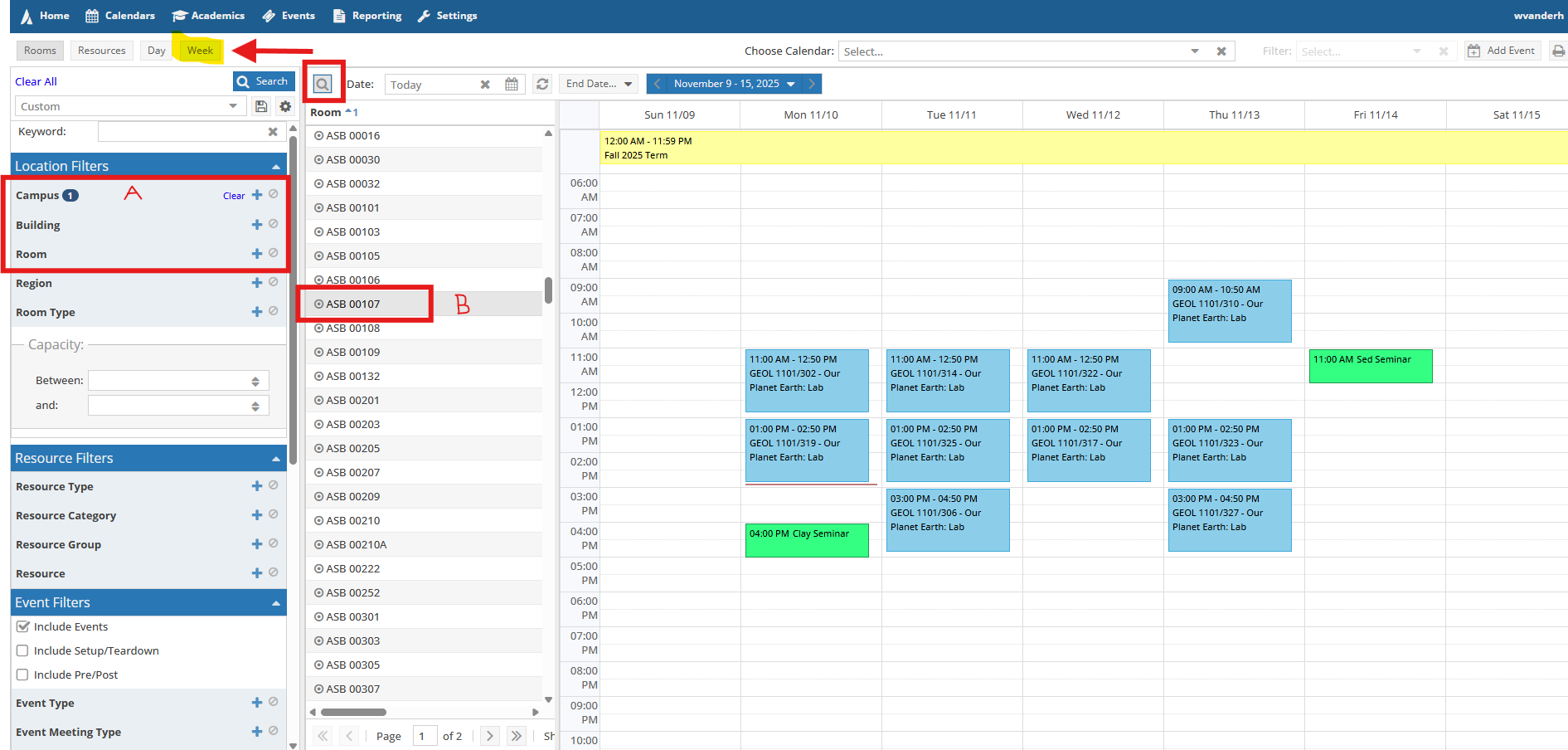
When using the Week View, you will want to select one room at a time to see the full week's schedule.
There are two ways you can view rooms by:
- Using the magnify glass and Location Filter, select the building and room you are wanting to view.
- Click on the room from the Scheduling Grids.
Note: The Weekly View will default to the first room listed in the Scheduling Grids.
View Room Details
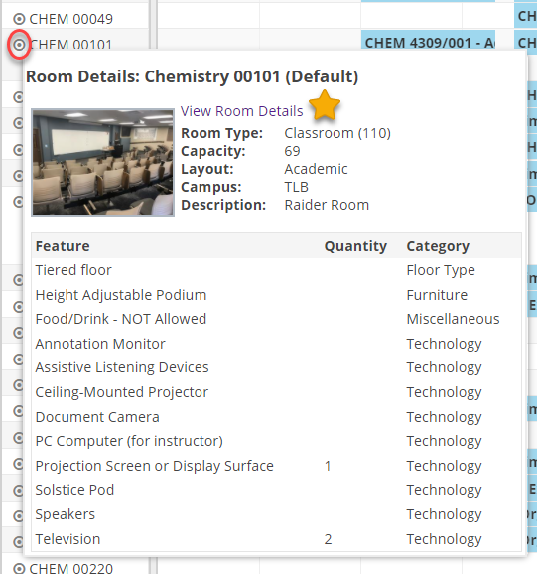
To view individual room details, hover over the round icon next to the room name.
Room Details provides some of the following:
- Capacity
- Raider Room
- Technology
- Furniture set-up
- Food allowed or not allowed
To see more details of the room, click on View Room Details.
Operations Division: Planning and Administration
-
Address
Mail Stop: 5091, Box: 45091, Physical Plant Building, 3122 Main Street, Lubbock, TX 79409 -
Phone
(806) 742- 4677 -
Email
operations@ttu.edu