
Clearing Cache
Google Chrome

- In the upper right, click on the vertical 3 dotted line

- Select Settings
- On the left hand side, click on Privacy & Security
- Select Delete browsing data and select:
- Browsing history
- Cookies and other site data
- Cached images and files
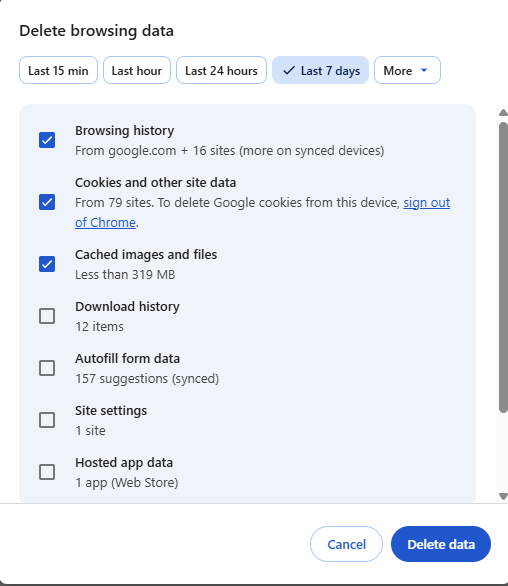
Click on Delete data
Edge

- In the upper right, click on the 3 horizontal dots

- Select Settings from the drop-down menu
- From the top of the page, click on Clear browsing data
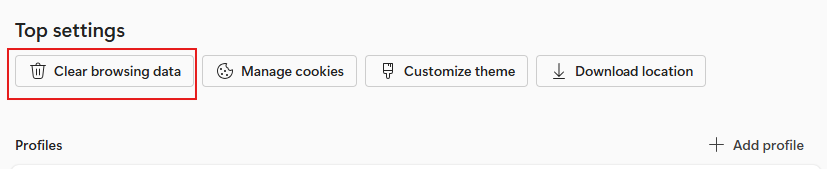
- The following should be checked:
- Browsing history
- Dowload history
- Cookies and other site data
- Cached images and files
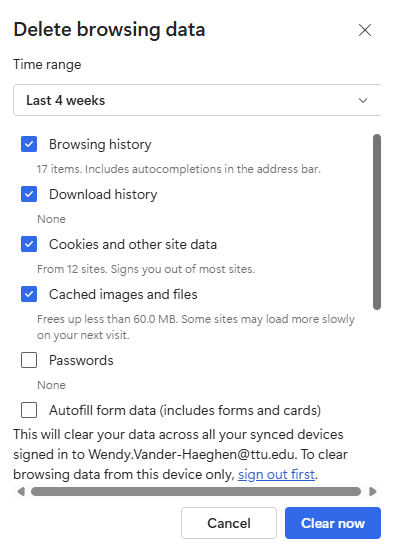
Select Clear now
Firefox

- In the upper right, click on the 3 horizontal bars

- Select Settings
- On the left hand side, click on Privacy & Security
- Scroll down the page to Cookies and Site Data
- Select Clear browsing data

Next make sure both Cookies and site data and Temporary cached files and pages are checked.
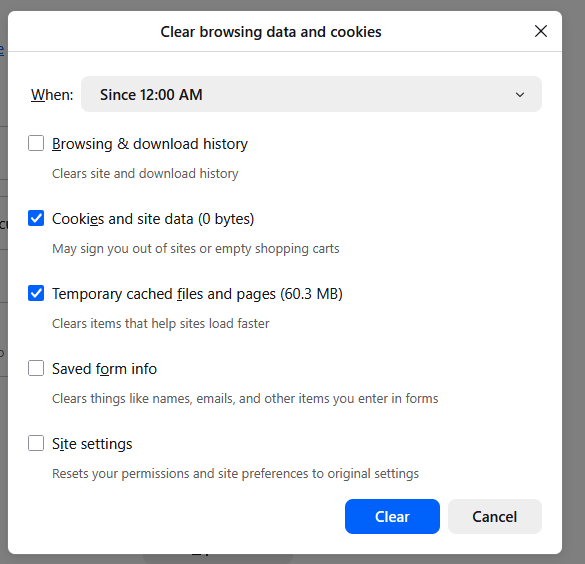
Once they are checked, select Clear
Safari
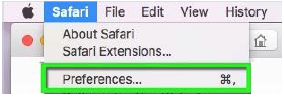
- In the upper left, click on the ‘Safari’ drop-down menu and select Preferences.
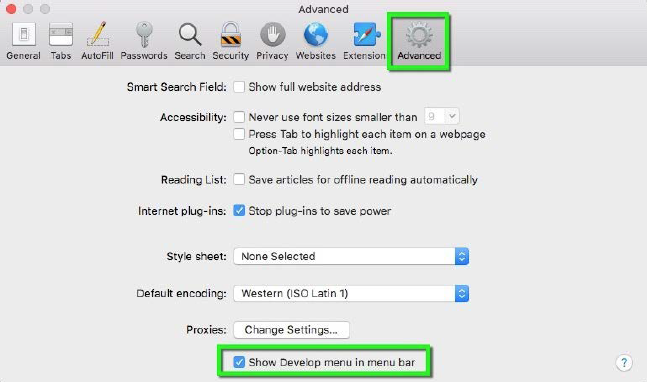
- Click on the Advanced tab. Select the Show Develop menu in menu bar checkbox and close the Preferences window.
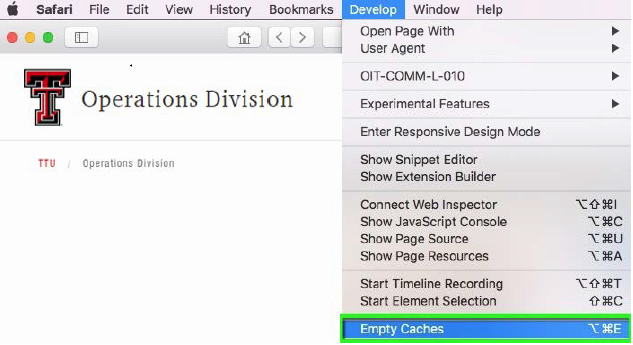
- Select the Develop drop-down menu. Click Empty Caches.
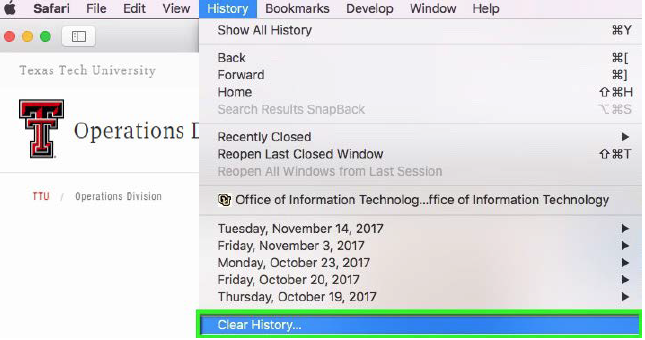
- You may want to also clear your browser history. Select the History drop-down, then Clear History.
Operations Division: Business Services
-
Address
3122 Main Street. Lubbock, TX 79409 -
Phone
806.742.4677 -
Email
operations@ttu.edu