
Key Management System Instructions for General Users
Log into the Application:
Go to: KMS: Key Management System
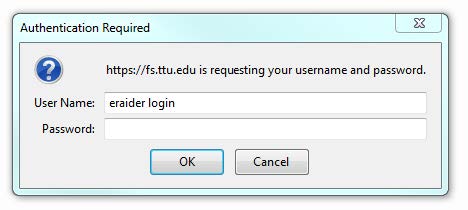
- Enter your eRaider to login.
Submit the request for approval:
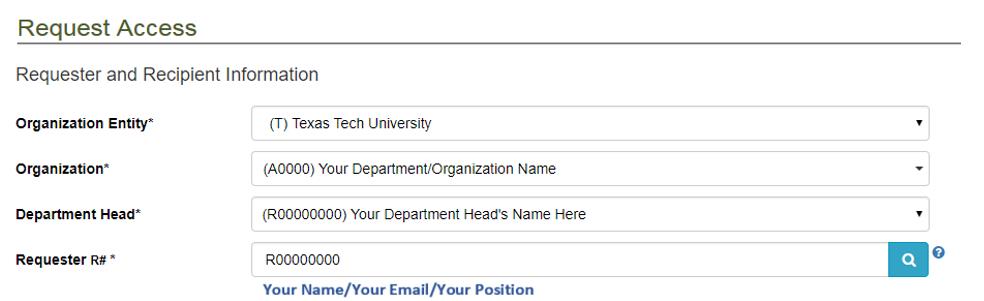
- The first tab, Request Key, on the home screen is for requesting access.

Requester's Information
- The requester's information should auto populate in the first four fields.
- If these fields do not contain your information, try logging out and back in or refreshing the page.
- Note: You can use the drop-down menu to select a different department head, depending on who you want to approve the request.
Recipient's Information
- Next, fill in the recipient's information.
- Select whether the recipient is faculty, staff or student.

-
- Enter the recipient's Texas Tech's R#.

- If you do not know their R# you may also search for them by entering their name or Texas Tech's email.
-
- When searching by full name format the text as Last Name, First Name;
- You can also search by first name, last name or just middle name.
- When searching by full name format the text as Last Name, First Name;
-
Building or Room Access Information
- Select the entity from the drop-down menu

Fill in the Campus and Building information
- Select the campus and the building by using the drop-down menus.
- You may also view the campus map (right top) to assist with finding the correct building

Access Type
Select the Access Type: Key, Card, Master/Sub-Master Key, Padlock Key or Tunnel Key

Account
Account fund, organization and program information is only needed for physical key requests. Card access requests can skip this step.

Floor
Please select the floor that has the room you need access to.

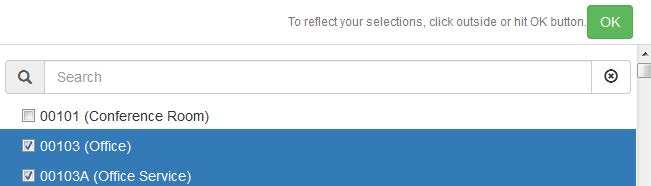
- From the drop-down menu, select the room number(s) for the room(s) you are requesting
access to.
- Multiple Room Request: You can request multiple rooms for the building you have selected.
- You cannot request multiple keys for the same room on the same request
- For multiple keys, you will need to create a new request for each key for the same room.
- Multiple Room Request: You can request multiple rooms for the building you have selected.
-
- A floor plan is available if you do not know the room number.
- If the room is not listed in the drop-down menu, please click Room Missing and report the missing room.

-
- If a room has been accidentally selected, click on the Trash icon
 to remove it.
- You can uncheck the box next to the room(s) you don't need.
- If a room has been accidentally selected, click on the Trash icon
- Once you have selected the room(s) for access, click on Submit for Approval.
Confirmation
Confirmation window will appear. You will be asked to confirm or review your submission.
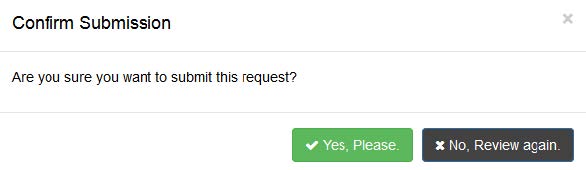
If your submission went through successfully a message will appear.

Receiving Card Access
- When you have requested card access, you will receive an email once the access has been granted.
- On the email, you will receive a confirmation link.
- You need to visit that link and click on the Received button after you verify your card access is working.
Request to Terminate Access:
- When you no longer need access to a room, you will need to submit a termination request
- On the home screen, you will select the Terminate Key or Card tab

Requester's Information
- The requester's information should auto populate in the first four fields.
- If these fields do not contain your information, try logging out and back in or refreshing the page.
- Note: You can use the drop-down menu to select a different department head, depending on who you want to approve the request.
Recipient's Information
- Next, fill in the recipient's information.
- Select whether the recipient is faculty, staff or student.
- Use the Assigned To* drop-down menu to select yourself from the list of everyone in your
organization. Only those who have approver access in KMS: Key Management System will be able to select a person.- After selecting yourself, your current access should pop-up below
- Check the box next to the key/card access you want to terminate
- Select the Submit for Termination (key) or Remove Access (card) button
- Confirm the termination
Frequently Asked Questions
- Why is my information not auto populating the “Requester and Recipient Information”
on the request page?
If you experience this problem, first make sure you are logged in with your eRaider, if not, log out and
log back in. Secondly, try clearing your browser’s cache. - Why can I not find the room I need to make my request for?
First, try looking for the room in the building entrance section. If it is not listed with the building
entrances, search for the room on the floor plan and make sure it has a number tied to it. Lastly, send a
room missing request. - Why can I not see anyone on the “Assigned To” drop-down menu on the “Terminate Key”
tab?
Firstly, this may occur because you do not have approver access in KMS: Key Management System. Only users that have approver access can view the other people in their organization on the “Terminate Key” tab.- If you do have approver access in KMS: Key Management System, you should clear your browser’s cache. After clearing the cache, you should be able to view the other users in your organization on the “Terminate Key” tab.
- If you require further assistance, please email Operations Building Access Service Center or call 806.742-4677.
Operations Division: Business Services
-
Address
3122 Main Street. Lubbock, TX 79409 -
Phone
806.742.4677 -
Email
operations@ttu.edu