
Property Inventory System Help
Property Inventory System Guide
Table of Contents
Click on any topic below to jump to that section of the guide.
Property Inventory Basics
TTU OP 63.08, Property Management, defines the scope of property management responsibilities at Texas Tech University, and provides the policy and procedures to manage, control and account for all institutional property for TTU/TTUS.
Texas Tech Policy requires departments to complete a physical inventory certification annually. Department personnel will complete this inventory review, or Annual Certification, using the most recent listing from the Property Inventory System. Departments may complete certification anytime during the fiscal year beginning October 1 (Fiscal year is Sept 1-August 31). Starting in April, email reminders will be sent to property custodians and delegates for the annual certification deadline of June 30th.
Access & Navigation in the Property Inventory System (PIS)
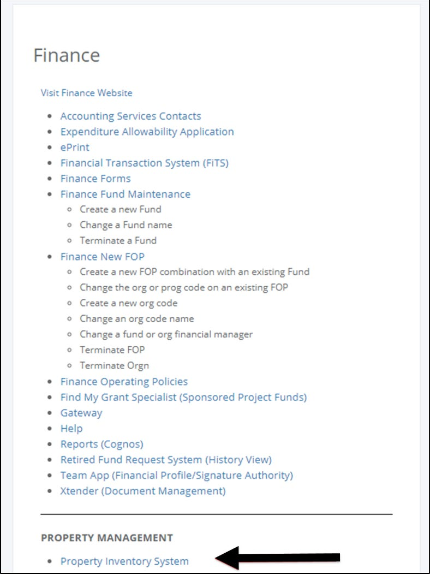
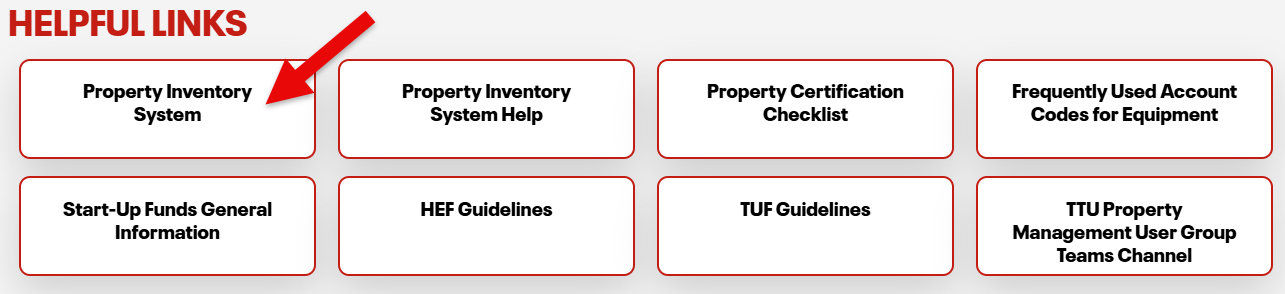
The Property Inventory System is accessible by logging into the Raiderlink portal or through the Property Management website helpful links.
Access Through Raiderlink
Select the A & F Work Tools tab. In the Finance portlet under Property Management, click on Property Inventory System.
Access Through Property Management Website
PIS Navigation Menu Bar
The primary method of navigating within the system is using the navigation menu bar along the top of the page. The navigation menu bar is on every page of the application, allowing movement from one page to another quickly.

Department Inventory Page & Reports
The application opens to the Property Inventory page. The user can select View, Edit, Transfer Inventory, or Annual Certification with the corresponding radio button.
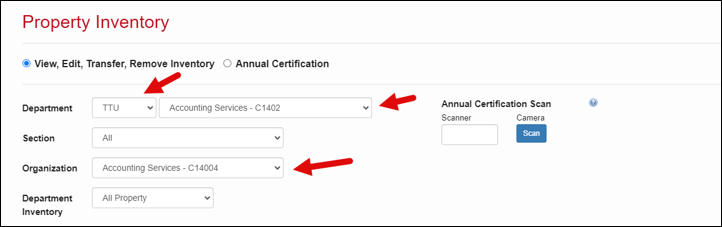
If authorization is given to view inventory for more than one department/organization, change departments by selecting a different department and organization from the drop-down menus. The department/organization selected will be displayed on the page.
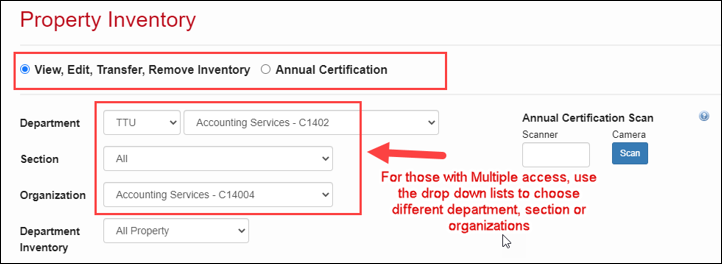
Note: Users with multiple access can use the drop-down menu to choose different departments, sections or Organizations
Department Inventory Reports
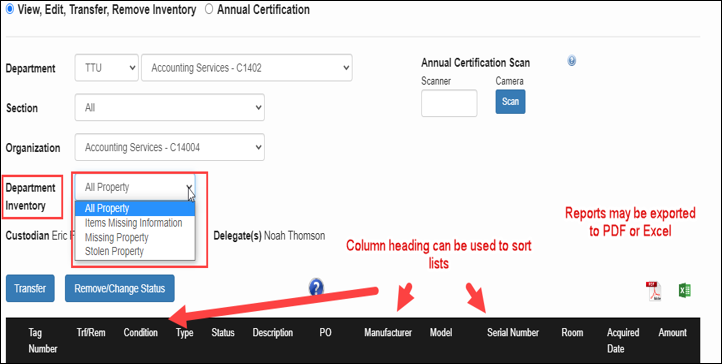
The following department inventory reports are available in the drop-down menu for Department Inventory. These reports should be used to review and update information on assets and complete annual inventory reviews efficiently. The reports can be exported to either PDF or Excel by selecting the corresponding icon. Further instructions are included under the Annual Certification processes or on the following training video link. Property Inventory Updating Data in the Property Inventory System video.
- All Property (including Missing and Offsite Asset status)
- Items Missing Information
- Missing Property
- Stolen Property
Assign or Update Custodian or Delegates
Property Management must be notified of any custodian updates needed. The custodian should be director level or higher. The employment level will be verified, then updated in the Property Inventory System. Email property.management@ttu.edu for custodian changes.
Custodians may assign property management responsibilities to another employee, as a delegate, in the Property Inventory System. As of fiscal year 2022, custodians or delegates may complete inventory transactions, including the final approval of annual certifications.
The Property Inventory System is restricted to one custodian per department. Departments that have a need for multiple custodians at the organization level must assign those additional staff or faculty as a delegate. The department should communicate to delegates which organization codes they are responsible for. All delegates under the department will receive email notifications for all the organization codes under the department and it is their responsibility to update and certify inventories only for the organizations assigned to them. Because of the system limitations, Property Management recommends limiting the use of this set up. Below are the steps necessary to update delegates.
Access the Property Inventory System.
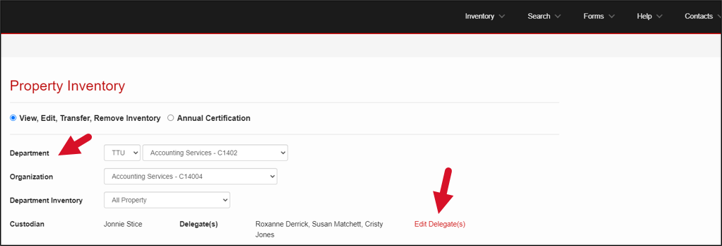
Locate the department using the department drop down list.
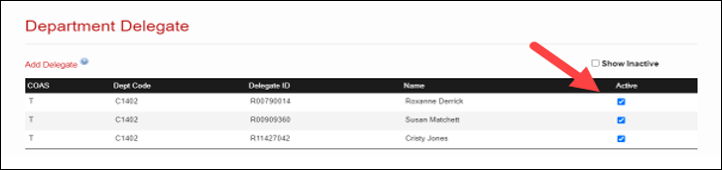
Click on the Edit Delegate(s) Link. The list will populate with active delegate(s).
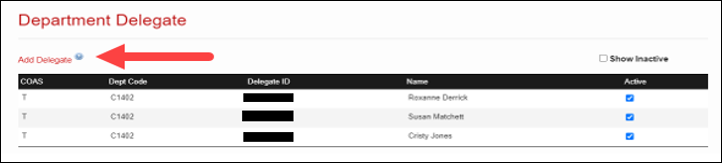
For a history of delegates no longer active, check the Show Inactive radio button.
To add a delegate, click the Add Delegate link.
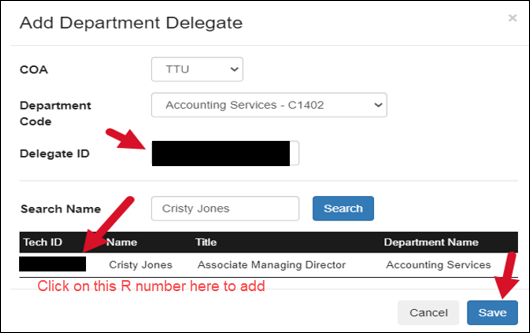
On the next screen, use the drop down box to choose the following:
- Chart of Account T or S.
- Department code by Name and Department Level 5 code.
- Tab to Search Name-> enter the employee’s name-> click search.
- Click on the employees R#.
- Once it populates in the Delegate ID, Click Save.
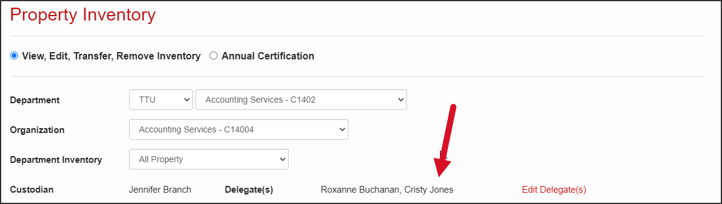
Once saved, the delegate will show on the department inventory page.
To inactivate the delegate access, click the blue check mark next to the delegate(s) name. Once the radio button is clicked, the delegate will no longer show on the main page of the inventory list, and they will not have access to approve inventory certifications or transfers.
Search for Assets
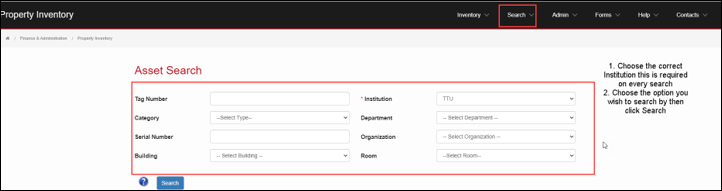
The Property Inventory System allows the user to search for assets by Tag Number, Category, Serial Number, Institution, Department, Organization, and Building/Room location.
Select the correct Institution (T or S) for each type of search.
- Searching by location requires both the building and room location to be selected.
- If an asset has already been deleted from inventory, it will not populate on the inventory list but will pull into a search.

To access the search function, click on Search on the top menu bar.
Click on the Inventory link in the second menu bar that populates.

On the next screen, choose the correct Institution (TTU or TTUS)
Choose the option you wish to search by and enter the data.
Click Search.
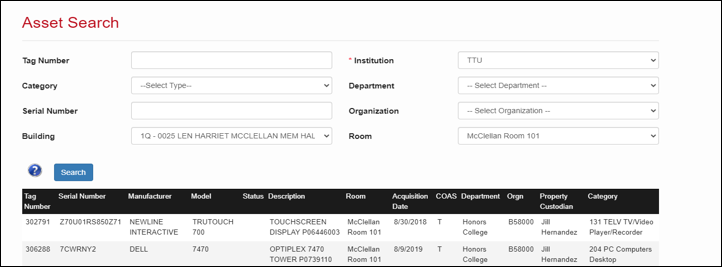
The search results will display with all the relevant data. See the example below.
Transfers
Transfer of assets between departments under the same chart of accounts should be processed using the Property Inventory System transfer process. The steps are provided below and are also available in a short training video available on the Property Management website Property Transfer Video.
Initiate Transfer
Verify the asset to be transferred is being transferred between two departments under the same chart of accounts (T/S).
Verify that the assets’ original Building and Room locations are entered, as they are required to be able to initiate a transfer.
Go into Property Inventory and select the department and organization that the asset(s) are to be transferred from.
Locate the asset on the inventory list.
Click the Trf/Rem radio button next to the asset number.
Click the Transfer button.
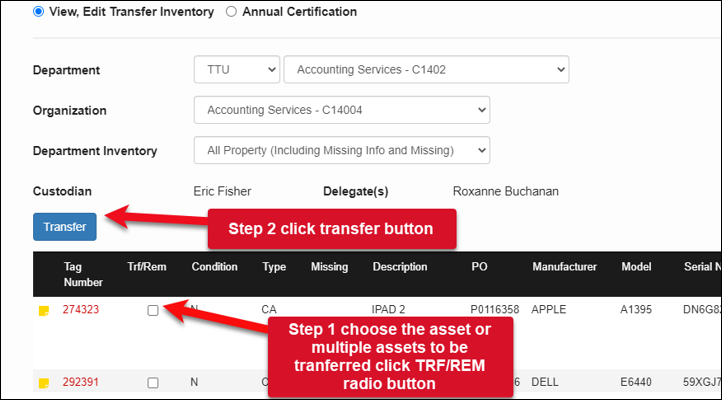
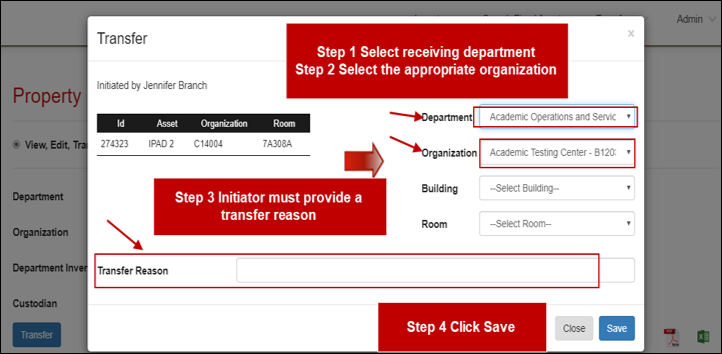
The transfer form will populate and will include the Tag Number, Description, current Orgn and current Room location of the asset. Displayed on the right side are drop down menus to select the receiving Department and Orgn for the transfer. The receiving department will update the Building and Room locations; thus, they are not required for the initiator to enter.
Click Save to initiate the transfer.
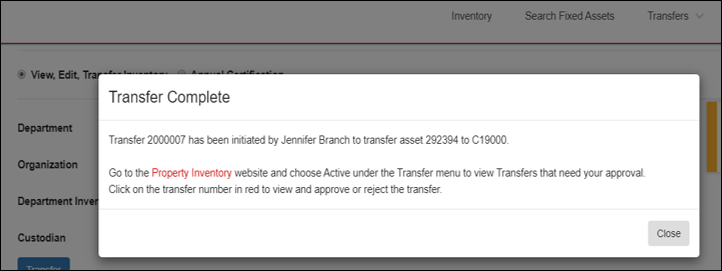
A confirmation page will pop up providing the transfer ID number. An automated email routes to the receiving department’s Property Custodian and Delegate and a new pop-up notice will be visible on their inventory when logging into the PIS. Examples are below.

Active Transfers
Active Transfers will show under the Transfer tab for the initiator. Once the request is submitted, the custodian and delegate of the receiving department will receive an email and will see a Pending Transfers notice in the upper right corner when signing into the PIS. Property Management recommends that the initiator monitor the transfers regularly and contact the receiving department if not completed. All active transfers must be completed before the annual certification can be submitted.
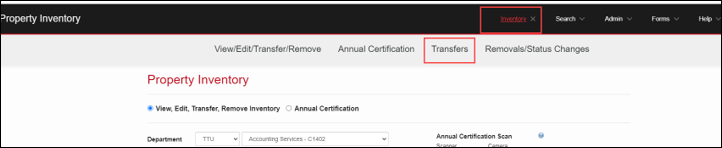
Click on the Inventory link in the black ribbon. The second ribbon will populate.
Click on the Transfers ln.
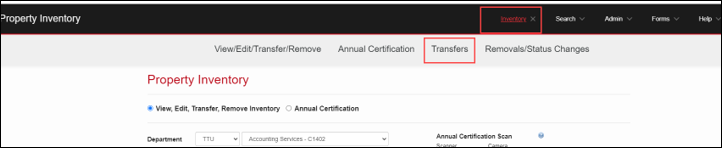
The active transfer list will populate.
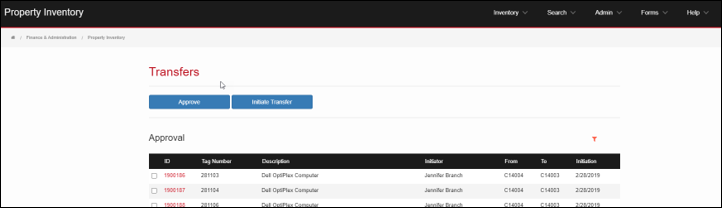
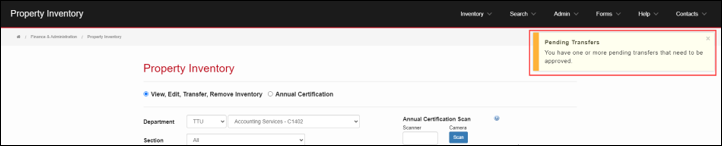
The Receiving department Custodian and Delegate will receive an automated email and will see the message below in the PIS that a transfer needs to be approved.
Approve Transfer
Asset transfers should be approved in a timely manner and must be clear before annual certifications may be submitted.
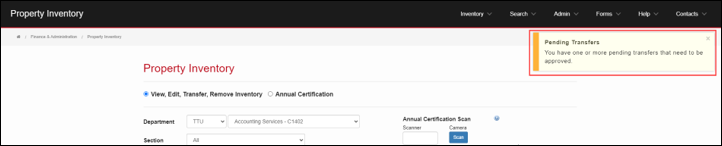
To access the pending transfer, go into the PIS, click the Pending Transfer box in the right top corner.
The Transfer may also be located by using the Inventory link and clicking on Transfers in the additional ribbon that will show.
To approve (receive) a transfer, click on the red transfer ID.

Verify that the asset building and room location are added.
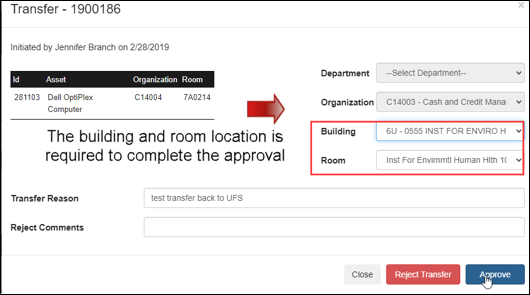
If all the information is complete, then click the approve button.
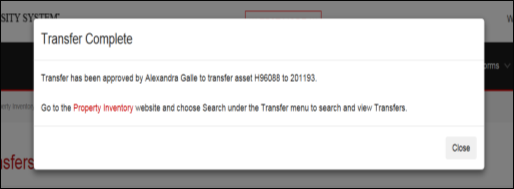
Once the approval is completed, a confirmation screen will populate indicating the transfer is complete and an automated email routes to the initiator.
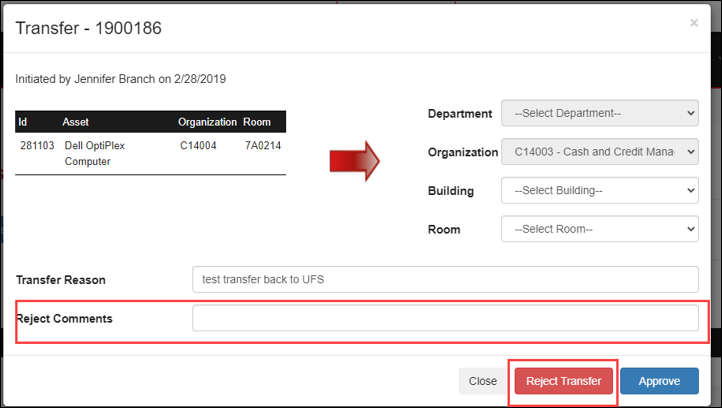
To reject a transfer, click Reject Transfer. Enter a rejection reason. Once rejected, an automated email notifies the initiator that the transfer was not completed.
Transfer to Surplus
Surplus is under the management of the Operations Division of Planning and Admin Department (C2006). Please reference TTU OP 63.07 Disposal of Surplus, Obsolete, or Uneconomically Repairable Inventory, and visit the Surplus website for further instruction once the transfer is processed.
Before a transfer can be completed, the asset must have the original location assigned.
Review to make sure the asset has not been reported missing. If the asset status is missing, the department should submit the Missing Property Return form in the PIS before submitting the transfer.
The transfer to Surplus C20061 must be initiated in the PIS before the assets may be picked up by the Operations Division Surplus team.
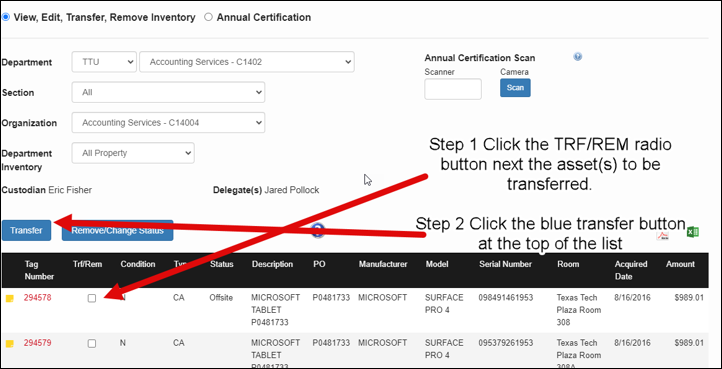
Once an asset or multiple assets are selected, click the radio button under the TRF/REM column.
Click the blue transfer button at the top of the list.
On the next screen, click the Transfer to Surplus radio button.
Select the campus.
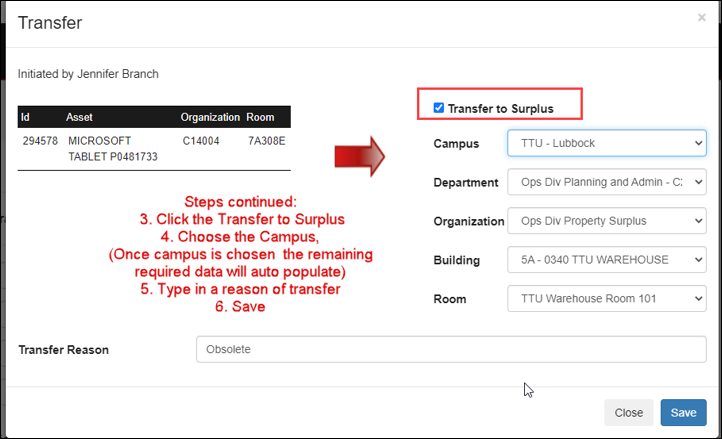
Once the campus is selected the PIS will automatically enter the Department, Organization, Building and Room information for Surplus.
Type in the transfer reason then click save. The transfer will route to Surplus for approval.
Visit the Surplus website for further instruction once the transfer is processed.
Search Transfers
The Search Transfer page allows users to enter parameters and click on Search to view a list of transfers. The institution and at least one search parameter is required. The search feature uses “AND” when more than one criterion is specified, so the results will match all criteria specified and not just one of the other. The percent symbol (%) may be used to help with a search. Enter desired search criteria and click Search.
Search Transfer is located under the Transfer link in the Property Inventory page ribbon, shown below.

Use the drop-down lists to choose the Institution and the transfer from organization. Click the red ID number to view the transfer.
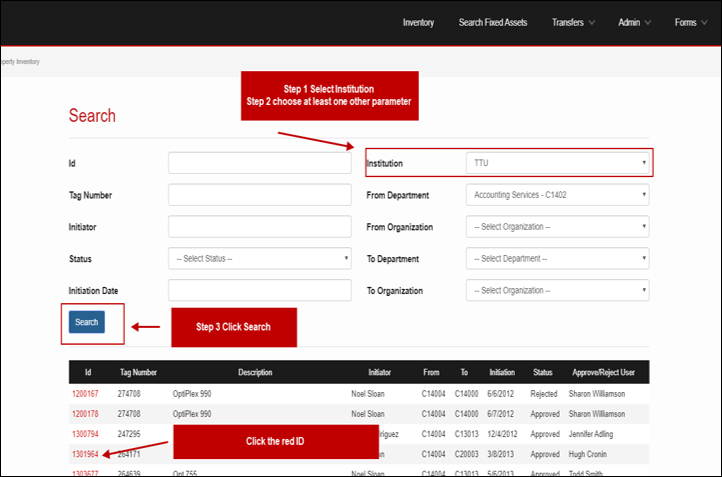
The transfer details will populate the screen.
Remove/Change Status
There are multiple options for initiating a removal or change of status for an asset on a department inventory list.
Check the Trf/Rem radio box next to the asset(s) number(s) in the inventory list.
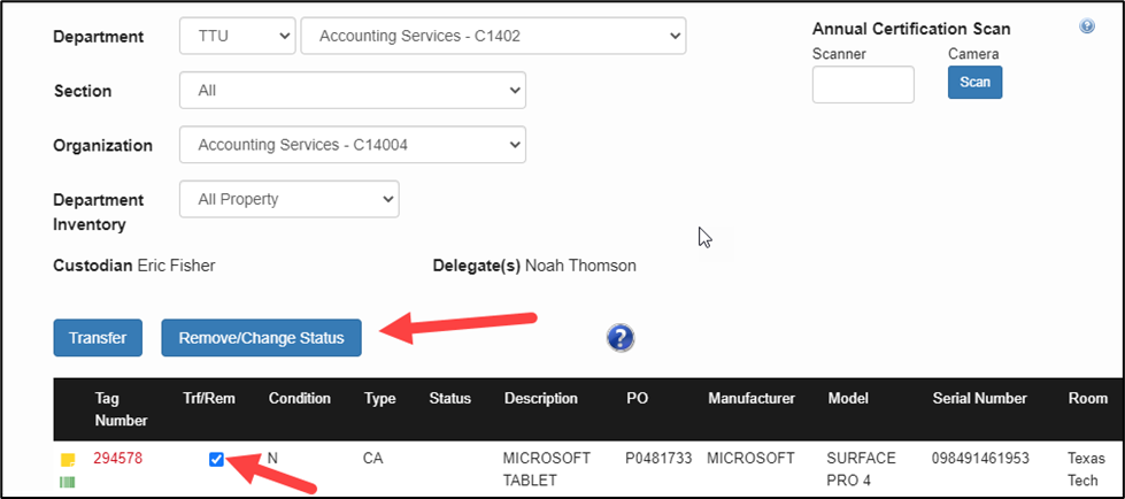
Click on the Remove/Change Status box. The Removal/Status Change page will populate all data.
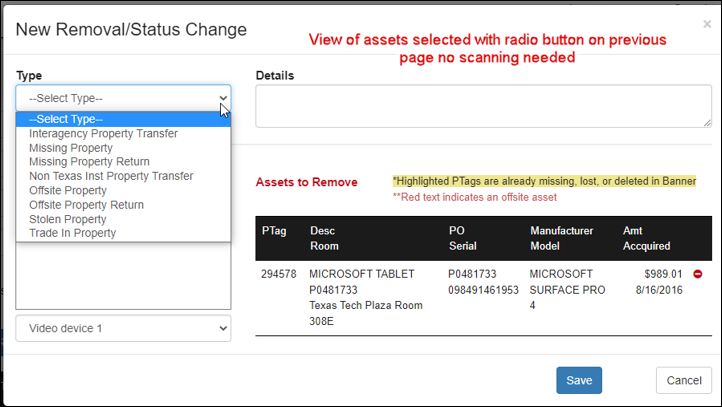
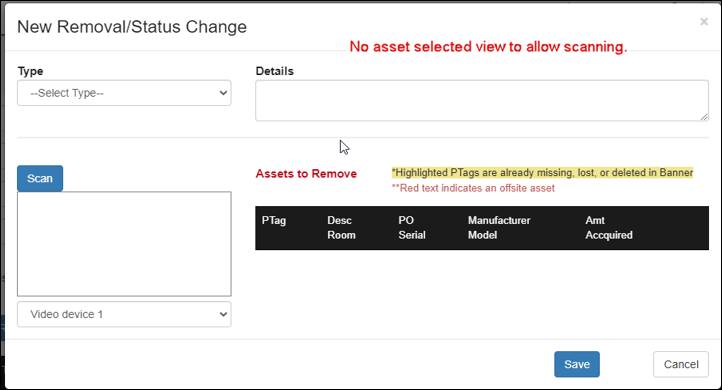
The scanning procedure may be used by clicking the Remove/Change Status button without first selecting any assets.
Click the Scan button and then scan the barcode of asset(s) to be removed or changed. As items are scanned, information will populate in the Assets to Remove section of the New Removal/Status Change page.
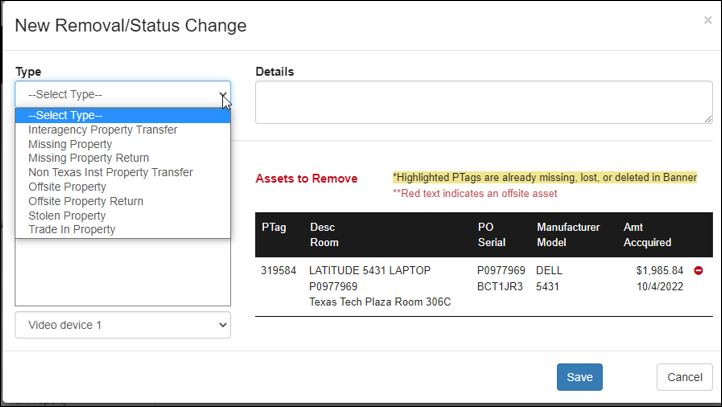
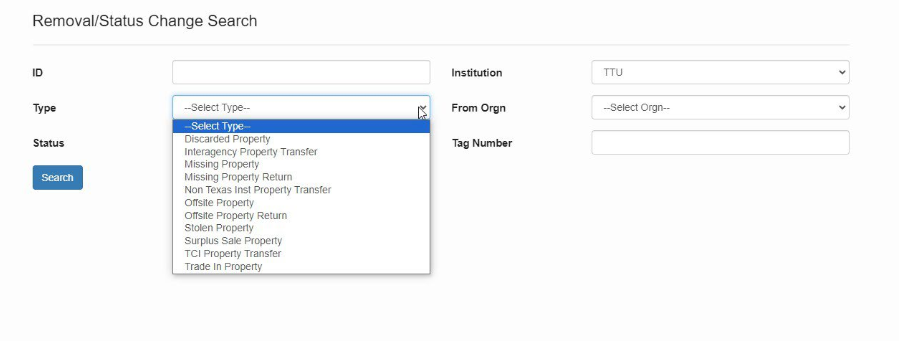
Select the Type of form from the drop-down list.
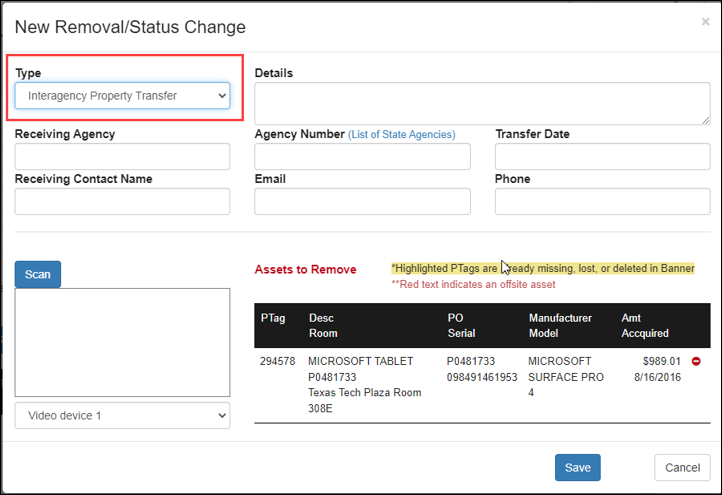
Interagency Property Transfer Out
Select this option for transfers to another Texas State Agency (transfers between Charts T, S, H, and E). A link to a List of State Agencies is included. All information boxes must be completed to be submitted. This is only available for assets being sent out of T or S chart inventory. For assets being transferred in, the manual interagency transfer form is required. Fill out each section completely and in the details include where the asset is going and for how long.
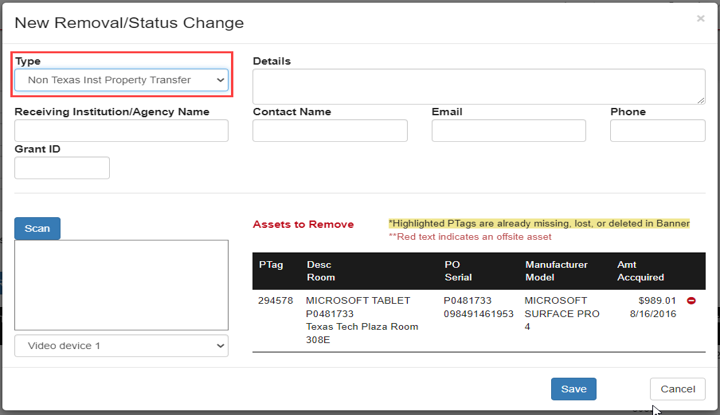
Non-Texas Institution Property Transfer
Select this option for transfer to any institution that is not a Texas State Agency. These transfers are often related to the transfer of a grant when the PI is moving to another institution. In this case, please enter the Grant ID for Research Accounting to verify the transfer/disposition requirements within the contract. Further approvals will need to be obtained and attached to the request or emailed to Property.Management@ttu.edu per Operating Policies 63.08 and 65.14. All information boxes must be completed to be submitted. Contact Property Management for additional questions.
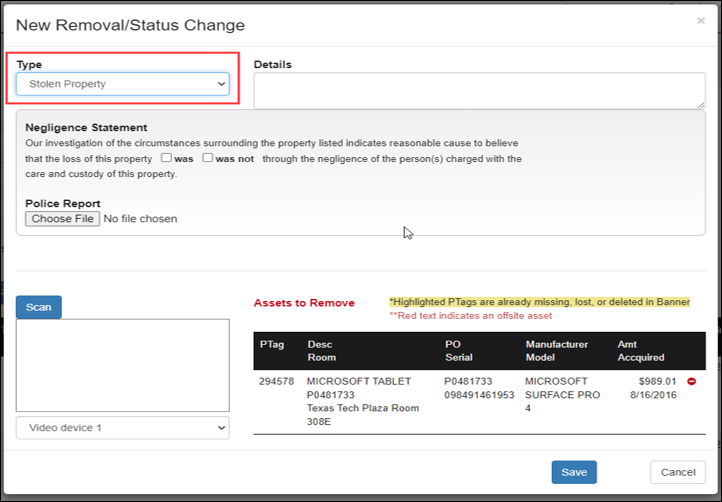
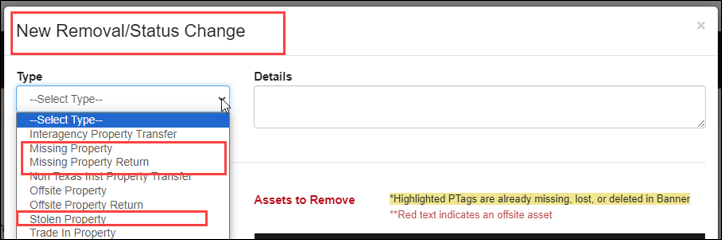
Select this option for items that were stolen. Completion of the Negligence Statement and thorough details related to the stolen item(s) are required along with a copy of the police report. All information boxes must be completed to be submitted.
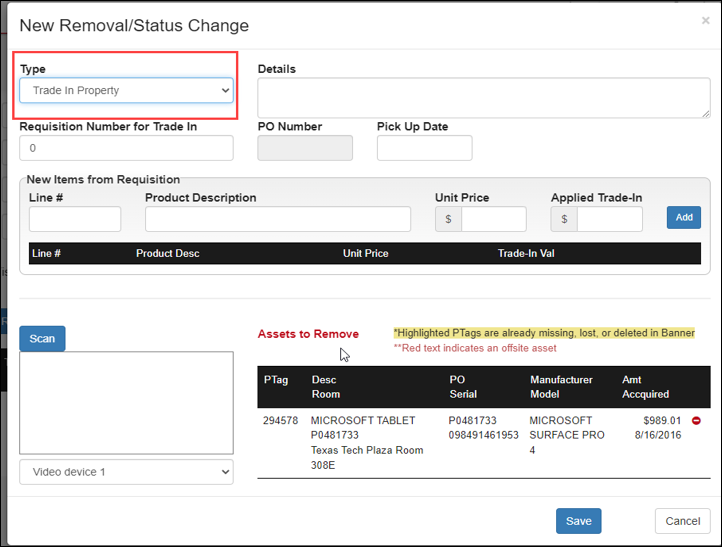
Select this option when the department is using existing assets as a trade-in toward a new asset. Include thorough details including the requisition number and product information for the new asset and the trade-in credit amount received. The Pickup Date should be the date that the old item was removed from campus. The request can be saved and will route to the Property Custodian/Delegate without the Pickup Date. However, the Property Custodian/Delegate must enter the pickup date prior to approval.
Missing Property Return
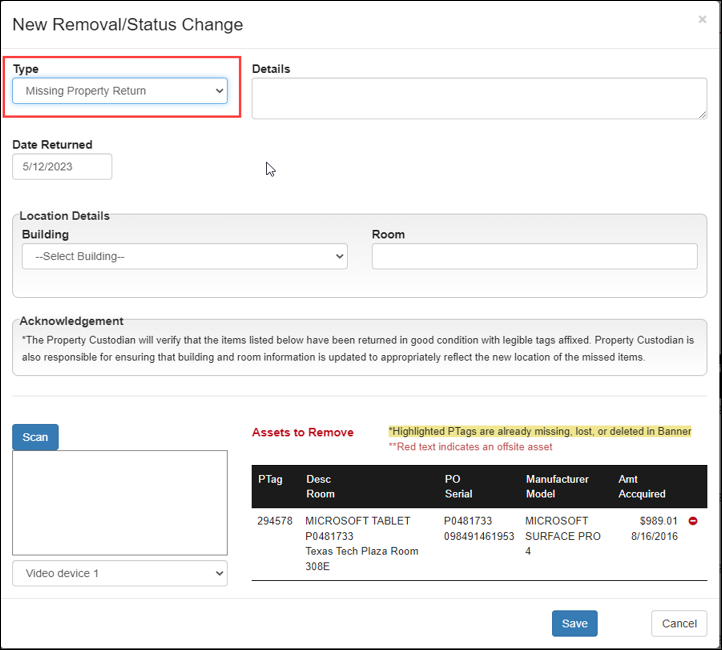
Select for assets found previously reported missing. The location should be added, and a picture emailed to Property Management showing the asset tag and serial number of the asset. Property Management will be available to visually inspect the asset if a picture cannot be obtained or if there is a large number of assets. The Property Custodian or Delegate should verify the returned item(s) are in good condition, serial number and location data are complete, and that a legible inventory tag is affixed. If an asset is being sent to Surplus and it shows as missing in the All Inventory list, submit the Missing Property Return form prior to the transfer to Surplus.
Offsite Property (formerly known as the Temporary Use of Property Authorization form)
Used for assets that are frequently moved from one location to another, taken off campus frequently, or used off campus for extended periods of time. The status of the asset will be listed as Offsite in the department inventory list. Detailed location information is required, and an estimated return date (ETA) should be included. Forms submitted without details will be returned for correction.
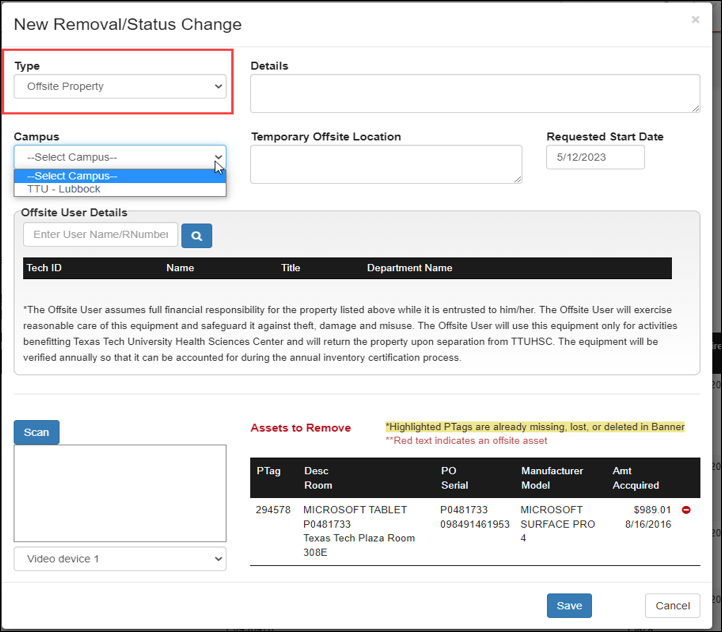
Offsite Property Return
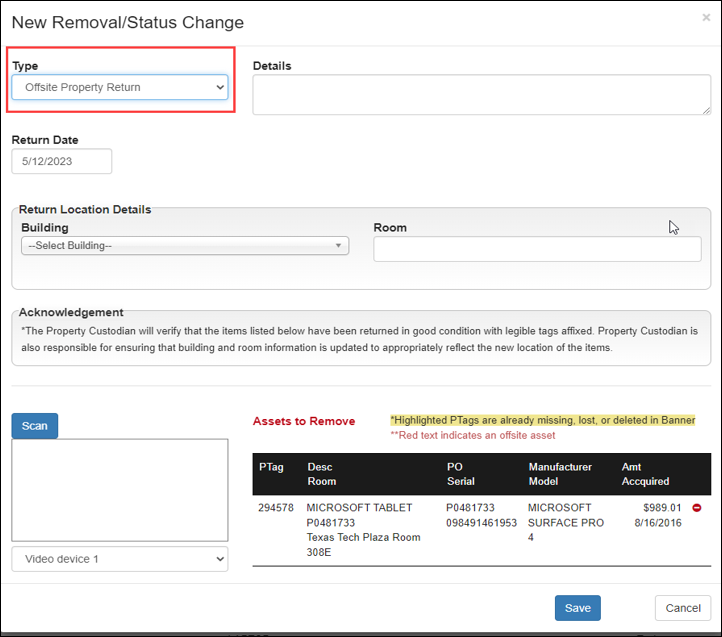
Used for assets returning to campus that will no longer be moved frequently or used off campus for extended periods of time. The location of the asset must be included in the request before submission. This form is also required to remove an Offsite status before an asset can be reported as Missing. The PIS will only allow one status at a time.
Once the selected form(s) is completed, click the save button. The form will be routed to the department custodian and delegate for review and approval. The custodian and delegate will receive an email indicating that there are pending status change requests to approve. A pending Removal/Change Status notice will also appear on the Inventory page of the Property Custodian and all Delegates in the PIS.
Removal/change requests except for the Offsite and Offsite Asset Return forms will be routed to Property Management for final processing. Be advised that the Offsite form on file in the PIS will meet the requirement of OP 63.08 for assets going out of state. For any questions contact property.managment@ttu.edu.
Reporting Missing Property and Missing Property Returned
According to Texas Tech University Operations Policy 63.08 Property Management, assets not located and determined missing should be reported to Property Management. The process to report the assets is done within the Property Inventory System. This document provides a step-by-step guide on the process.
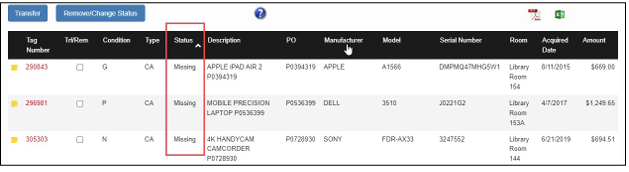
Assets will remain missing and in inventory for two consecutive years, per Texas state comptroller property accounting policies. During this period departments should take all steps necessary to locate the assets. Assets already reported missing do not have to be reported missing again. To avoid duplicate submissions, verify on the department inventory list if the asset is already coded with a missing status.
When an asset is already reported an attribute shows in the “Status” column on the inventory list. See the example screenshot below.
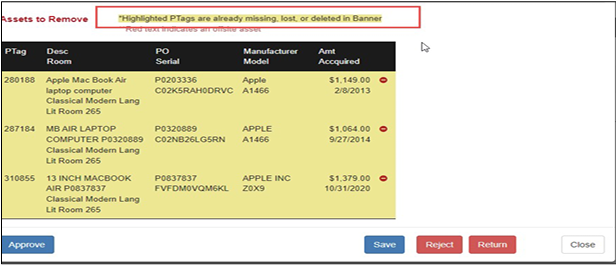
In addition, if an asset is already missing and another electronic request is being resubmitted, the asset line will show highlighted yellow. This is another indicator that a request is not needed. If Property Management receives an additional request with assets already shown to be missing, they will be removed from the request, or the request will be rejected.
Missing Report Procedure:
Locate the assets on the department inventory under the Inventory, Edit, Transfer and Remove Page.
Check the radio button next to the asset in the TRF/Rem column. Multiple assets may be selected.
Click the Remove/Change Status button.
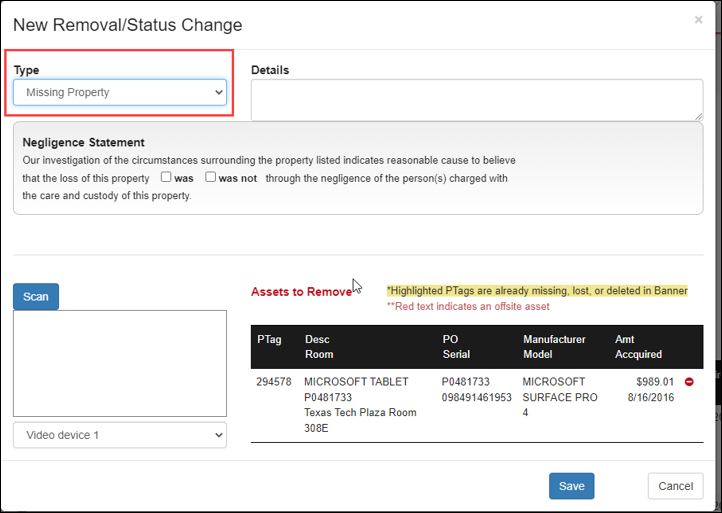
In the pop-up window under “Type,” select Missing Property and include specific details on why the property is being reported and what efforts were made to locate it.
Check the was/was not box in the Negligence Statement.
Check the box next to the certification statement at the bottom of the window.
Click the Electronically Sign and Submit
The request will be routed to the department’s custodian and delegates for review and approval.
Custodian/ Delegate Approval Steps:
Custodians or delegates both have the authority to approve or reject the request.
Once the form is saved, the request will be routed to the department Custodian/Delegate and an email will be sent to the Custodian/Delegate to notify them an approval is pending.
The Removals/Status Changes page provides a list of Pending removals and status changes for which you are either the Initiator, the Property Custodian of the Department, or a Delegate for that Department.
Click the red ID number link to view the removal/status change details.
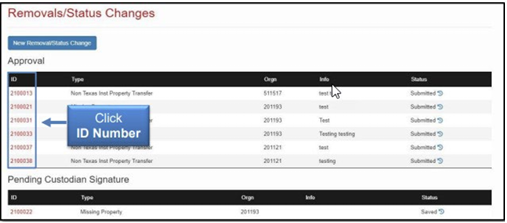
To approve a removal/status change request as a Property Custodian or Delegate, click the checkbox:
- I certify that the item(s) should be removed from TTU/TTUS inventory, or their status changed for the item(s) and to the best of my knowledge the above information is correct.
- Click the Electronically Sign and Submit button.
A confirmation message will indicate that the removal/status change request has been signed and approved.
An automated email will be sent to the initiator when a removal/status change request has been approved by the custodian or delegate it will be routed to Property Management for final approval.
When the form is approved, the submitter will receive a notice that the Asset Removal/Status Change request was approved. The asset status will show missing or blank for missing returned on the main inventory list.
Before Property Management approves the Missing Returned form the asset must be physically viewed by Property Management or a current picture of the asset with the serial number be provided. Pictures may also be attached to the assets in the Property Inventory system by the department.
During the two-year cycle, if an asset is missing Property Management will be in contact with the department to assist in locating information on the asset(s) or to verify that the asset has not been found. On the final year, Property Management will make one last contact with the department before the asset is disposed of.
Missing Property Return Asset Located
If a missing asset is found, process the same steps as above selecting the Missing Property Return Form.
Before Property Management approves the Missing Returned form, the asset must be physically viewed by Property Management or a current picture of the asset with the serial number be provided. Pictures may also be attached to the assets in the Property Inventory System by the department.
Searching for Missing Report or Missing Report Return Request
To search for records to verify who submitted a missing or missing return request, see below.
Go to Search in the solid black ribbon.
Click on the Removals/Status Changes.

On the next screen choose in the TYPE drop down box the Missing Property or Missing Property Return.
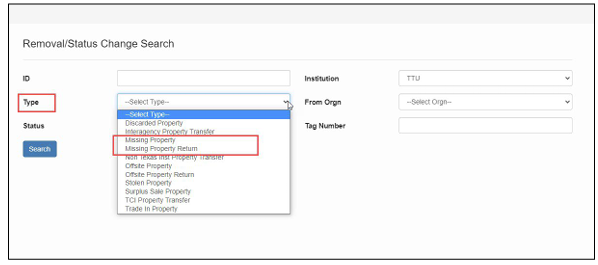
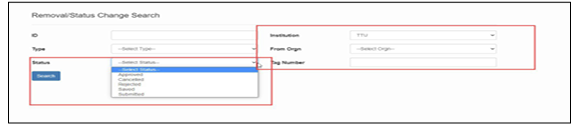
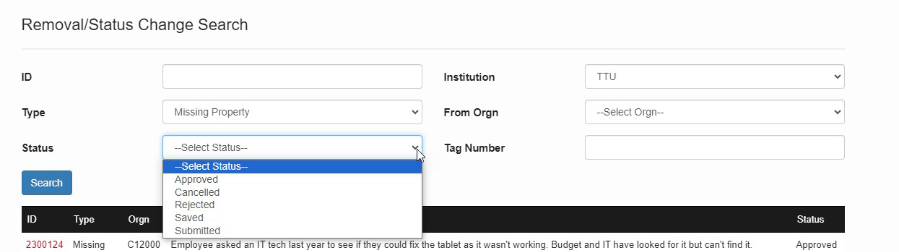
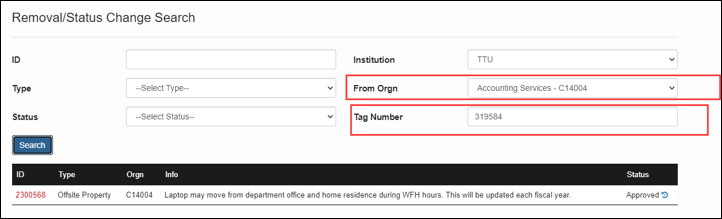
Next choose the Status, enter the Institution, and the Organization Code. The form requests will be listed according to the data entered. Also, if looking for one asset, searching by the tag number is possible.
Once the search selection is chosen a list of requests should populate as shown below.
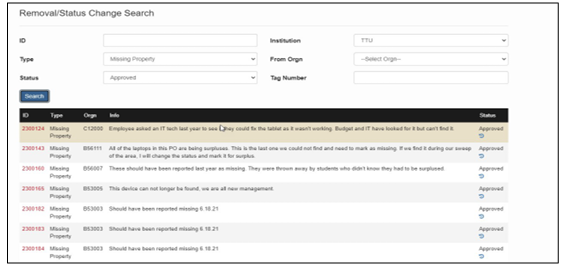
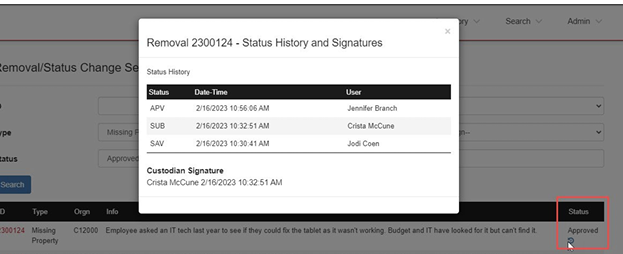
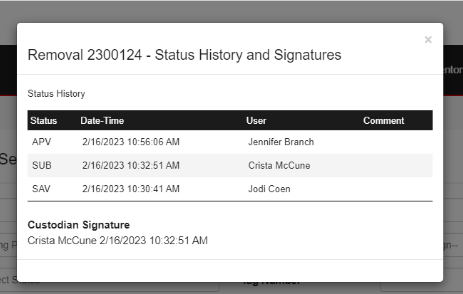
To find who submitted or approved the request click on the Status Link in the right column. The pop up below will show the submitter, custodian/delegate approver and the Property Management staff.
If there are any concerns or issues during this process, please contact Property.Management@ttu.edu
Procedures for Offsite Property & Offsite Property Return Forms
Offsite Property Form Submission
Within the departmental inventory list in the Property Inventory System, one may request to remove or change the status of an asset.
Access the Property Inventory System: https://www.fiscal.ttuhsc.edu/propinv/
Locate the asset on the department’s inventory list. If the user cannot view the inventory list, contact Property Management.
Manual Asset(s) Selection
Check the Trf/Rem radio button next to the asset number, then click on the Remove/Change Status box.
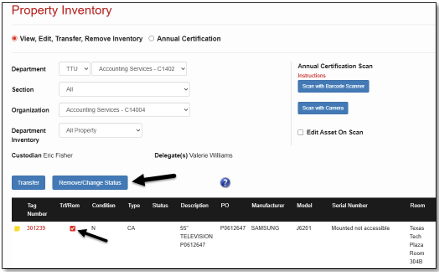
The Removal/Status Change dialog page will come up prepopulated with the Tag Number, Description, PO Number, Manufacturer, Amount, Room, Serial Number, Model, and Acquired Date for the asset.
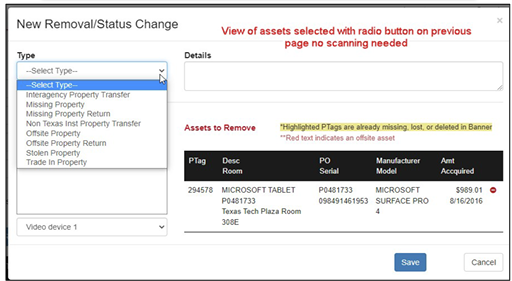
Asset(s) Selection Using Scanning
Alternately, click the Scan button then scan the asset barcode (permanent tag). As items are scanned, information will populate in the Assets to Remove section of the New Removal/Status Change page.

Select the Offsite Property form from the drop-down list.
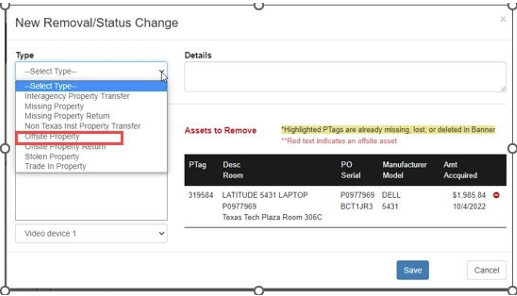
Complete the details of why the assets are relocated and include an estimated return date.
Example:
- “Temporary work-from-home. Est return date 05.01.2023”
- Choose the campus.
- Complete the Temporary Offsite location.
- Enter the user’s name or R# and click the search button. Select the R# once it populates.
- Click “Save” to route the form to custodian/delegate approval.
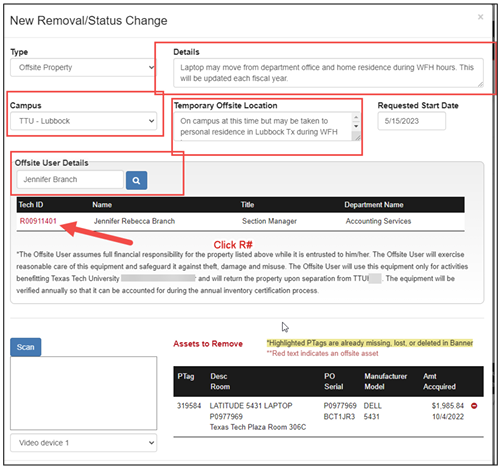
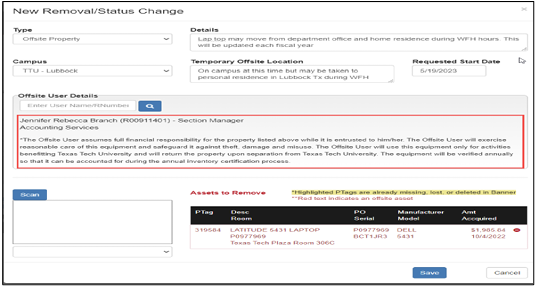
The form will be routed to the department Custodian/Delegate queue, and an email will be sent to them to process the approval.
Offsite Property Return Form
When an asset is returned to campus, the Offsite Property Return form should be completed.
Follow the same procedures as listed above, but select the Offsite Property Return Form.
Complete the details that explain the asset has returned.
Update the building and room location. This information is required for processing.
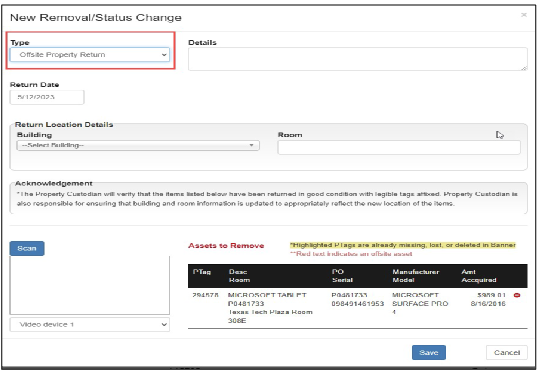
When all fields are complete, click Save. The form will be routed to the Custodian/Delegate for approval.
Once approved, the Offsite status will be removed.
Offsite Property and Offsite Property Return Form Approvals
Once the form is saved, the request will be routed to the department Custodian/Delegate and an email will be sent to the Custodian/Delegate to notify them an approval is pending.
The Removals/Status Changes page provides a list of Pending removals and status changes for which you are either the Initiator, the Property Custodian of the Department, or a Delegate for that Department.
Click the red ID number link to view the removal/status change details.
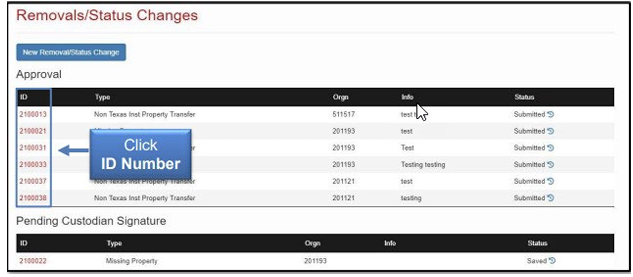
To approve a removal/status change request as a Property Custodian or Delegate, click the checkbox:
- I certify that the item(s) should be removed from TTU/TTUS inventory, or their status changed for the item(s) and to the best of my knowledge the above information is correct.
- Click the Electronically Sign and Submit button.
A confirmation message will indicate that the removal/status change request has been signed and approved.
An automated email will be sent to the initiator when a removal/status change request has been approved.
When the form is approved, the submitter will receive a notice that the Asset Removal/Status Change request was approved. The asset status will show offsite (blank if a return) on the main inventory list.
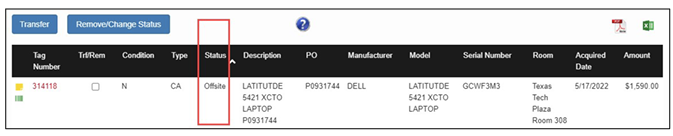
For any other questions reference the Property Inventory System Help Guide or contact property.managment@ttu.edu
Remove/Change Status Search
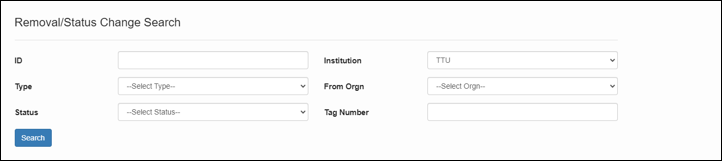
To search for forms in the PIS click on the Search link in the ribbon. Then choose the Removals/Status Changes link.

Select the Institution (required).
Then the search may be processed using one or more of the following:
- Form ID
- Type
- Status
- From Organization
- Tag Number
Type:
List of forms in the PIS will populate. To see who and when a request was submitted and approved, click on the approved icon under the Status column.
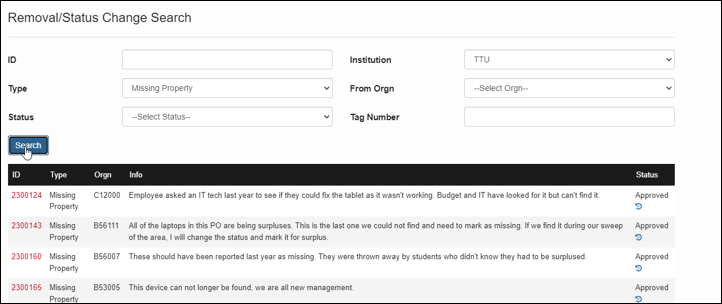
The example below is how the information will populate.
To search by Status, choose one of the options below:
Searching by the department organization code or asset tag number is the most efficient way to process the search. This will reduce the number of documents to be reviewed. To open the forms, click on the red ID
Annual Certification
The Annual Certification is a two-step process. Inventory must be submitted and then approved in the PIS. Prior to submitting the department annual certification, review all reports and make sure to complete any necessary edits and transfers. Please keep in mind to verify manual updates submitted to Property Management and that they reflect in the inventory reports before submitting the certification. Be advised these changes could take several days. Resources to help support departments with the certification process are linked below.
- Property Inventory Checklist
Property Inventory Annual Certification Video 1
Property Inventory Reviewing Reports Video 2
Updating Data in the Property Inventory System Video 3
Annual Certification Submission, Scanning and Approval
As of FY2023 The Property Inventory System has been updated to allow Annual Certification Scanning. It is recommended that the department purchase handheld scanners that will connect to your computing devices to help expedite inventory certifications. Multiple suggestions are below and may be purchased through Amazon:
- NADAMOO Model Bur 3076 Wireless Barcode Scanner
- AML LDX10 Batch Mobile Computer
- EYOYO Mini 1D Bluetooth Barcode Scanner
The scanning process does not have the capability to make updates to assets such as the serial number and location. Those will still need to be done manually. Future plans are to have the system upgraded to allow this process.
Scanning Assets for Certification
Scanning is the preferred method to complete the Annual Certification of Departmental Inventory. This document provides instructions for each scanning method, of which there are two:
- Using a scanner under the storage mode setting; or
- Using a device with a camera or a scanner.
The scanning functionality allows offsite employees to scan the barcode on their equipment and will eliminate the need for them to bring the asset to the authorized location or to provide a photo of the inventory tag to the property custodian or delegate for verification. Employees should have access to their home department as assigned in HR within the Property Inventory System. If not, additional access is needed to complete the scan. Please contact property.management@ttu.edu for assistance.
If a barcode is not able to be scanned contact Property Management to have a replacement tag sent.
Our goal is to work toward utilization of scanning for all Annual Certifications in future for TTU and TTUS!
After all assets are scanned for the department, the custodian or delegate will need to complete the certification by June 30th. Instructions can be found on the Property Inventory System Help page.
Scanning Procedure Using a Scanner Under Storage Mode Setting
(Instructions for NADAMOO Model Bur 3076 Wireless Barcode Scanner)
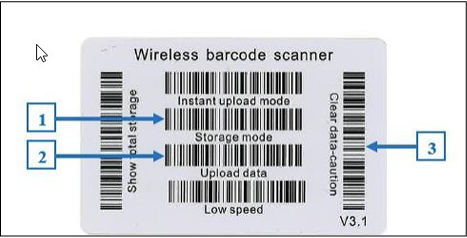
To set the scanner to storage mode, scan the Storage Mode barcode from the User Manual or the Wireless Barcode Scanner card (see 1 in image below). Under the storage mode setting, all scanned tags are stored in the scanner’s memory. Internal storage supports up to 100,000 barcodes.
When scanning is completed, connect the scanner to your device either by using the USB cable provided with the scanner or through Bluetooth.
Sign into the Property Inventory System on your device. You will see the Annual Certification Scan box in the upper right corner of the page. Click the blue Scan with Barcode Scanner box and place the cursor in the blank, dropdown box.
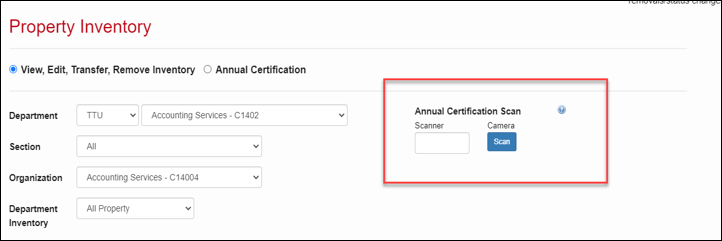
To upload the data from the scanner, scan the Upload Data barcode from the User Manual or the Wireless Barcode Scanner card (see 2 in image below). All of the stored barcodes will be uploaded. A green barcode icon will appear for all scanned tags just below the note icon for the asset on the inventory listing page.
When you determine all tags have been marked as scanned, scan the Clear Data – Caution barcode (see 3 in image below).
A column titled Certified is included in the downloaded Excel spreadsheet. The value of True indicates that the item was successfully scanned and a value of False indicates the item has not been scanned
Scanning Procedure Using a Device with a Camera or a Scanner
Scanning may be processed by using a phone, iPad or another device that can connect to the internet and also has a camera. Also, other handheld scanners may be used that can connect to your device.
Sign in to the Property Inventory System from your device. Property Inventory System The Annual Certification Scan box will be in the upper right corner of the page.
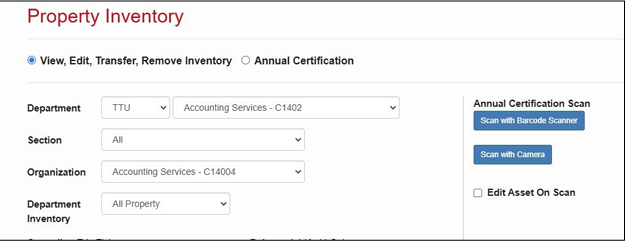
If using a device with a camera for scanning, click the blue Scan button below the word Camera and allow the system to access the camera on the device. If you use a scanner, make sure the scanner is connected to your device and place the cursor in the blank box under the word Scanner.
Use the camera or scanner to scan the barcode on the inventory tag.
-
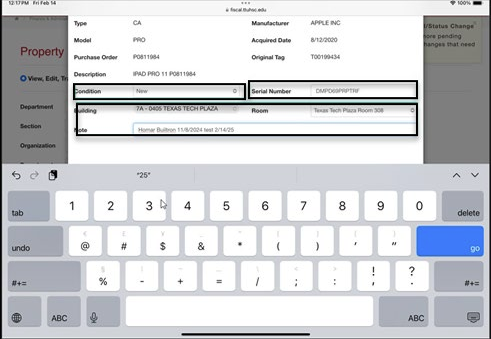
- *New Feature* - Edit Asset on Scan: Click the check box to activate this feature. This allows you to verify/edit the condition, serial number, and the building and room location of the asset. Uncheck the box to turn this feature off.
When the asset is scanned the asset data will populate and the updates of the condition, serial number locations and notes may be entered.
-
- **The SAVE button must be clicked before advancing to the next scan to save the data. The information will not update if you click GO without saving.**
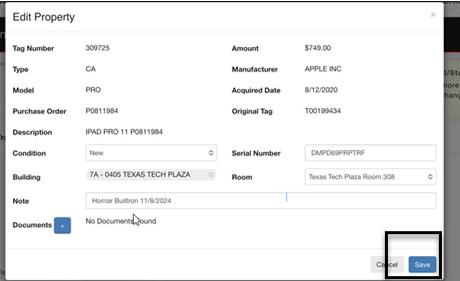
If the scan is successful, a notification will be seen that the item has been scanned.
If the scan is not successful, a notification with additional information will be seen.
- If the item is in the inventory listing for a department or organization that you
do not have authority to view, you will receive the message:
-
- “You can’t certify that asset because you don’t have access to its ORGN.” Search for the tag number (Search > Inventory) to determine which departmental listing includes the item. That department can transfer the item to your departmental listing, allowing you to scan the item.
-
- If the asset has been previously deleted or is identified as Missing, follow the instructions
in the message received:
-
- “The scanned asset is marked as missing, lost, or deleted. If missing, create a Missing Property Return removal/status change. If lost or deleted, contact the Property Management office.”
-
- If you have successfully scanned an item, you will receive the alert:
-
- “Asset has already been certified.”
-
When an item has been successfully scanned, a green barcode icon will appear just below the note icon for the asset on the inventory listing page. A column titled Certified is included in the downloadable Excel spreadsheet. The value of True indicates that the item was successfully scanned and the value of False indicates the item has not been scanned.

Submitting the Annual Certification
On the Property Inventory Page, click on Annual Certification.
Click submit next to the current year.
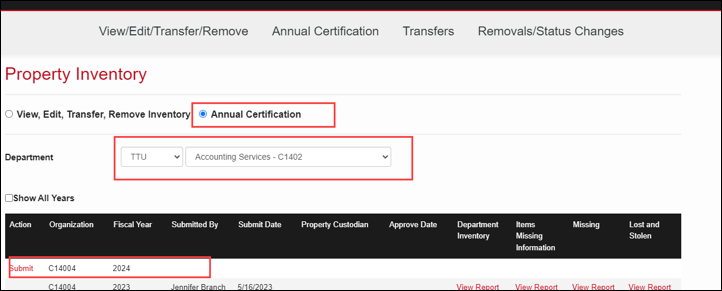
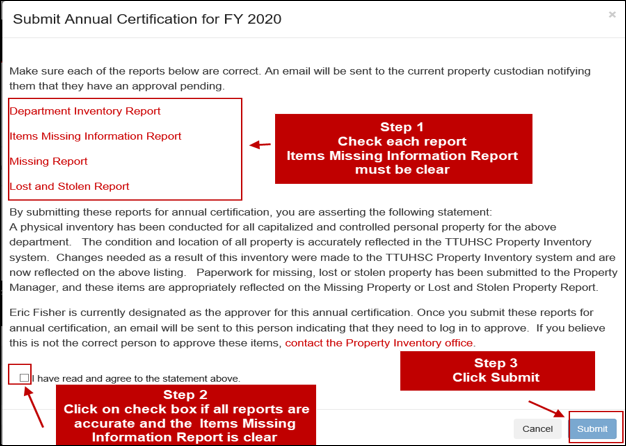
All listed reports must be reviewed for complete and accurate data before approval is allowed. Instructions for these reviews are below or short training videos on the Property Management website are available.
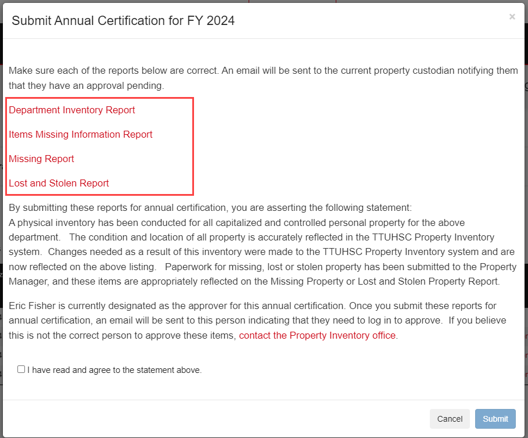
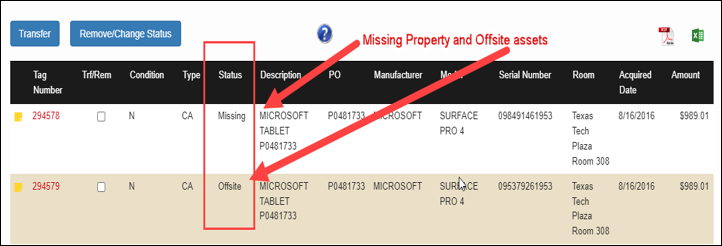
All Property (including Missing and Offsite Assets Status)
This report lists all property associated with a department and includes all the required data necessary to maintain accurate information of assets.
Status is used to identify assets recorded as missing or offsite. Only one asset disposition can be on the asset at a time, therefore, if an Offsite form is needed but the asset shows missing, the Missing Property Return form must be processed to remove the asset from missing first. Then process the offsite form.
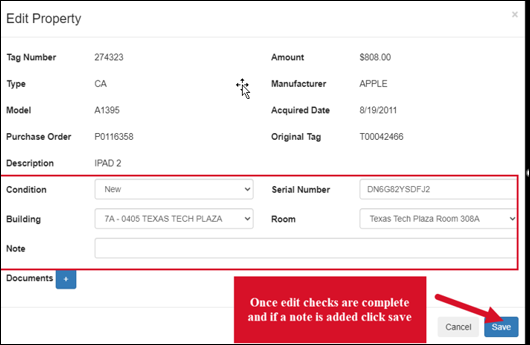
To edit an asset, click the red Tag Number. Notes regarding the asset may be added by clicking the yellow page icon on the left of the tag number.
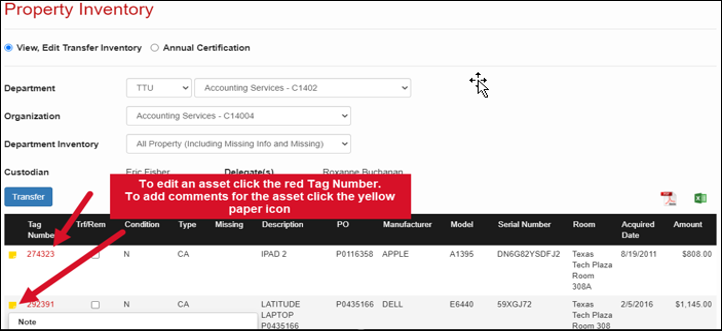
Verify the Condition, Serial Number, and Room location of the asset. The department may adjust these fields when needed and there should be no missing information. This report should be reviewed and updated on an ongoing basis
Condition of the Asset – Click the drop-down arrow on the Condition field and select:
-
- Good – As of fiscal year 2023, all newly purchased assets, as well as used or reconditioned property that remains in usable condition but is slightly shopworn or soiled. The condition of the property does not impair its utility.
- Fair – Property that is soiled, shopworn, rusted, deteriorated, or damaged to the extent that utility is slightly impaired; or reconditioned property that has been repaired or renovated but has since deteriorated and may need additional repair or renovation soon.
- Poor – Property that is badly broken, soiled, rusted, mildewed, deteriorated, or damaged such that its utility is seriously impaired; or property that has been repaired or renovated but has since seriously deteriorated due to major wear and tear, corrosion, or exposure to weather.
Serial Number – Enter the serial number in the text box. The serial number must match what the manufacturer assigned to the asset. For fabricated assets with no serial number, enter "fabrication". Do not enter any other information in this field, as it may render the asset unsearchable. Departments may use the Note function in the PIS to label assets with other information, such as the user’s name, but this information cannot be entered in the serial number field.
Room Location – First select the correct Building from the drop-down menu. The Room drop-down list will then populate to allow selection of the appropriate room. If a room is not listed, contact Property.Management@ttu.edu.
Click Save – Saving completes the process and updates the information in the Property Inventory System. To cancel the changes for an item, click Cancel.
Asset Missing Information Report
The Items Missing Information Report will display a list of inventory items from the selected organization that require a serial number and/or room location. Maintaining this report on an ongoing basis is particularly important. This report should be clear prior to submitting the department Annual Certification. Outstanding items in this report will result in the rejection of the Annual Certification.

Missing, Damaged or Stolen Property
Report inventory items listed on the All Property (including Missing Info and Missing) report that cannot be physically located to Property Management immediately. Due diligence must be exercised to locate the items before reporting them as missing. Submit the Missing Property form in the PIS under the Removal/Status Change section.
Before submitting the Annual Certification, all items identified as missing during the department review must appear on the Missing Property Report.
For items already reported and coded as Missing that are subsequently located, submit the Missing Property Return form in the PIS under the Removal/Status Change section.
Items determined to be stolen require submission of the Stolen Property Form in the PIS under the Removal/Status Change section. A copy of the official police report is required.
Please allow 3 to 5 business days for Property Management to process the forms. Missing, stolen, damaged, or destroyed items must appear on the appropriate report before proceeding with the Certification process.
If all data is accurate and complete, click the check box, I have read and agree with the statement above. Click on Submit.
Approval of Annual Certification
As of fiscal year 2022, the Property Custodian or Delegate may approve the annual certification. A pending Annual Certification notice will appear in the top right-hand corner of the Property Inventory page for the Property Custodian and Delegate when a pending annual certification needs approval.

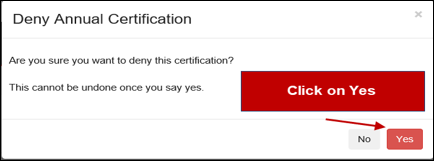
Make sure each of the listed reports is reviewed for accuracy. If the reports are not correct, click Deny. This will return the user to the inventory page. Make corrections as needed then resubmit the certification.
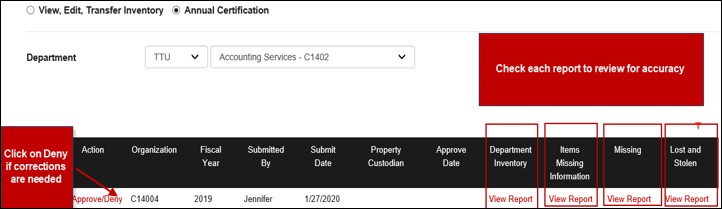
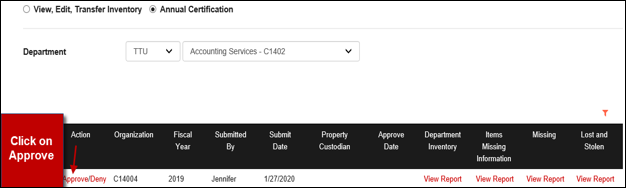
If the reports are correct, click on Approve. Again, the Custodian or Delegates must approve the Annual Certification. Property Management will reject certifications if the approval is by an unauthorized individual.
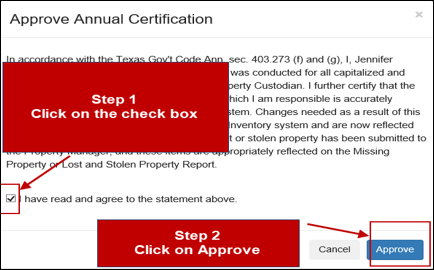
Click on the checkbox next to the statement I have read and agree to the statement above. Click Approve.
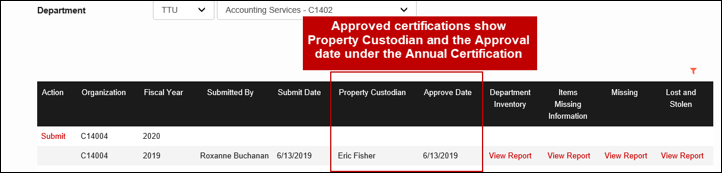
Once the inventory is approved the certification will be shown in the Annual Certification list with the approvers name and date.
Property Inventory Certification Checklist
Department Inventory (All Property) Report: Verify and update assets.
-
- Condition: Update in the Property Inventory System (Video 3).
- Description, Manufacturer, and Model: Notify Property Management of corrections needed at Property.Management@ttu.edu.
Items Missing Information Report: Verify report is blank.
-
- Missing Serial Number: Update in the Property Inventory System (Video 3).
- Missing Building and Room Location: Update in the Property Inventory System (Video 3).
Missing Report: Identified on the Department Inventory Report as Missing in the Status column.
-
- Verify all assets not located are included on the report.
- Update the status of assets determined missing using the Missing Property form in the Property Inventory System.
Stolen Equipment
-
- Complete the Stolen Property form under Remove/Status Change in the Property Inventory System.
- Include a copy of the official police report.
Transfers: Verify all pending transfers are processed in the Property Inventory System.
-
- Accept pending Transfers-In (Video 4).
- Verify pending Transfers-Out are approved by the receiving department (Video 4).
- Process any additional transfers needed.
Trade-In: Verify items used as trade-ins are no longer on the department inventory. Complete the Trade-In form under Remove/Status Change in the Property Inventory System.
Offsite Assets (formerly known as the Temporary Use Authorization form): Verify an Offsite Property form has been completed for each asset that moves frequently or is used off campus. Review and update these forms annually as needed.
Discovered Assets Not Listed on Department Inventory Report: Notify Property Management at Property.Management@ttu.edu.
- Verify all updates listed above are reflected in the Property Inventory System.
Submit Property Inventory Certification: May be submitted by the Property Custodian or Delegate (Video 1).
Approve Property Inventory Certification: Must be approved by the Property Custodian or Delegate in the Property Inventory System (Video 1).
Note: Certifications submitted with missing serial numbers, missing locations, and/or approved by individuals not assigned as the Custodian or Delegate will be rejected and must be resubmitted by June 30.
Please plan accordingly. The certification process may take several days to complete. The Property Inventory System Guide and training videos provide instructions for processing updates in the Property Inventory System.
Questions and Help
For additional resources, click HELP in the top menu bar and then click TTU.
Additional Questions?
Accounting Services
-
Address
TTU Plaza Building, 1901 University, Suite 308, Lubbock, TX 79411 -
Phone
806.742.2985 | Fax: 806.742.8076 -
Email
accountingservices@ttu.edu