
Ad Astra How to Request Events
INSTRUCTIONS ON HOW TO REQUEST EVENTS USING AD ASTRA
- First Steps: Requesting An Event
- Single Meeting
- Multiple Meetings
- Recurring Meetings
- Assigning Rooms
- Room Features
- Checking the Status of an Event Request
Login to Ad Astra.
When you login, the right corner will show sign in.
First Steps: Requesting An Event
- Click Request Event under the Events tab.
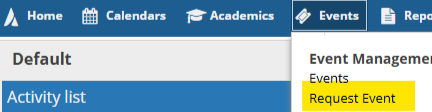
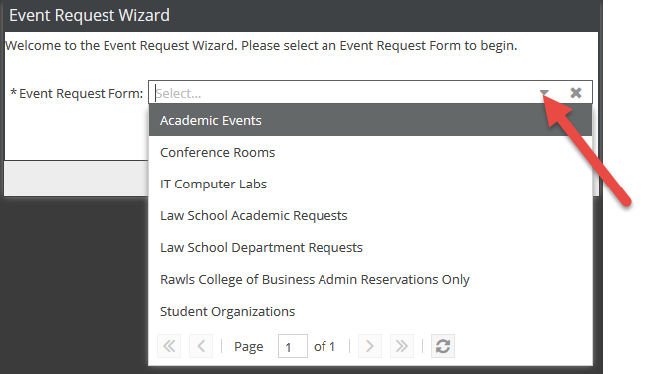
- You will be redirected to the Event Request Wizard.
- Select the event form you would like to use.
- Academic Events: Departments should use this form for events such as Reviews, Make-up Exams, Speakers,
Course Related Films, etc.
- Exams: All departmental, cumulative, mid-term and final exams are to be scheduled through the department's registrar coordinator and not as an event.
- Conference Rooms: Conference rooms that are centrally scheduled through Facilities & Campus Services Space & Resource Management. This is NOT a comprehensive list of all conference rooms. Full-time faculty or staff who office in those buildings may submit a request.
- Law School Academic Requests: Academic requests for rooms in the Law School and Lanier must use this form.
- Law School Department Requests: Departmental requests for rooms in Law School and Lanier must use this form.
- Rawls College of Business Admin Reservations Only: Used to request events in the Rawls College of Business Administration building. Requests using this form should be submitted by a full-time RCOBA faculty or staff member.
- Student Organizations: Registered student organizations must use this request form. Requests are to be made by student leaders of the organization who are listed in TechConnect.
- Academic Events: Departments should use this form for events such as Reviews, Make-up Exams, Speakers,
Course Related Films, etc.
- Click Next

- Fill out the information requested in the form. Fields marked with an asterisk (*) are required fields.
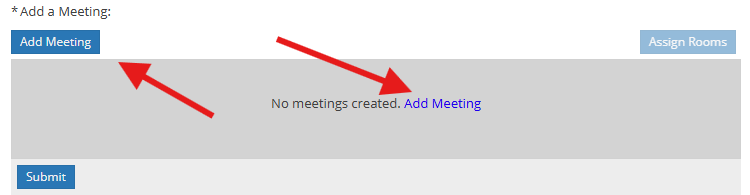
- In order to add meeting(s), click one of the two Add Meeting options.
Single Meeting
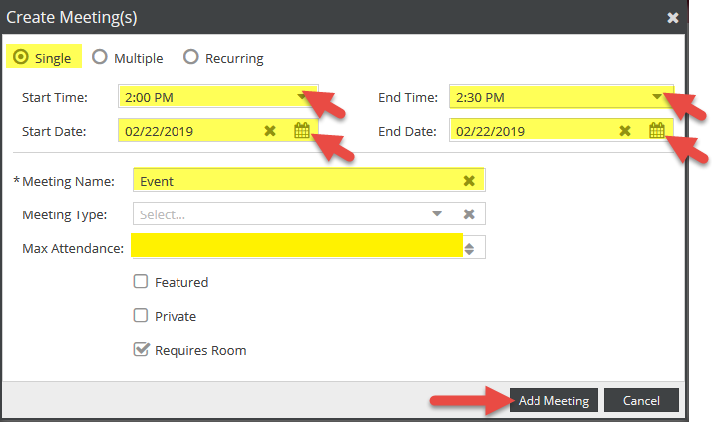
- For a single meeting, designate start and end times from the pull-down menu and the desired date from the calendar.
- Please remember to add set-up and clean-up time.
- Verify that your Meeting Name is present.
- Attendance needs to be close to your expected number as it will affect what rooms will be available to request. Do not put in a range of numbers (ex. 23-40) but a single number (ex. 40).
- Click Add Meeting.
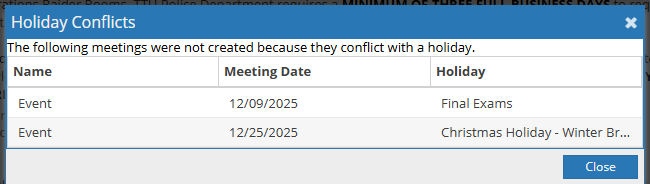
Note: If you select dates/times that occur on a university holiday, Individual Study Day, or Final Exam dates, a Holiday Conflict box will display, notating which meeting(s) cannot be scheduled due to Holiday conflicts.
Multiple Meetings
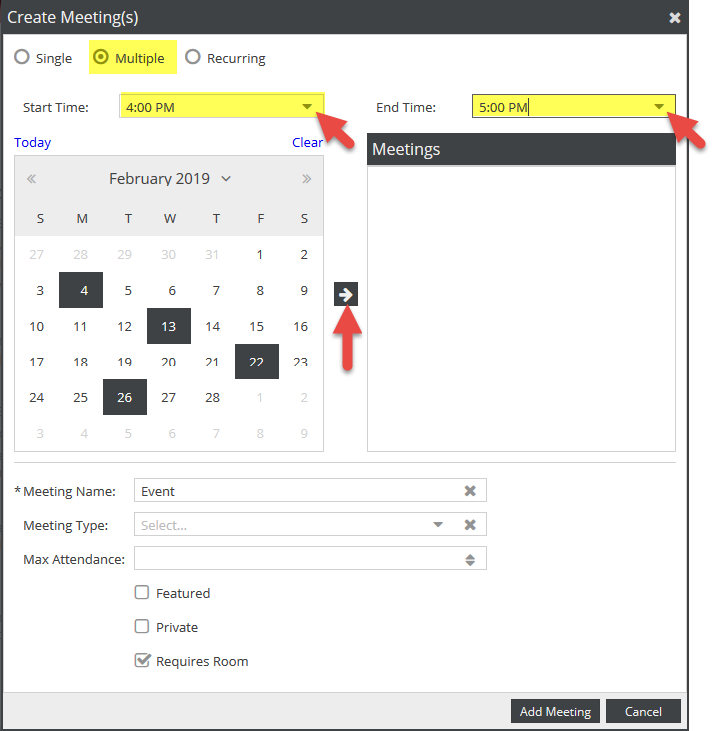
- For multiple meetings, click the Multiple button.
-
- Designate start and end times from the pull-down menus and then select the desired dates from the calendar.
- Please remember to add set-up and clean-up time.
- Click the arrow icon to the right of the calendar to add the meetings to your meeting list.
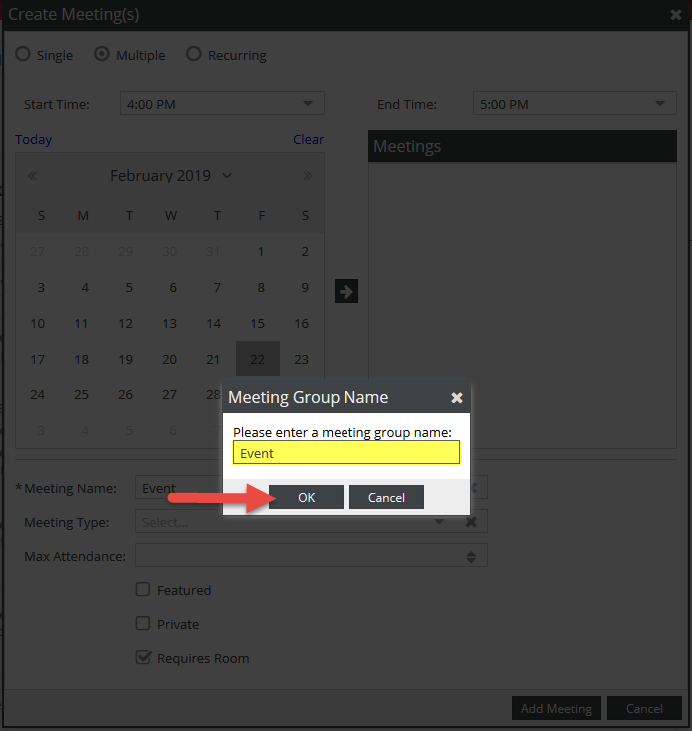
- You will be prompted for a meeting group name. Add a meeting group name and click OK.
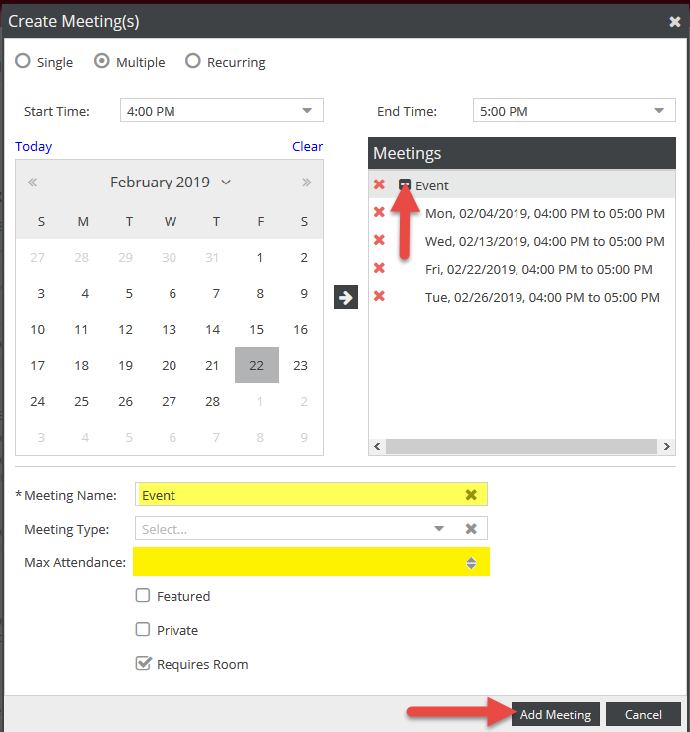
- Your meetings will appear as a collapsed group under the Meetings column.
- Click the plus (+) sign icon to expand the group and view each meeting instance.
- Verify that your Meeting Name and Attendance is present.
- Click Add Meeting
Recurring Meetings
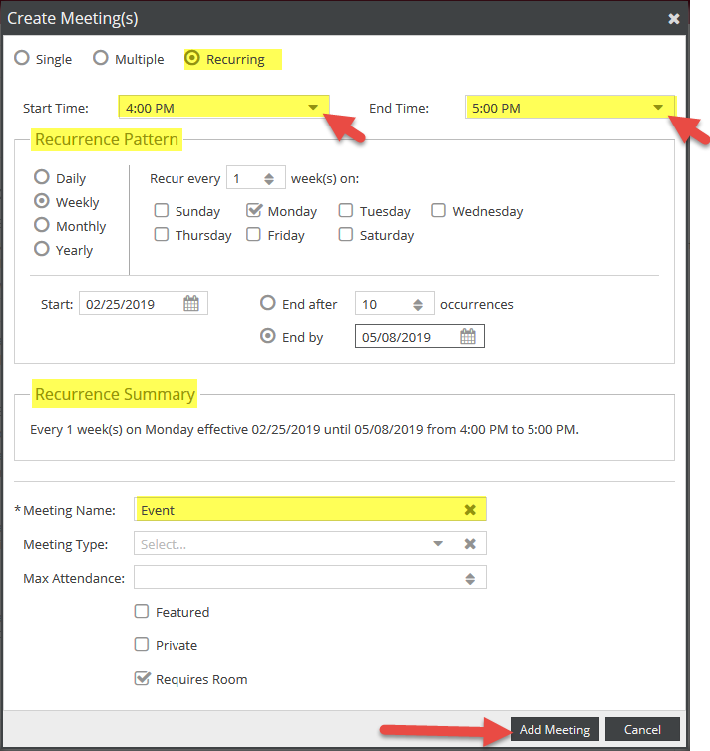
- If your meetings have a recurring pattern, click the Recurring button.
- Select a start and end time from the pull-down menus.
- Please remember to add set-up and clean-up time.
- Under Recurrence Pattern: choose a pattern (Daily, Weekly, Monthly, or Yearly), and date range.
- The pattern options to the right will change based on which option you choose (i.e. days of the week, months of the year, etc.).
- Date range can end after a set number of occurrences, or end by a specific date.
- The selected time will apply to all meetings in the pattern.
- Review your recurrence under Recurrence Summary, verify that your meeting name is present and times and dates are correct.
- Once verified, click Add Meeting.
Assigning Rooms
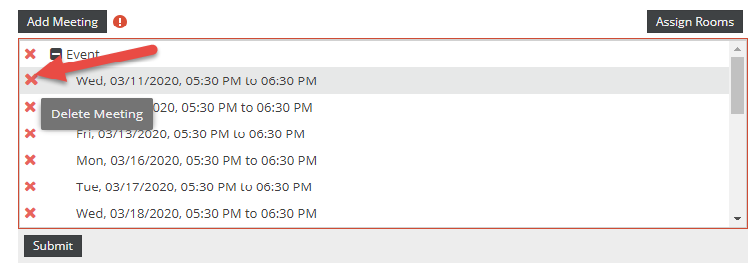
- Once the meetings have been added, click Assign Rooms to request a room for your meetings.

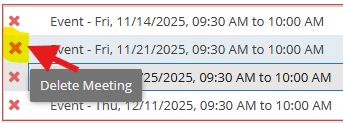
- To delete meetings, click the X icon next to the applicable meeting.
- The Assign Room screen will generate and show a list of rooms as Available or Unavailable.
-
- If a room is Unavailable it cannot be selected. Conflicts will show in yellow.
- Click on the room name or Available to select the room(s) you are wanting to reserve.
- Only click on the room(s) you are wanting to reserve, room(s) cannot be put on "hold" for events.
- The meeting will turn green and show as Selected.
- Use the plus (+) signs on the Room, Score, and Meeting tabs for more details. Expanding the meetings tab will also allow you to see what meetings have conflicts, if one is noted.
-

Note: Filter alphabetically by building by clicking on the word "Room" at the top of the Room column.
- Clicking once will sort A-Z; clicking twice will sort Z-A.

Room Features
- View individual room details by hovering over the round radio icon next to the room name.

Submission of Form
- If the meeting dates and times need to be amended, you can click Cancel and return to the previous screen.

- Use the red "X" icon next to each meeting to delete. Follow the previous steps to add any additional meetings as needed.
- After a room or set of rooms have been selected, click OK to return to the request form.

- Double check your dates and time before submitting your request.
- Then click Submit at the bottom of the screen to submit your request.

- If your form does not submit, complete any missing information on the form as noted by an asterisk.
If you attempt to submit the request without completing all required fields, you will receive an error message and the incomplete field will be underlined in red and will display a red error icon.

- Once you have successfully submitted your request, a confirmation screen will display.
You will also receive notification by email that your event request has been completed. If you do not find it in your Inbox please check your Junk/Spam mail box.

Checking the Status of an Event Request
- After an event request has been submitted, details and status can be viewed by clicking on Events under the Events tab and selecting the box next to My Events for the desired Time Period.
- Click Search to populate results.
For more detailed instructions please visit Ad Astra: How to Check Scheduled Events.

Operations Division: Planning and Administration
-
Address
Mail Stop: 5091, Box: 45091, Physical Plant Building, 3122 Main Street, Lubbock, TX 79409 -
Phone
(806) 742- 4677 -
Email
operations@ttu.edu