
Creating and Managing Carts
To process a requisition, you must create a cart in TechBuy. You can add products to a cart by using the punch-outs, hosted catalogs, forms, or non-catalog items. It is recommended you create a cart before beginning to shop in order to avoid using old data (or always delete any unused draft carts).
Creating a new cart in TechBuy
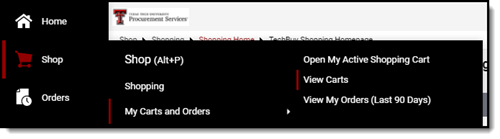
Before you create an order in TechBuy, you must go to “My Carts and Orders” and then “View Carts” on the shopping widget to create a new cart. Users will be able to view their draft carts, carts assigned to them and carts that they have assigned to others when accessing View Draft Carts. Users can also delete their old and unused carts in My Drafts from this screen.

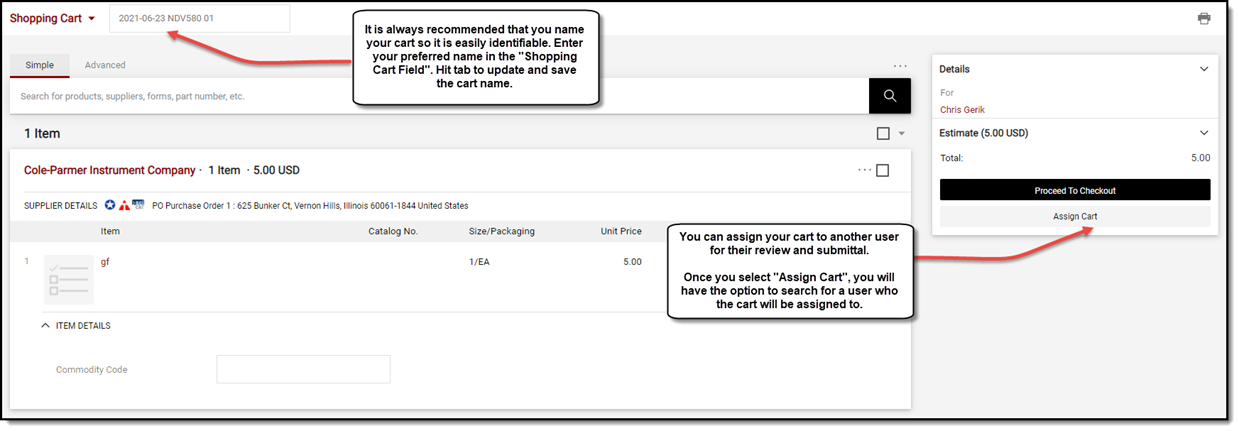
Assigning a Cart to Another User
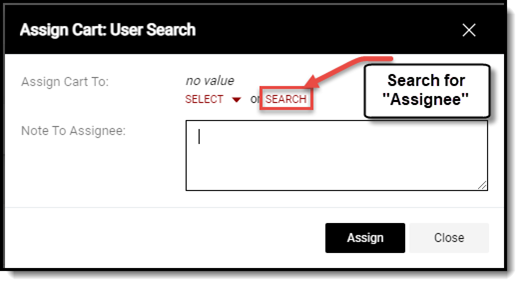
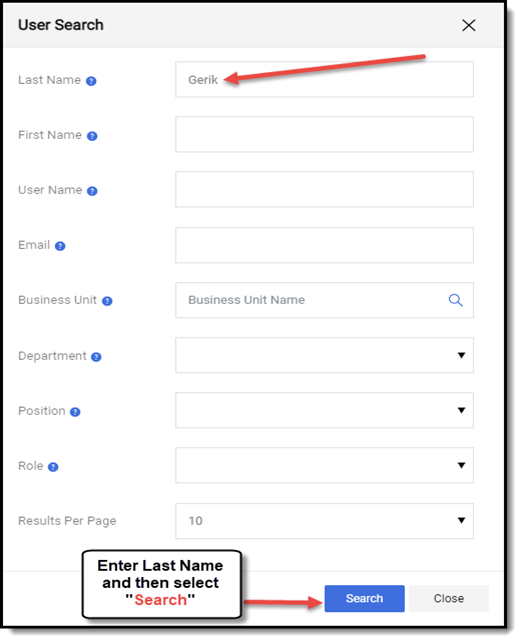
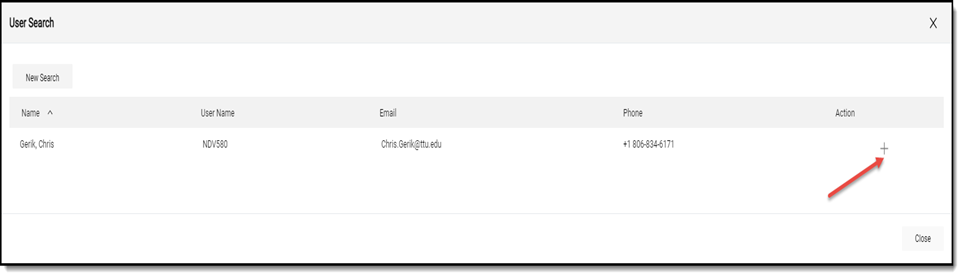
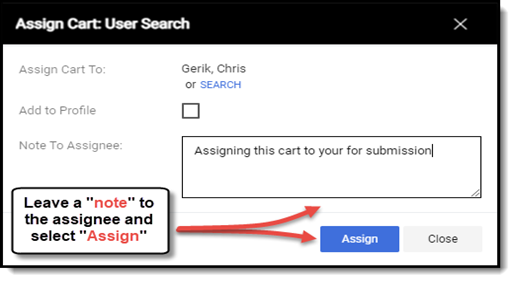
To assign a cart to a specific user you can search for the Assignee or the Submitter by first or last name, user name, email, cart name, cart number, etc. Once you've located the user who you want to assign your cart to, select the "+" icon to select them. Next you will be asked to leave a note to the recipient. It is always recommended to leave a note to the recipient.
Procurement Services
-
Address
Box 41094, TTU Plaza, Suite 408, 1901 University Avenue, Lubbock, TX 79409-1094 -
Phone
806.742.3844 | Fax: 806.742.3820 -
Email
strategic.acquisitions@ttu.edu