
TTU K-12 Portal – District Partner FAQs
Note: All courses and most of our Credit by Exams will utilize an online proctoring service called Proctorio. Please learn more about online proctoring on our Proctorio Student FAQ page. In order for the online proctoring service to work correctly students MUST use the Google Chrome browser and install the Proctorio Extension. Instructions are available on the Proctorio Student FAQ page.
TTU K-12 strongly recommends the Google Chrome browser. Chromebooks and Chrome OS are not supported due to the use of Java in Blackboard.
To view the Blackboard Support article regarding browser compatibility. Although approved, not all browsers provide a quality user experience across all devices and platforms. Please use this Browser Checker to see if your system is compatible.
Safari for Windows is no longer supported by Apple and no longer offers Safari updates for Windows. Safari 5.1.7 for Windows was the last version made for Windows, and it is now outdated. Windows users should select another browser.
Create your Focus Application
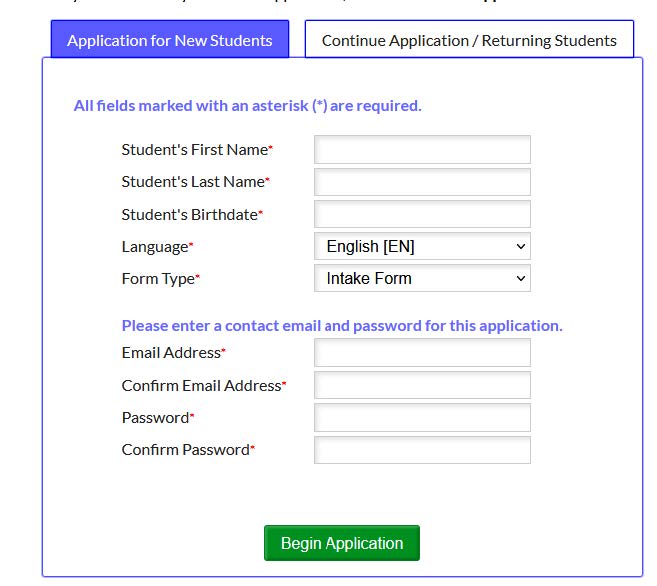
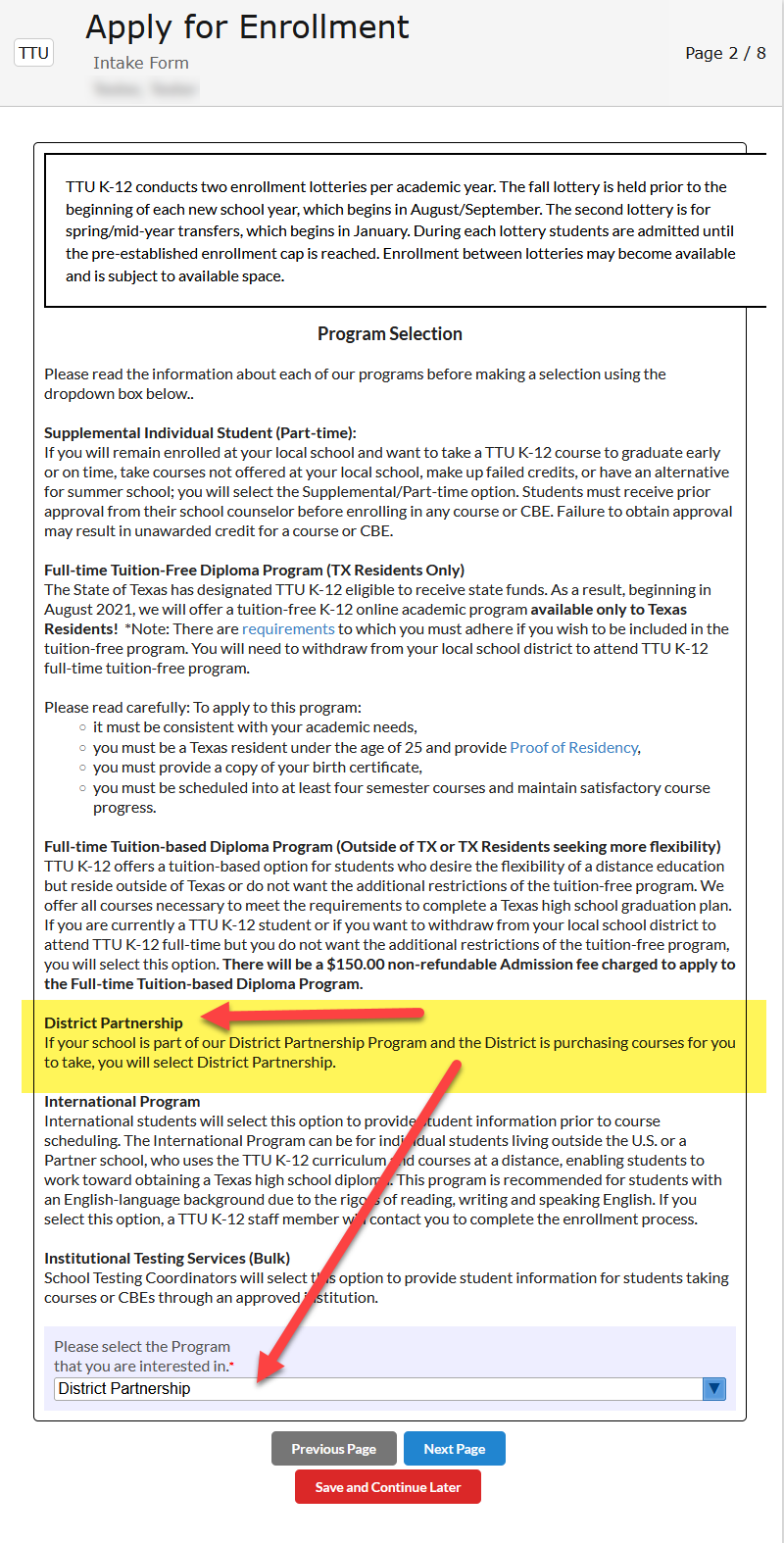
First-time students should create their account via the apply button, which will allow for creation of the student’s accounts. District Partnership Students must select District Program from the Program Selection and your school from the External School list.
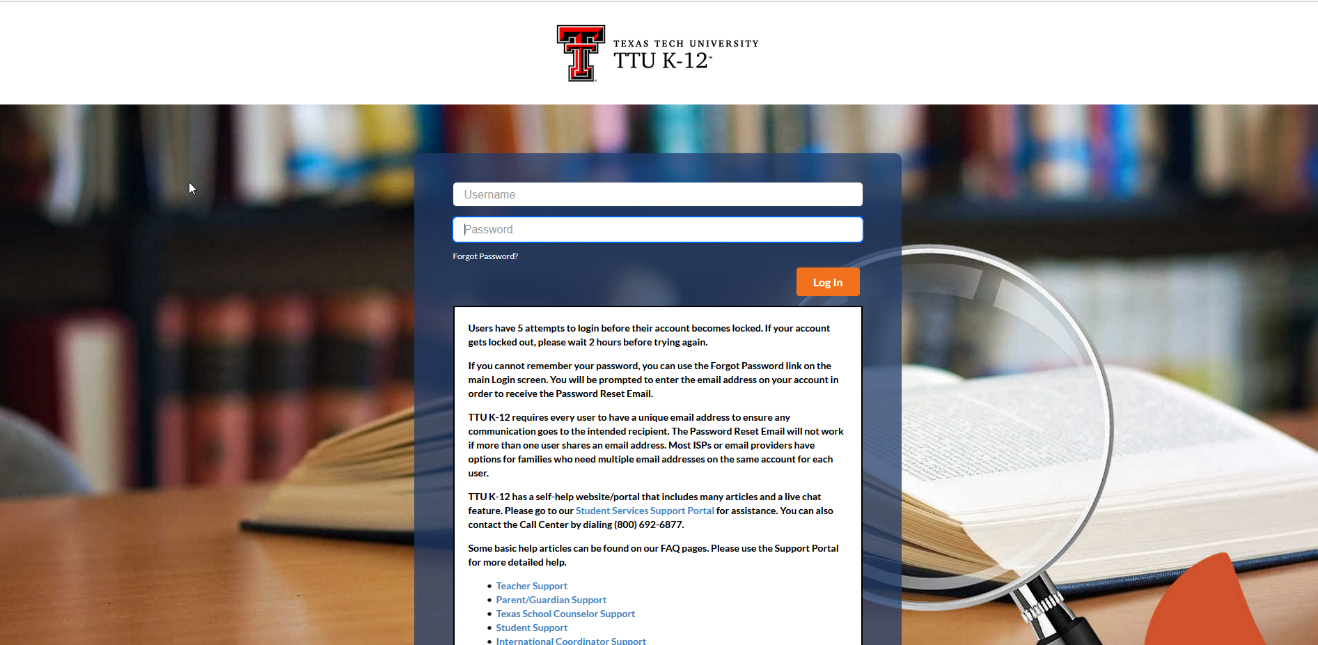
Focus Portal Login Apply For Enrollment
Upon accessing the login, please enter your username and password.
District Partnership Student Applications
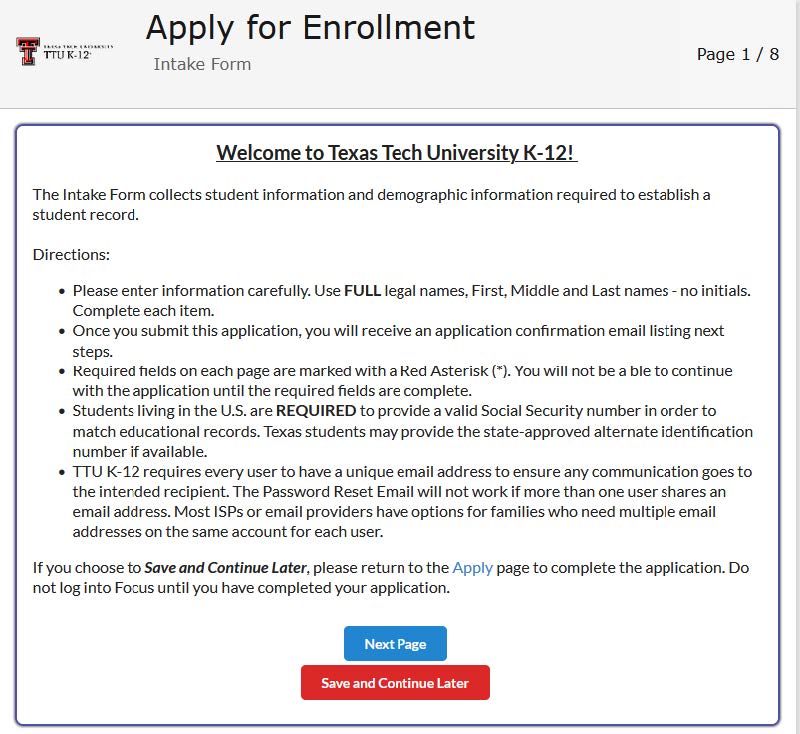
Page one of the application indicates which required fields are required to submit the information for the student.
Page 2 describes the program different programs offered at TTU K-12. Liberty Partner Students must select the District Partnership Program option from the list
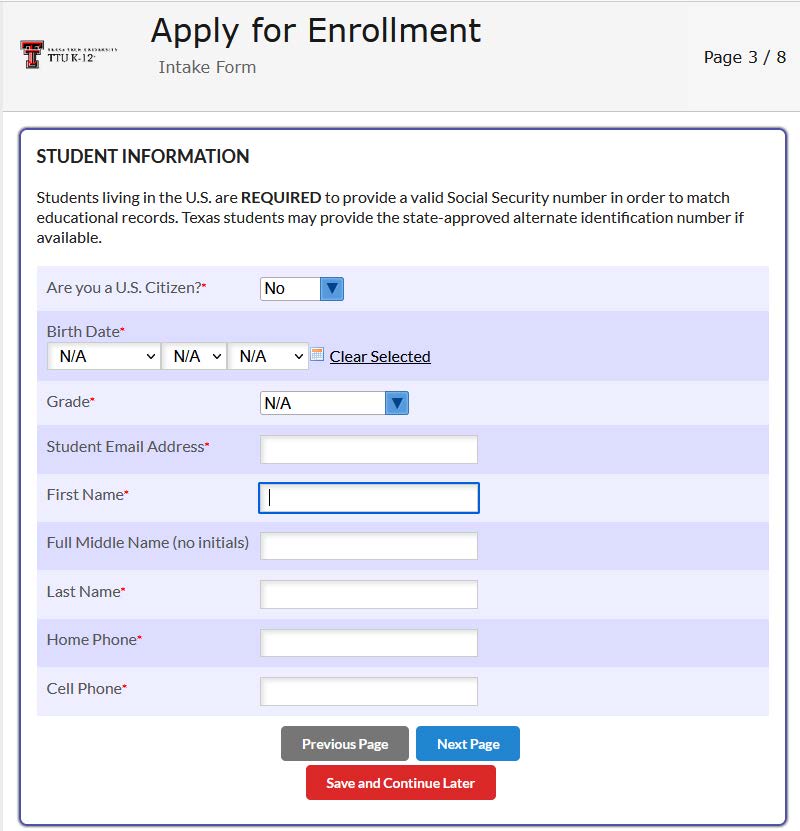
Page 3 asks about the student’s information.
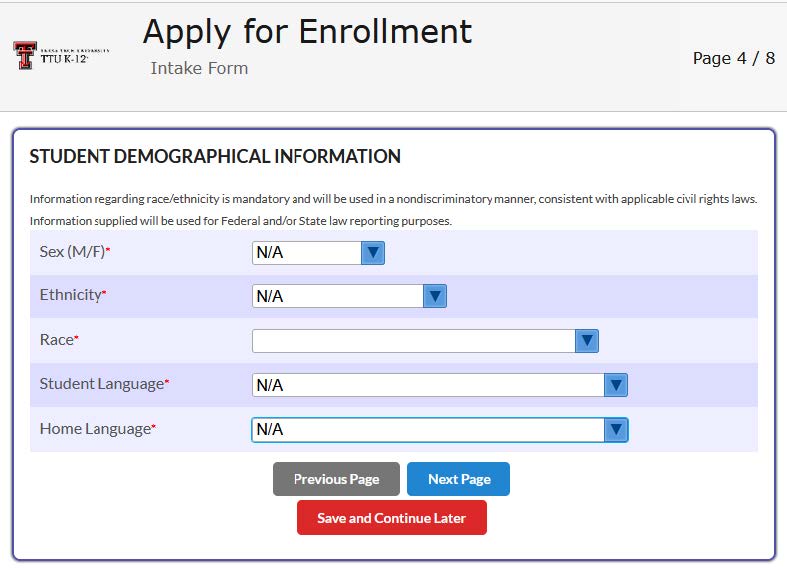
Page 4 talks about the student’s demographic information.
Page 5 is an intentional blank page, and students may select “Next Page”.
Page 6 asks about the mailing address information for the parent/guardian.
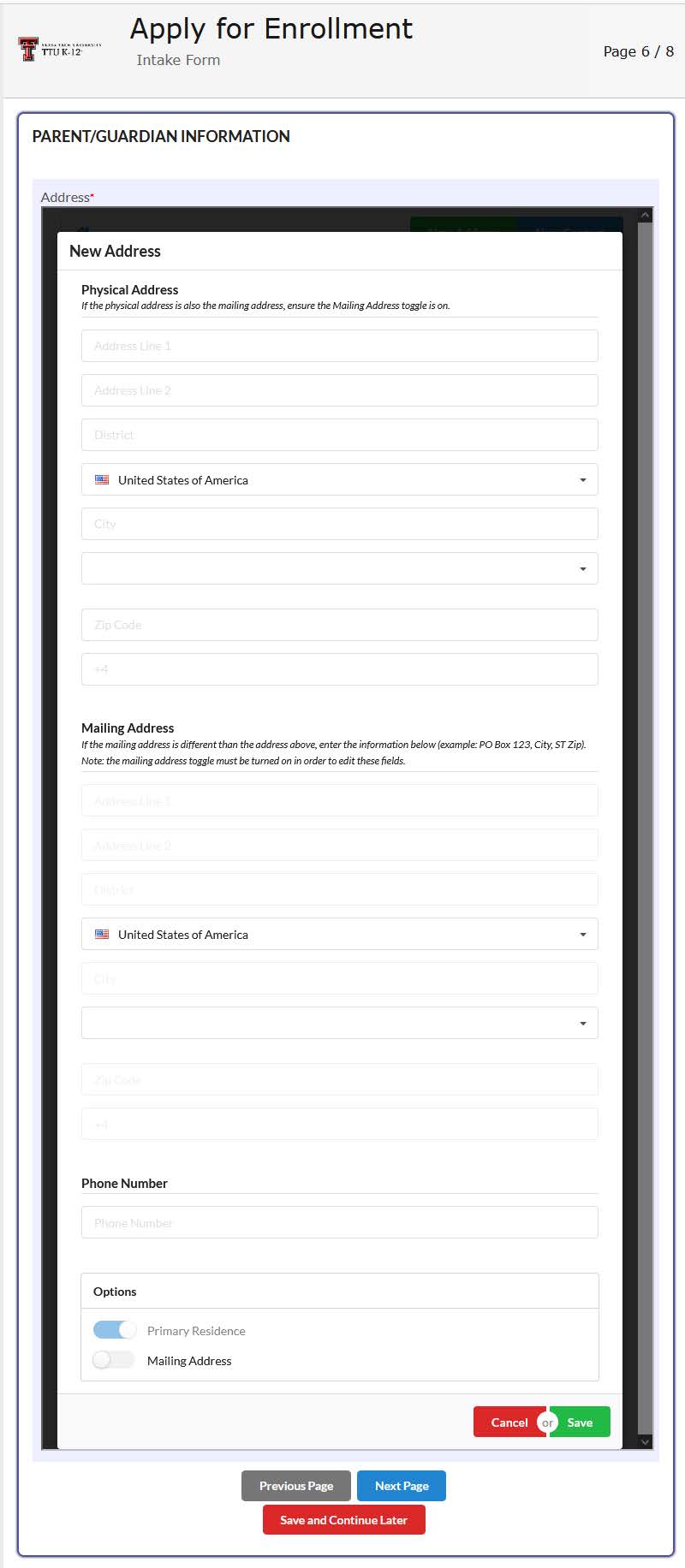
Page 6 then continues on to gather the parents/guardian information.
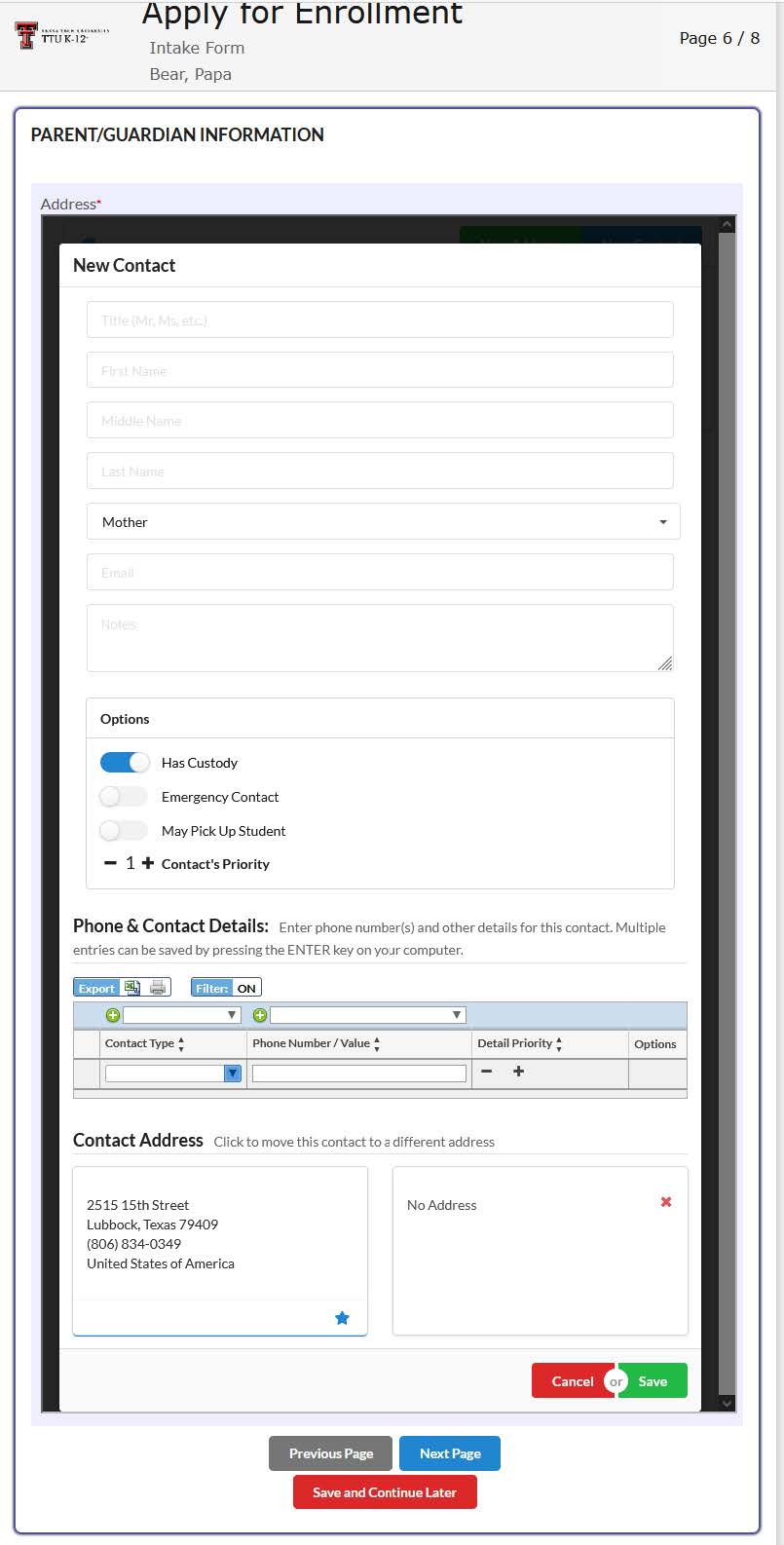
Once all information has been completed, the following screen will display for the Parent/Guardian Information.
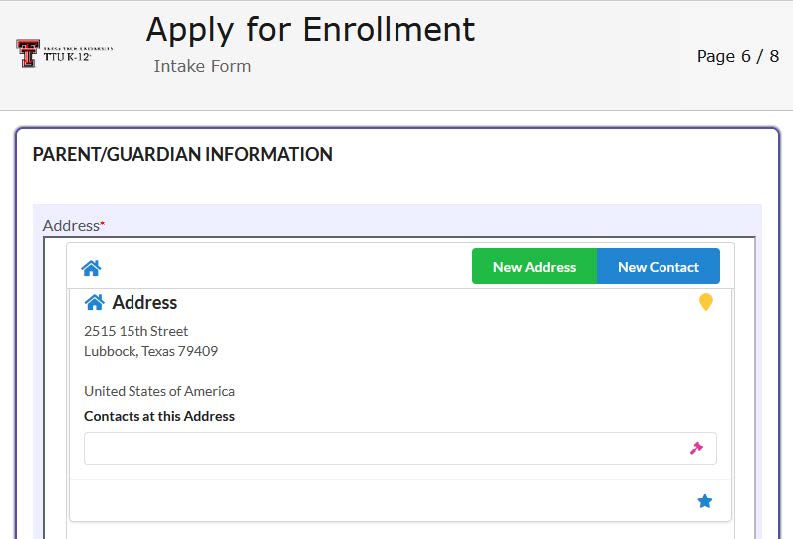
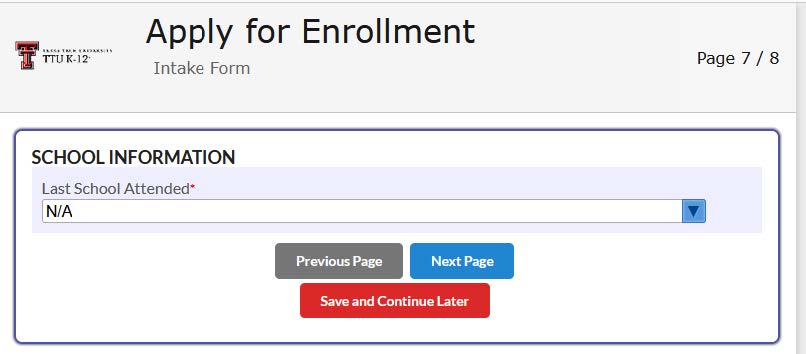
Page 7 then asks about which school the student attends. Students must select the school code and name that they currently attend. You may type your school name in the filter to locate it in the list. District Partner schools should appear in the list, however, if it is not, select 000000099 No School Listed and it will allow you to provide your school information.
Page 8 then asks about how they heard about the program
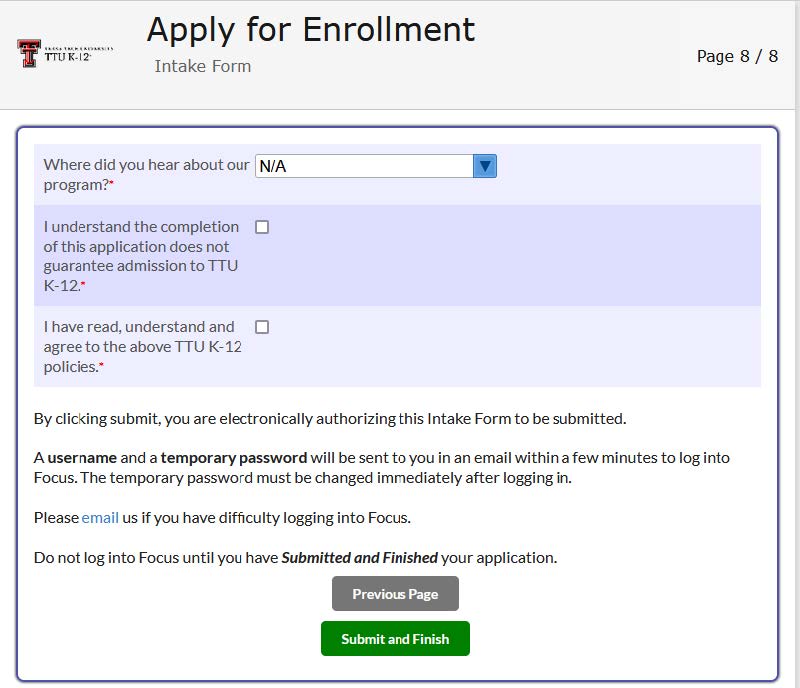
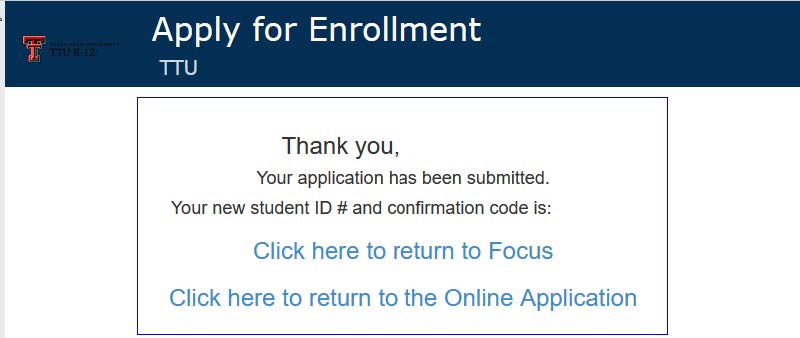
Once Complete, the customer will receive notification that their application has been submitted.
Dashboard
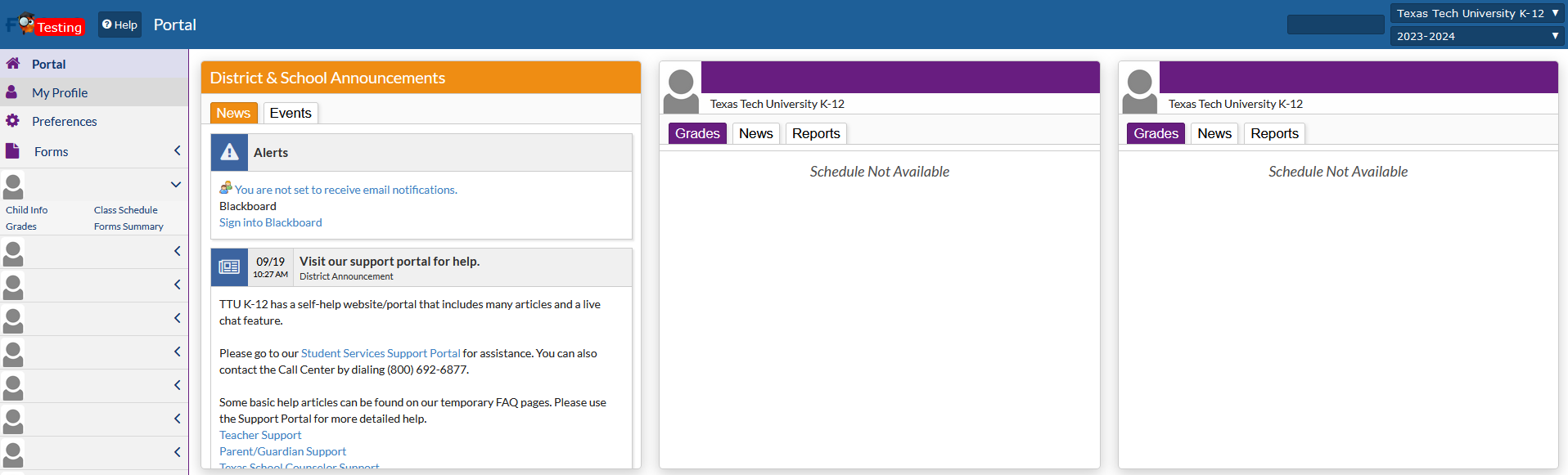
After successfully logging into the portal, you will be taken to your Dashboard that shows My Active Courses. The dashboard is your starting point into managing your profile, accessing courses, reviewing the course catalog, utilizing forms and downloads, and contacting TTU K-12.
How do I contact TTU K-12 Student Services?
TTU K-12 Student Services may be contacted at 1-800-692-6877 or by accessing the search feature from the portal homepage.
Navigating the Portal
My Profile
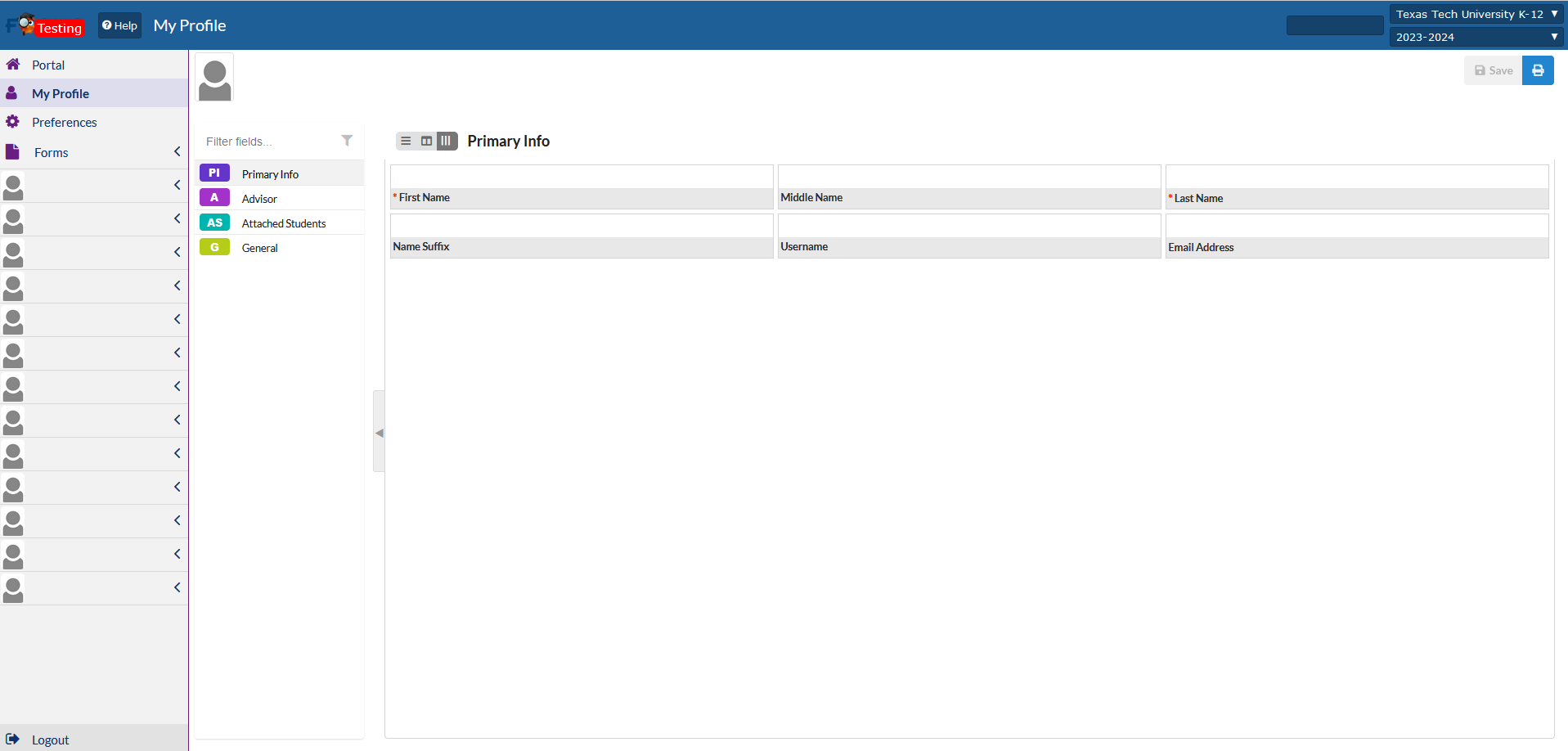
The My Profile page will show general information about your account.
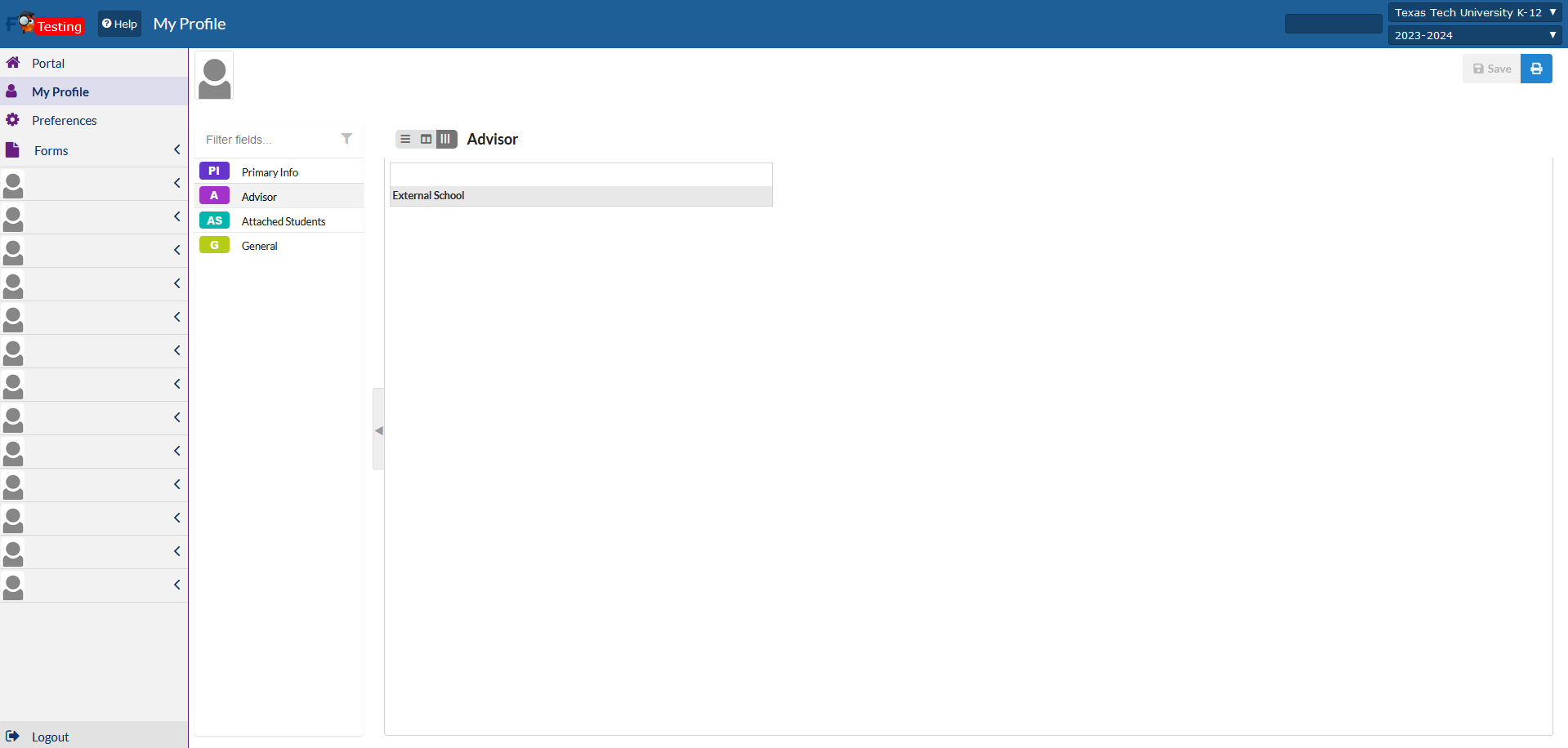
Advisor
The Advisor tab will allow you to view the school that you are currently assigned to.
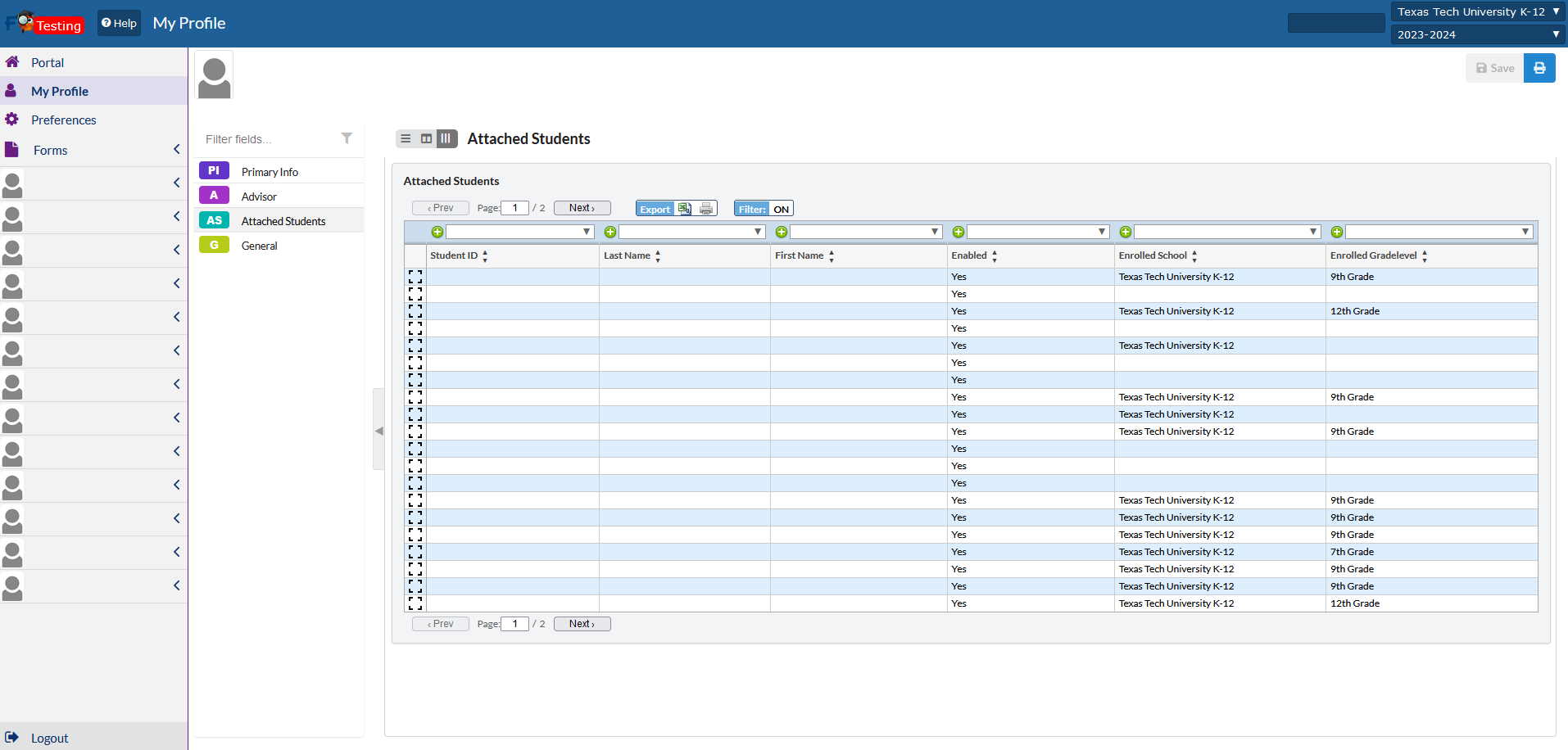
Attached Students
The Attached Students list will show a list of students that are currently attached to your assigned to your school. This list may also be exported via excel.
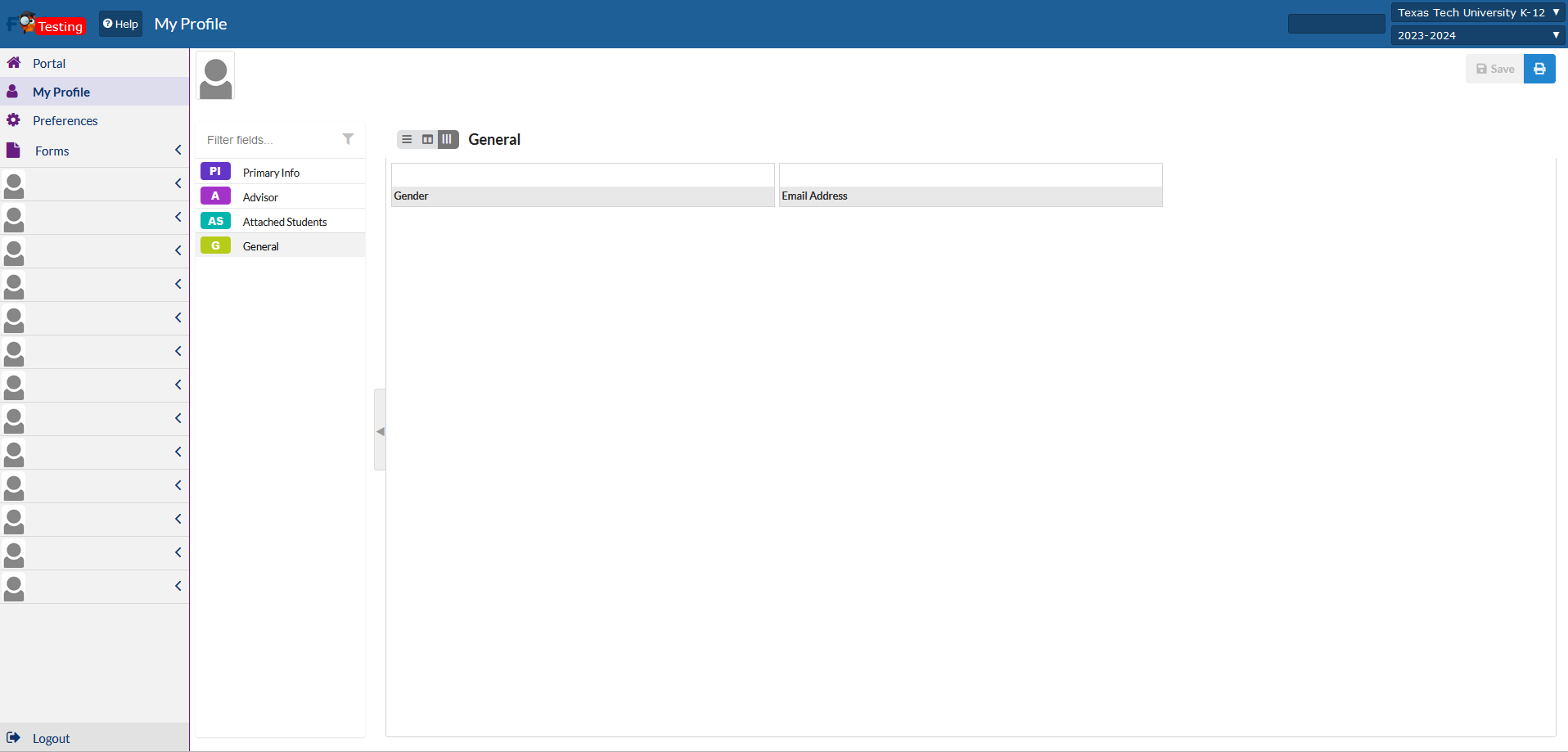
General
The General tab will show your email address and any other information.
Preferences Tab
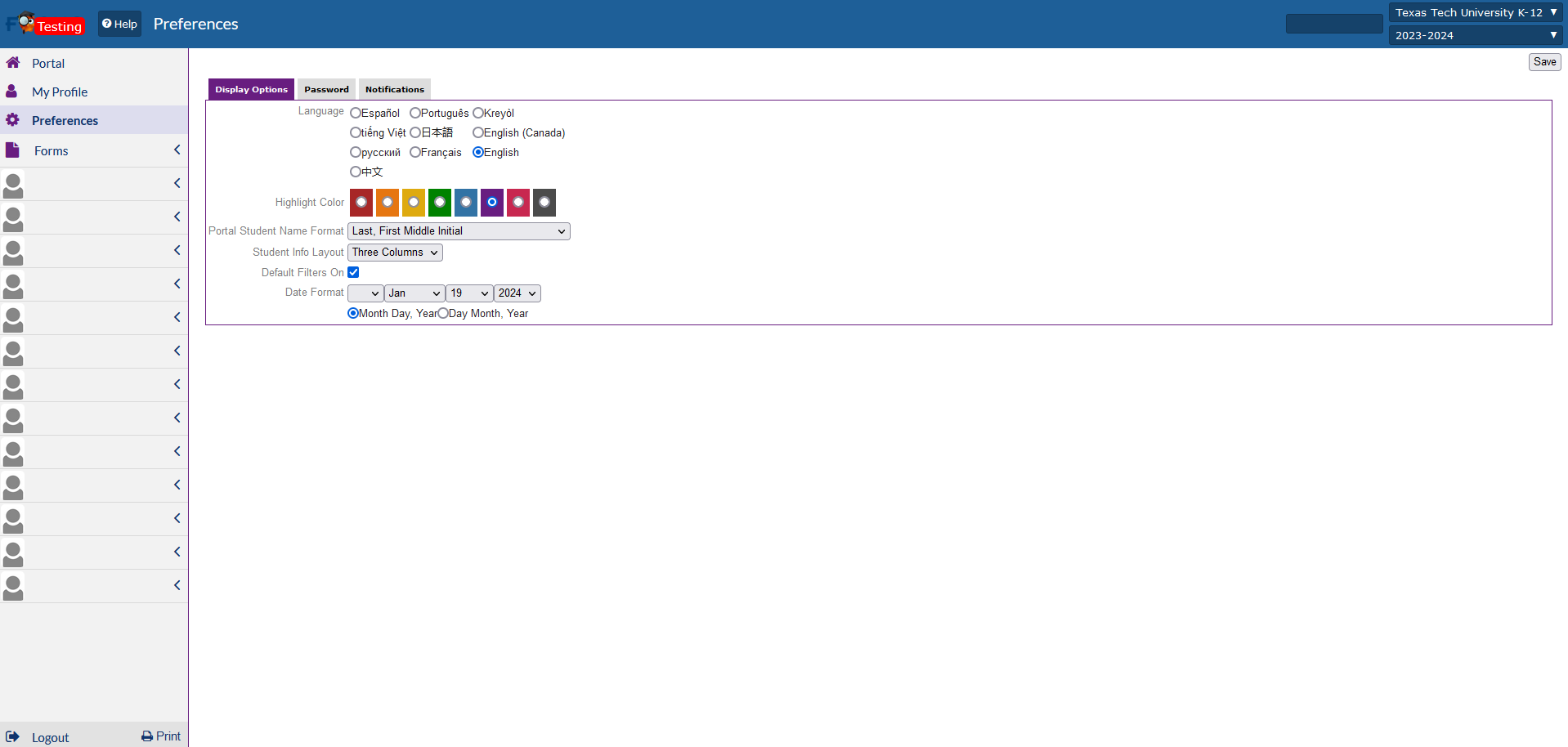
The Preferences tab will allow you to update your display options, change your password and how you receive notifications.
Display Options
The Display options will allow you to update your default language and how you would like to view your student data.
Password
The Password tab will allow you to update your password.

Please note, that for security reasons, passwords must meet the following requirements:
- must be at least 12 characters long,
- must contain a mix of upper- and lower-case characters,
- have at least 1 numeric character,
- have at least 1 special character.
The password-change dialog will display a Valid Password message when the typed password meets all the requirements.
Notifications
The notifications tab will allow you to update your notifications. TTU K-12 recommends that you set your notifications to "daily".

Forms
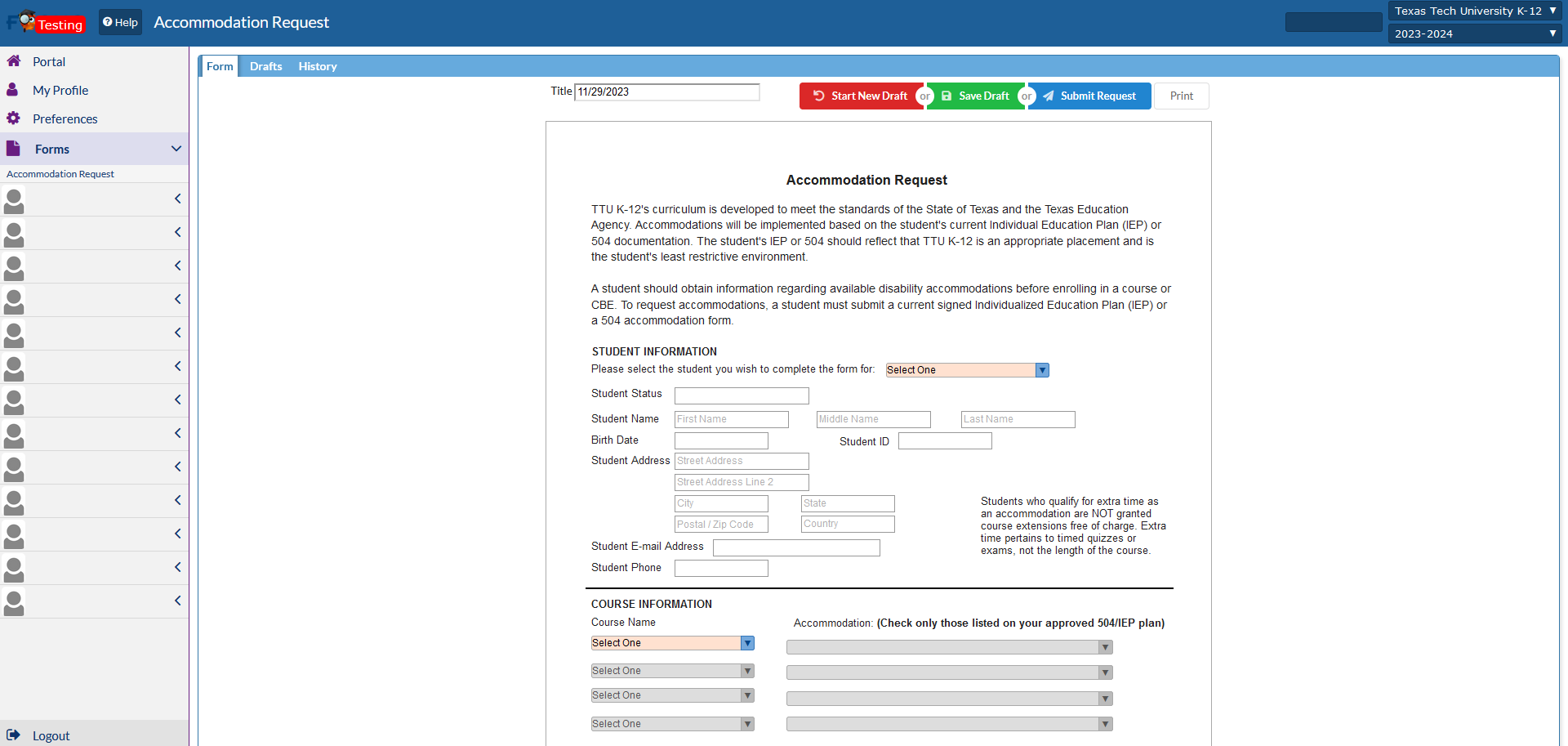
The Forms tab will allow you to submit the accommodations request on behalf of the student. Please note that the student information should automatically populate with the student's information after the student's name has been selected.
How do I view my active students?
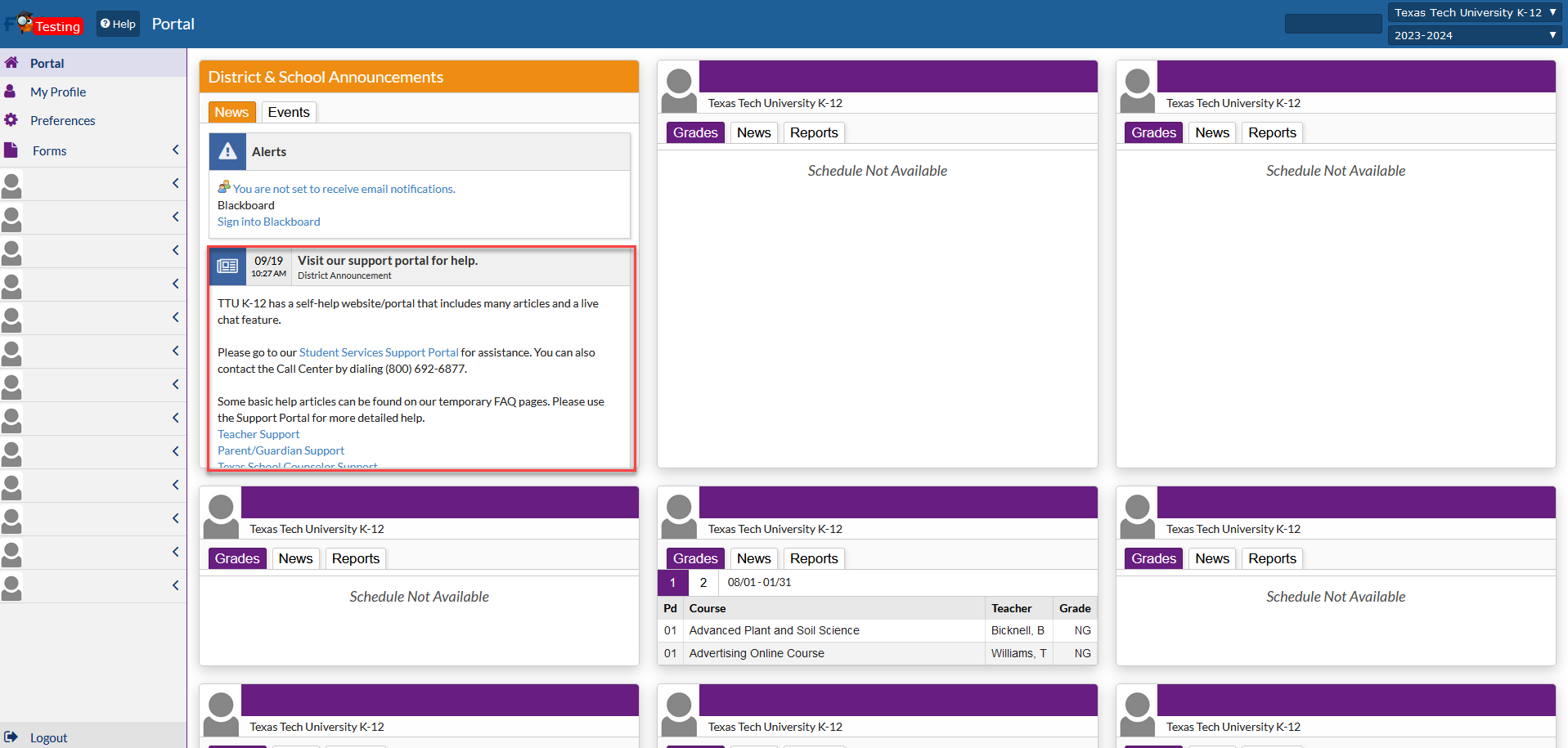
From the dashboard screen, active students will be listed on the left-hand side. Clicking on the student name will allow you to view student's information, their grades, class schedule and any forms that my need to be submitted. If an active student is currently not showing on your dashboard, please have the student submit a "Change of Information" request. Once the request has been submitted, your student should be available in the portal.
Child Info
Child Info will allow you to see the basic demographic information of the student.
Primary Info
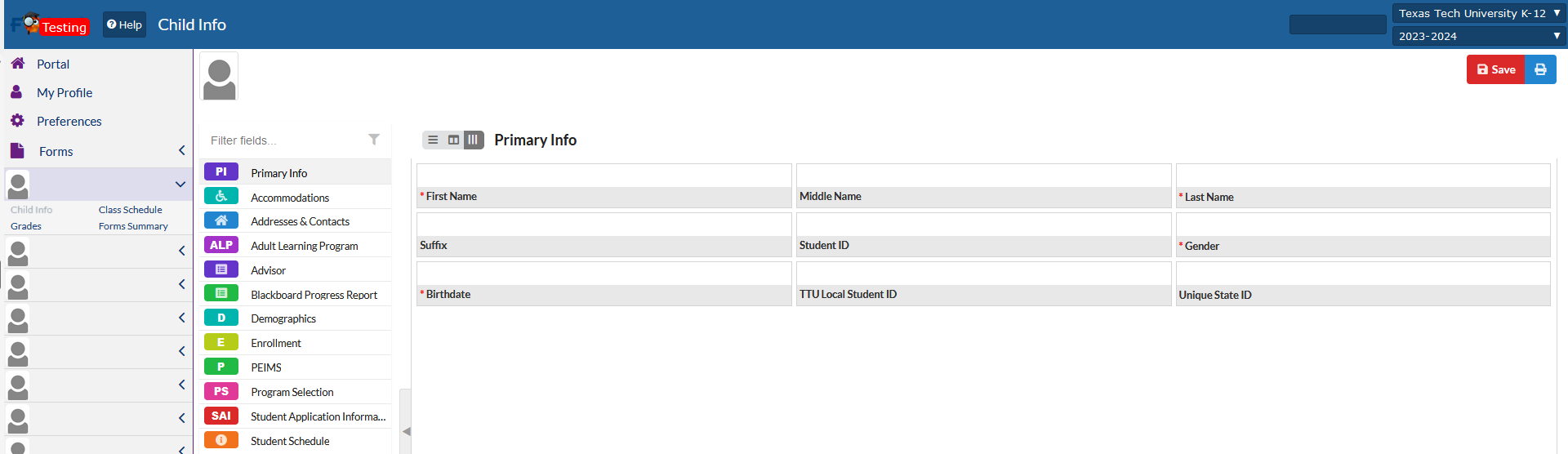
Primary Info will allow you to see the basic demographic information of the student.
Accommodations
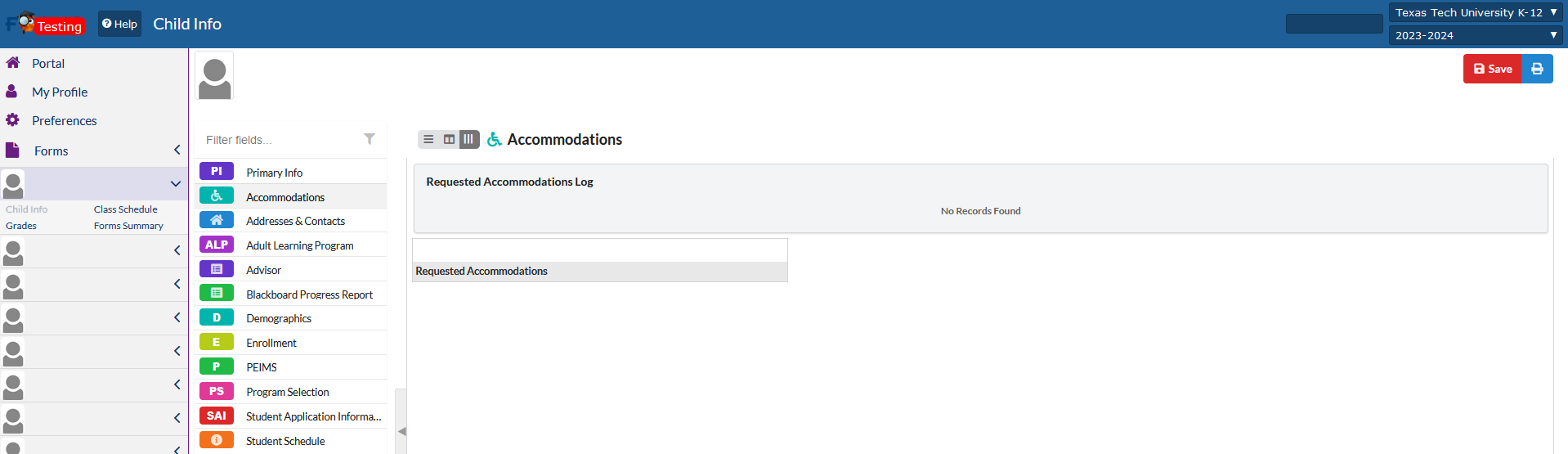
Accommodations will allow you to see if the student has any accommodations on file with TTU K-12.
Address & Contacts
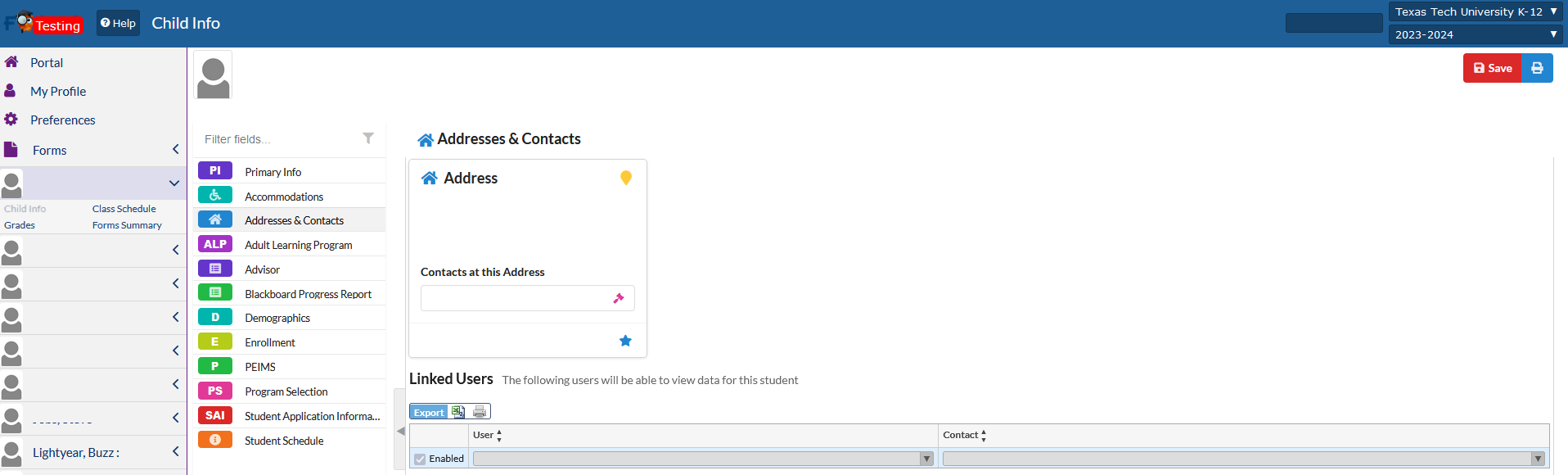
The Address & Contacts page will list the student's home address as well as any authorized users that are authorized to view the student's account.
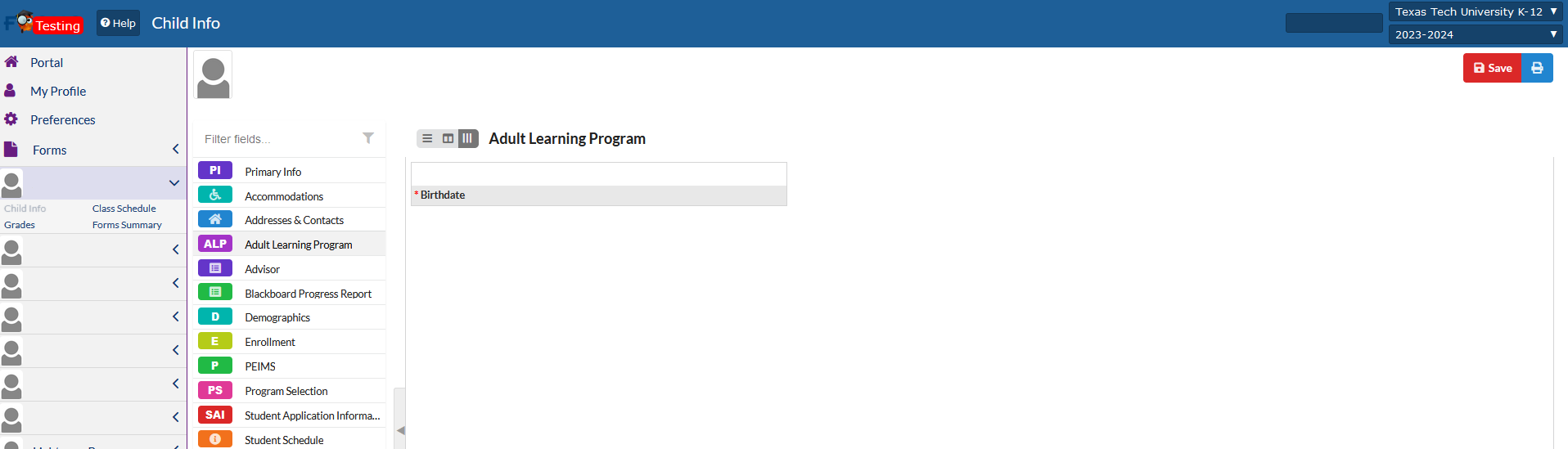
Adult Learning Program
The Adult Learning Program tab will list the student's birth date.
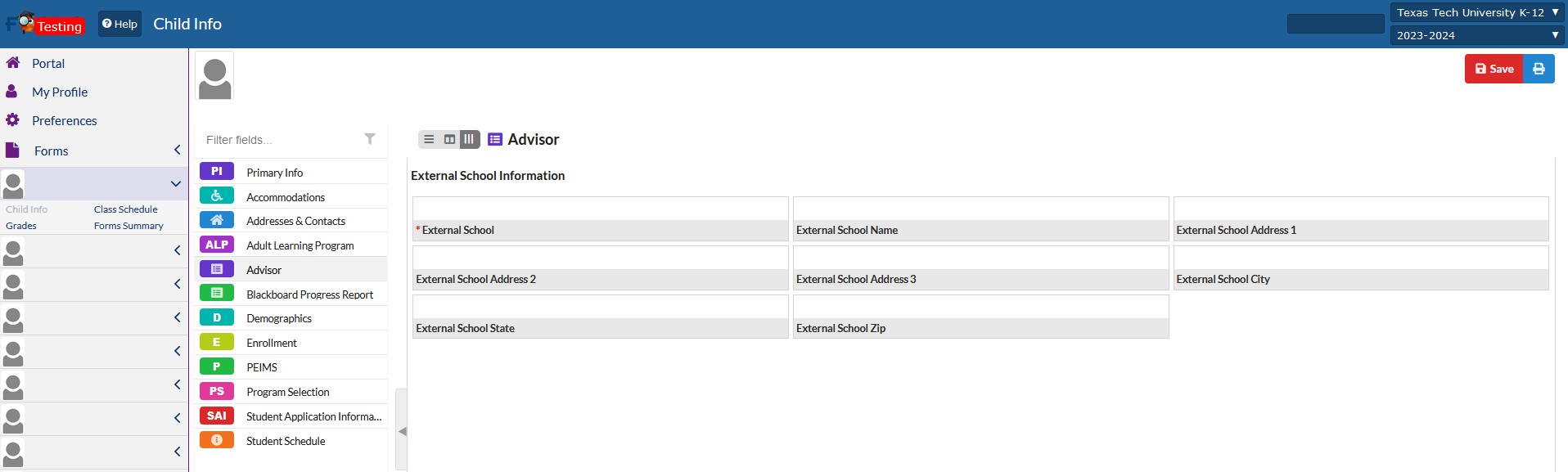
Advisor
The Advisor tab will display what school the student is currently assigned to as well as the mailing address for the school.
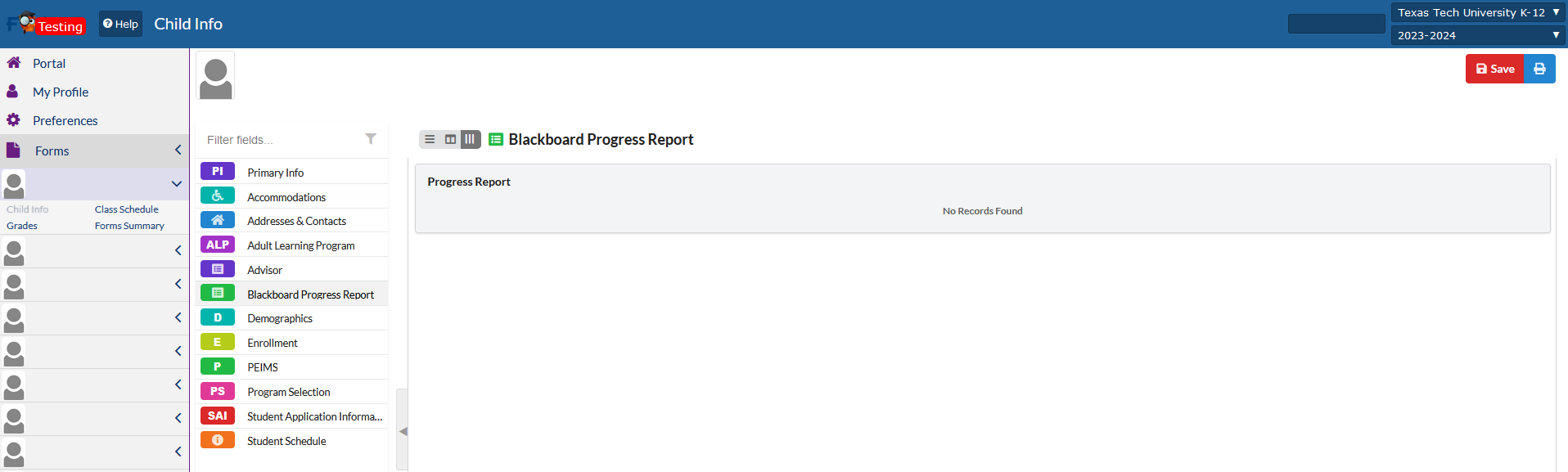
Blackboard Progress Report
The Blackboard Progress Report will give a quick view of the student's overall course progress in Blackboard. The report is updated overnight.
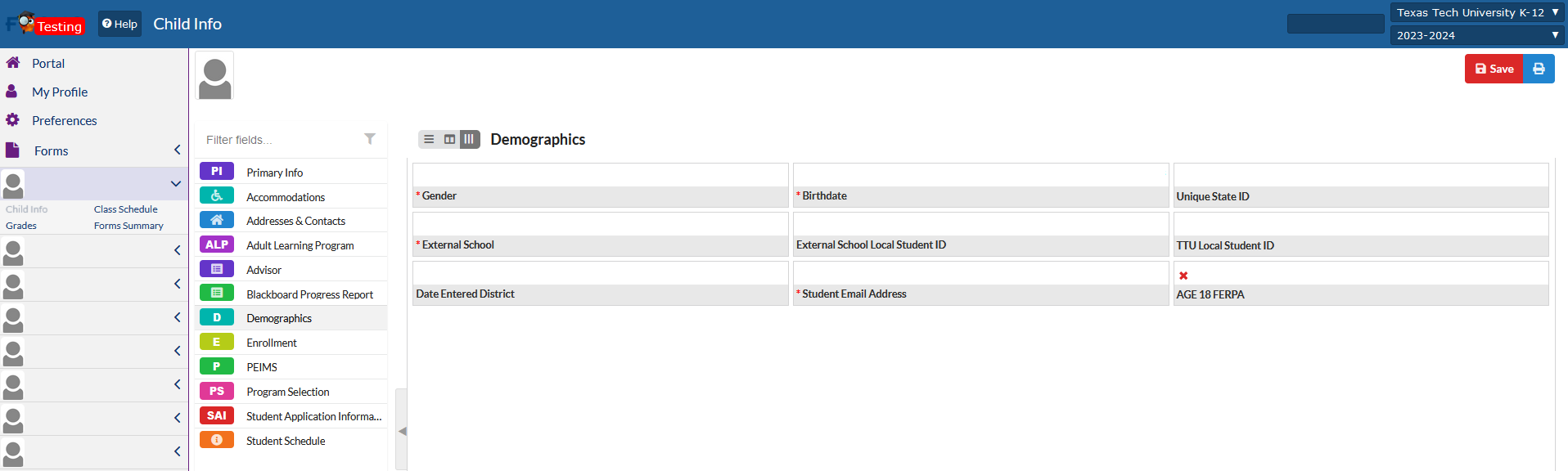
Demographics
Demographics will list the student's demographic information.
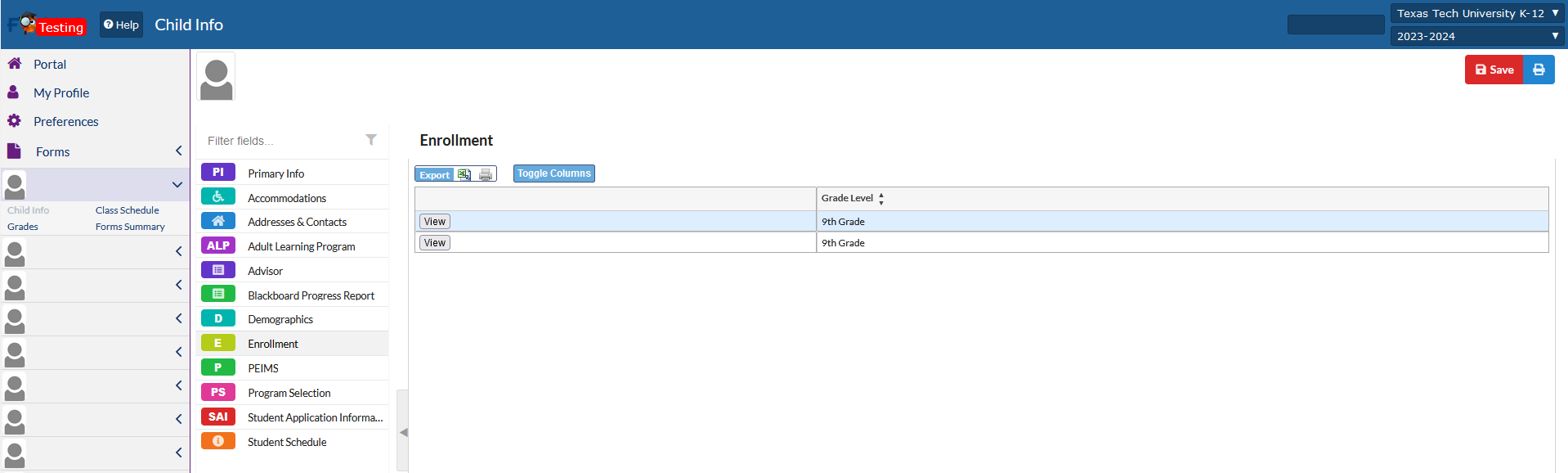
Enrollment
The enrollment tab will list the student's grade level.
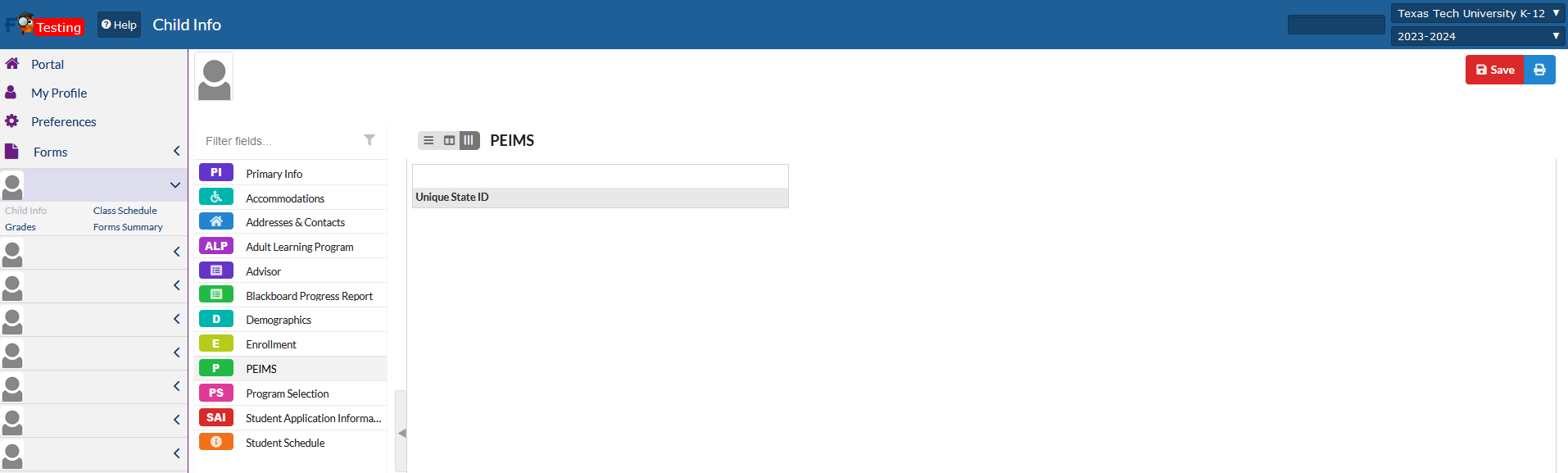
PEIMS
PEIMS will list the student's unique state ID (if provided).
Program Selection
The Program Selection will display which program the student was interested in when they applied to TTU K-12.

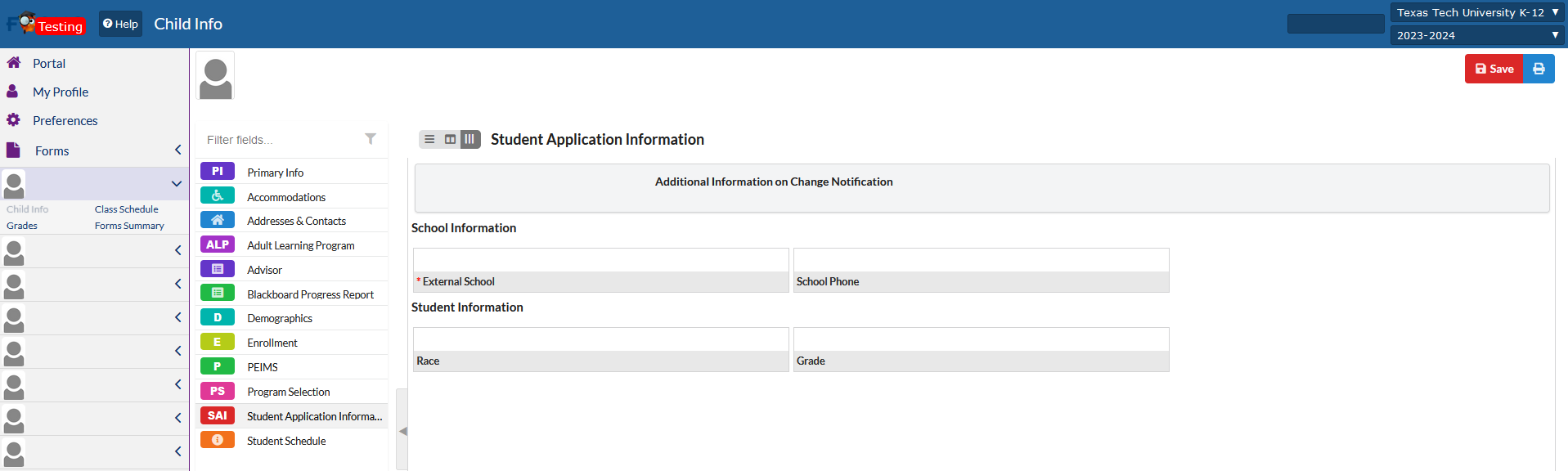
Student Application Information
The Student Application Information will list some basic information that was entered when the student submitted their Intake Form to TTU K-12.
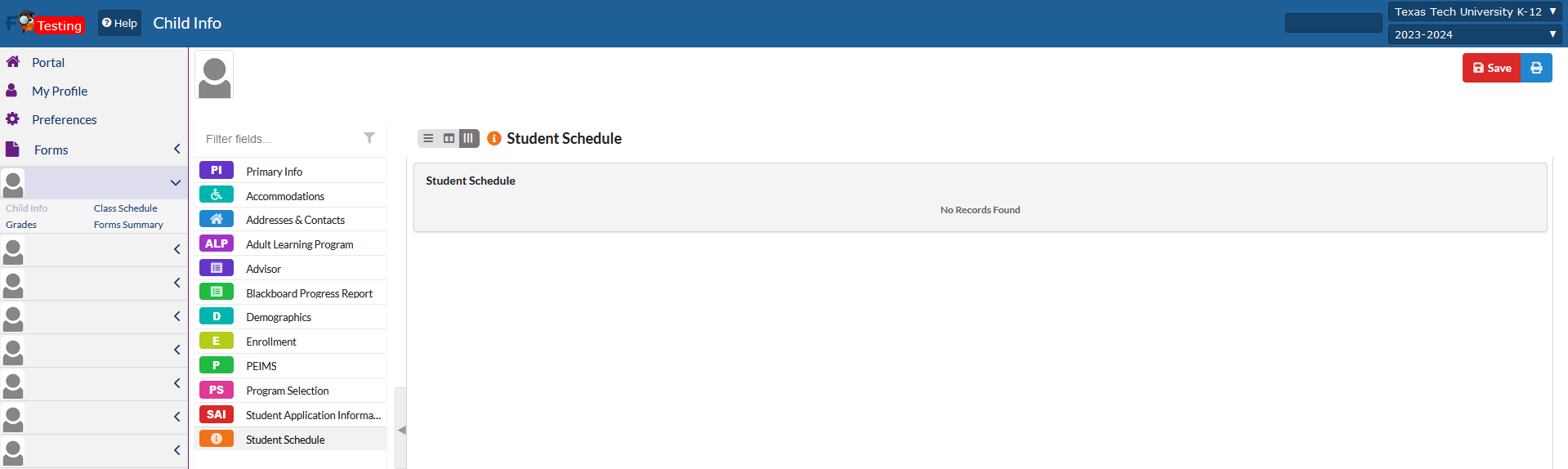
Student Schedule
The student schedule will display the student's start date and end dates for their courses that they are currently enrolled in.
Class Schedule
The Class Schedule will list the courses that the student is currently enrolled in.

Grades
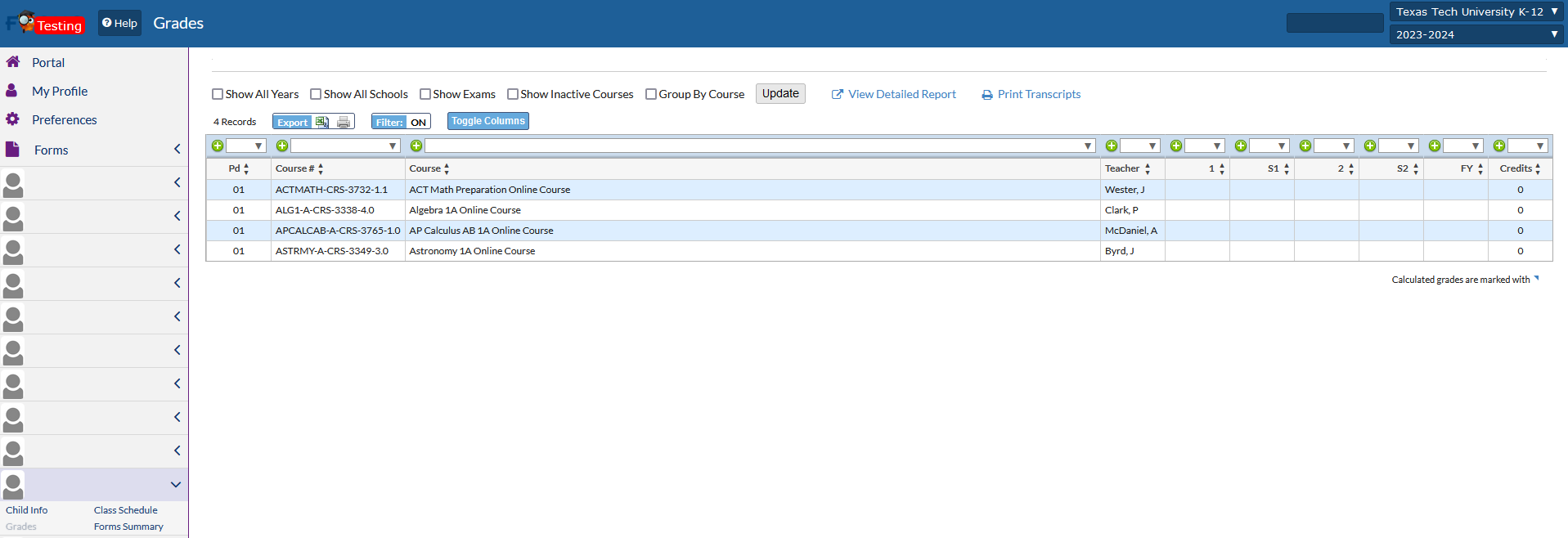
The Grades tab will list any current course enrollments and their overall course grades (once the course has been completed). From this page, Counselors have the option to print out grade reports via "View Detailed Reports".
Accessing & Navigating Blackboard
How do I access the course within the Learning Management System? To access the course in the Learning Management System, please click on "sign into Blackboard" on the portal page.
How do I access the Parent Dashboard in Blackboard?
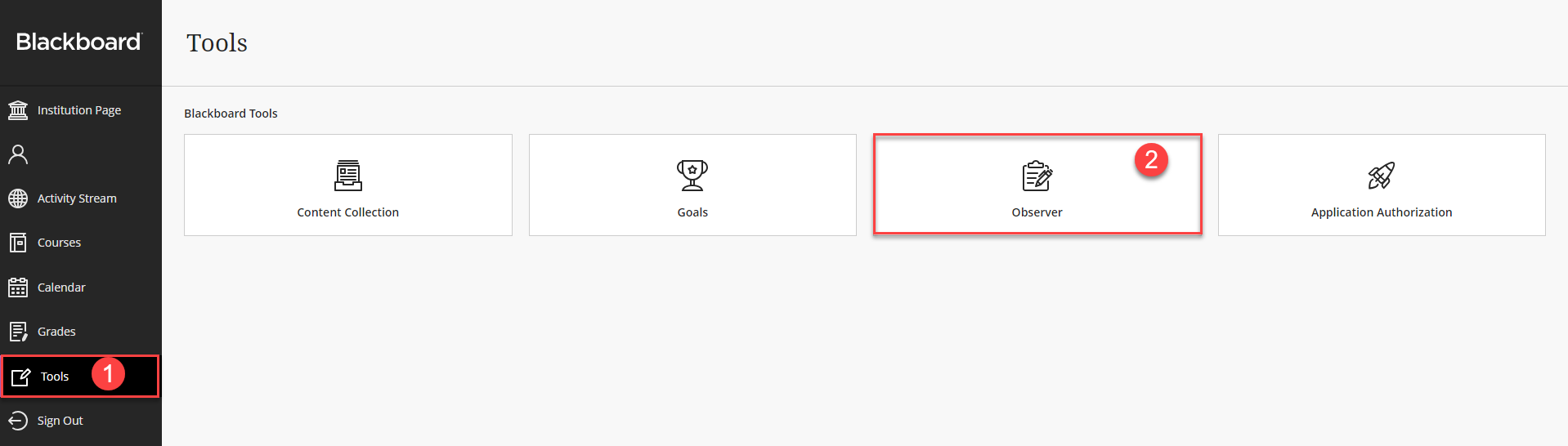
On the Blackboard Homepage, please look for "Tools". On the Tools page, please click on "Observer".
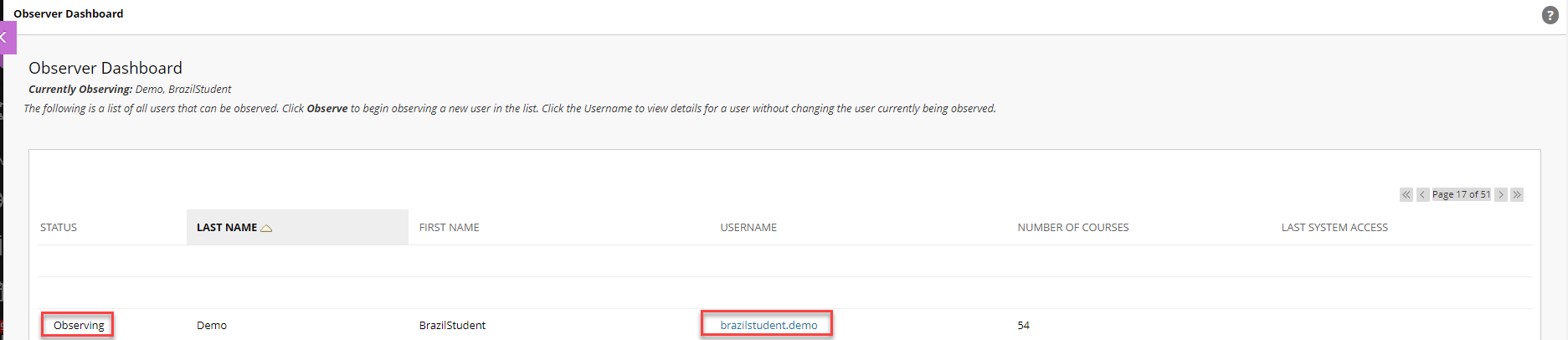
On the Observer page, you should see a list of your students that you are currently "Observing". Clicking on the Student's individual username will allow you to view the student.
Clicking on the "Username" will take you to a list of the student's enrollments.
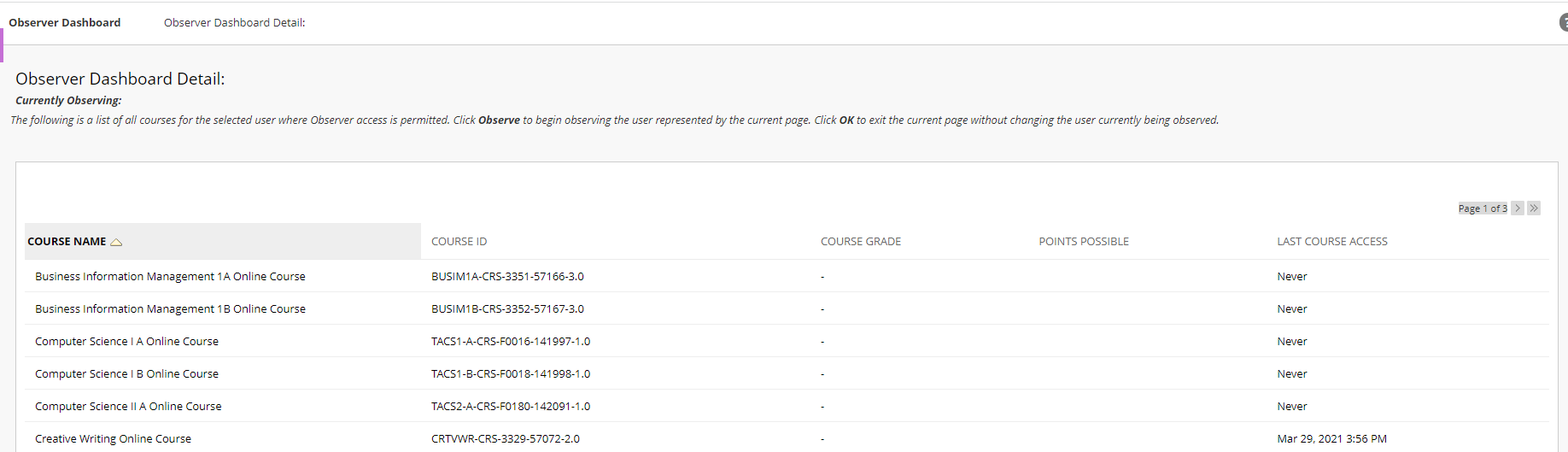
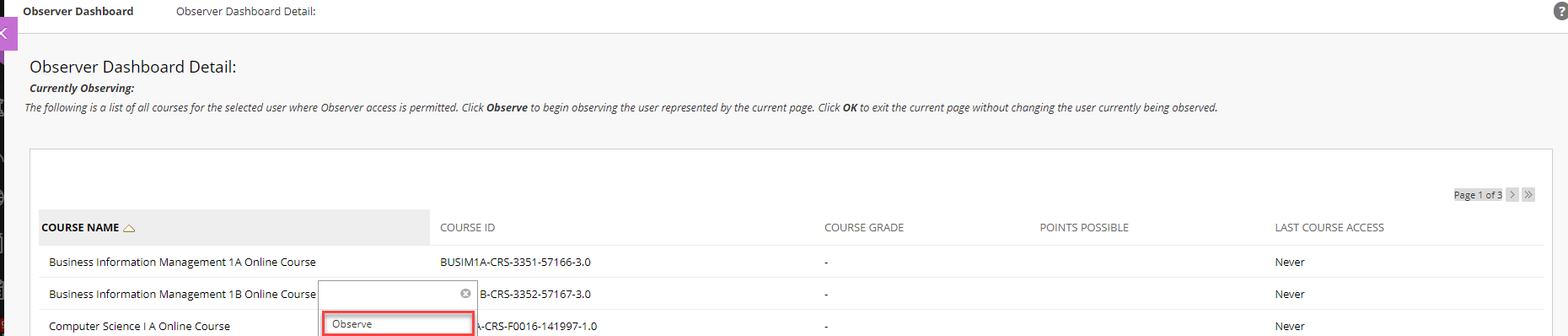
Next to the course name, there should be an option to select "Observe". Clicking on "Observe" will take you to the course homepage.
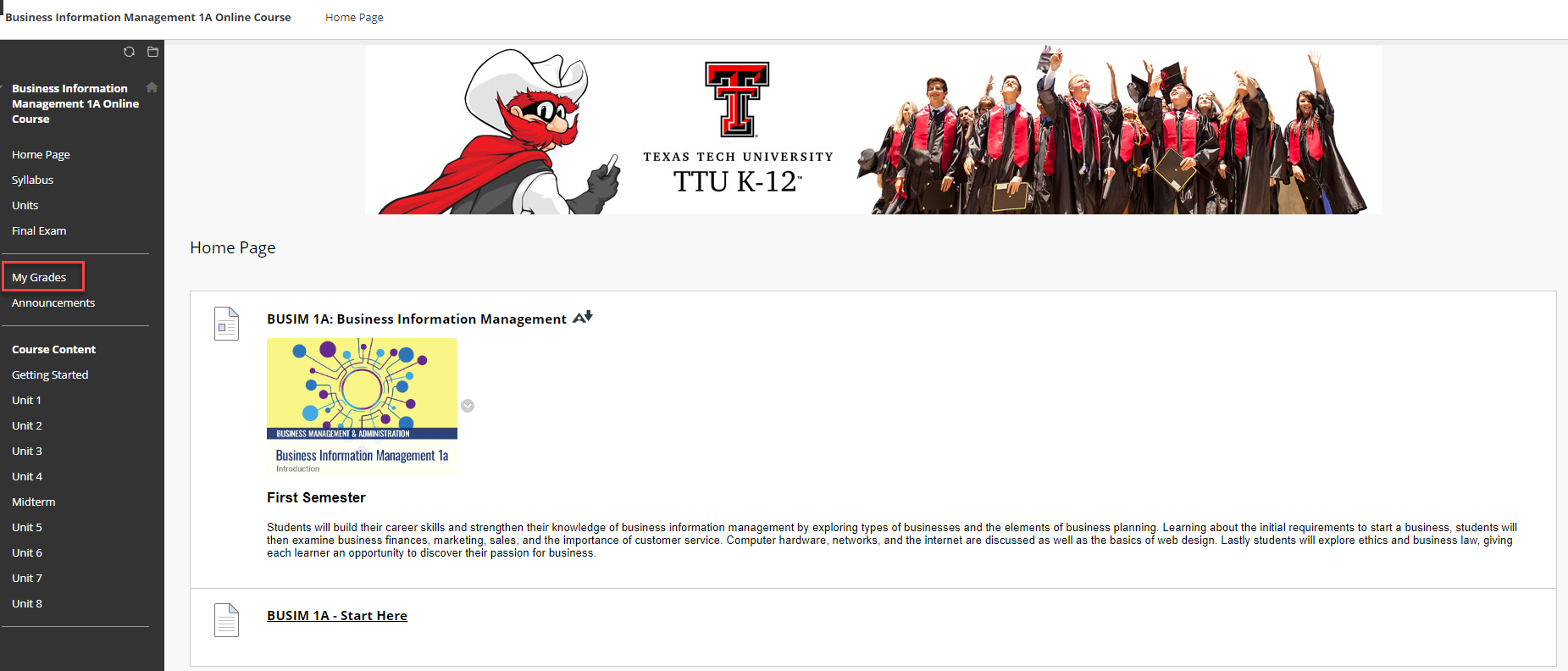
On the course homepage, you will have several options to view the Home Page, Syllabus, Units and Final Exam. To check on the individual student's progress, please look for the "MyGrades" option on the left hand side.
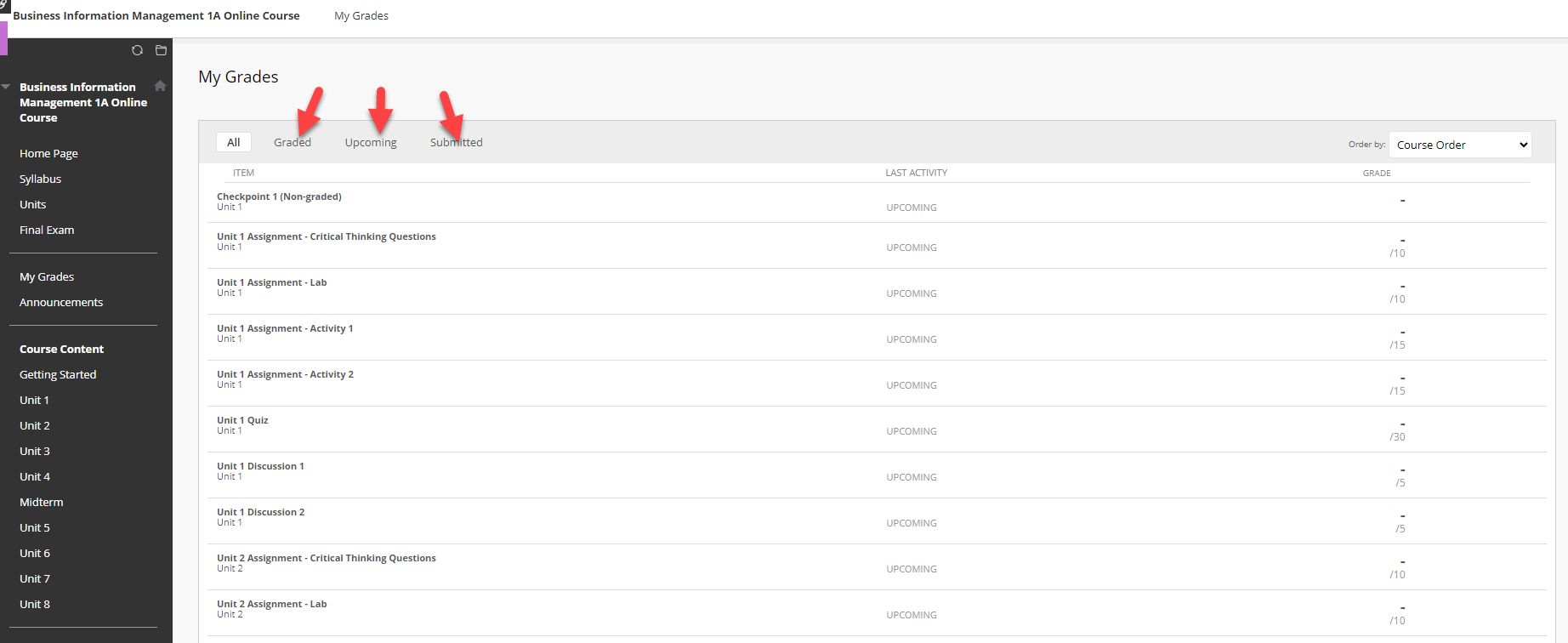
You can view All, Graded, Upcoming, or Submitted assignments. You can also change the order in which they are viewed using the "Order By" drop down menu.
To observe another student, click on the "X" in the upper left hand corner. You will be taken back to the "Observer" page to allow you to select another student to observe.
Texas Tech K-12
-
Address
Texas Tech Plaza | 1901 University Ave, Lubbock, TX 79401 -
Phone
(800) 692-6877 -
Email
ttuk12@ttu.edu