
Focus - Forgot Password
Table of Contents
- Logging into the TTU K-12 Focus Portal
- Having Trouble Logging In
- Forgot Password Link
- Use the Email Address on your Account
- New Login Credentials
- Change Your Password - Remember to click SAVE before leaving this screen
- SAVE YOUR NEW PASSWORD and UPDATE YOUR BROWSER LINKS
- Focus Portal
- Sign in to Canvas
Logging into the TTU K-12 Focus Portal
Upon accessing the login, please enter your username and password.
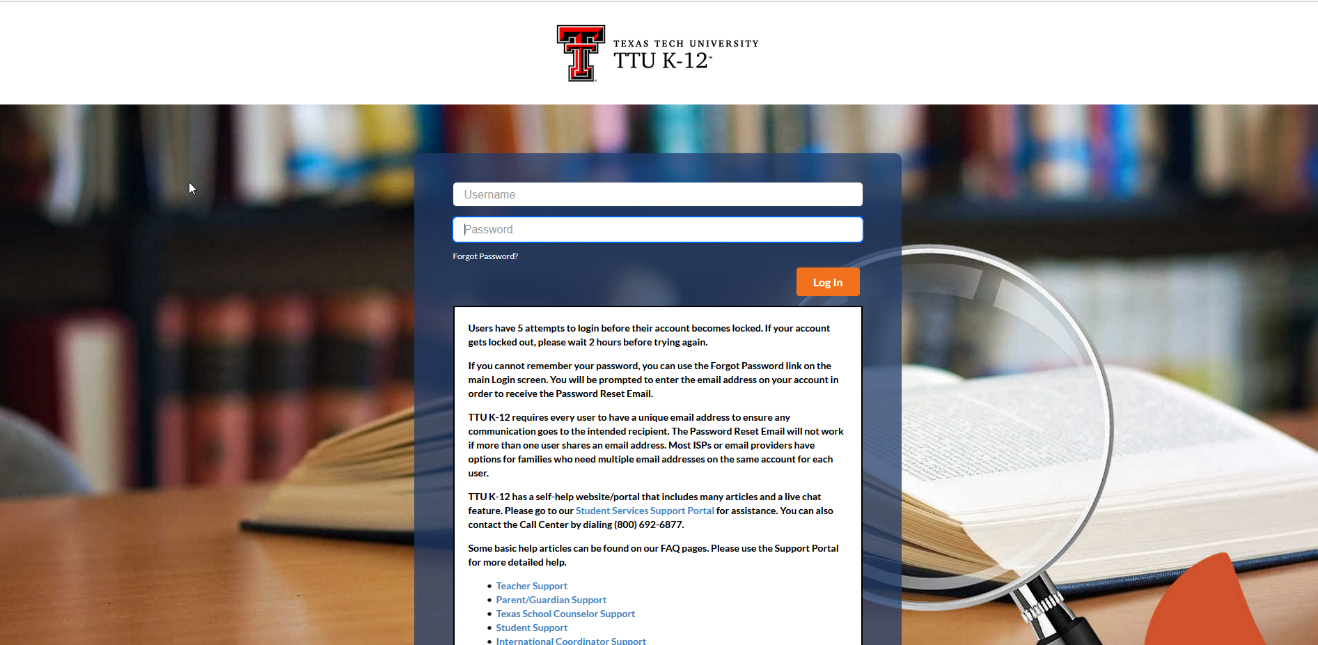
Having Trouble Logging In?
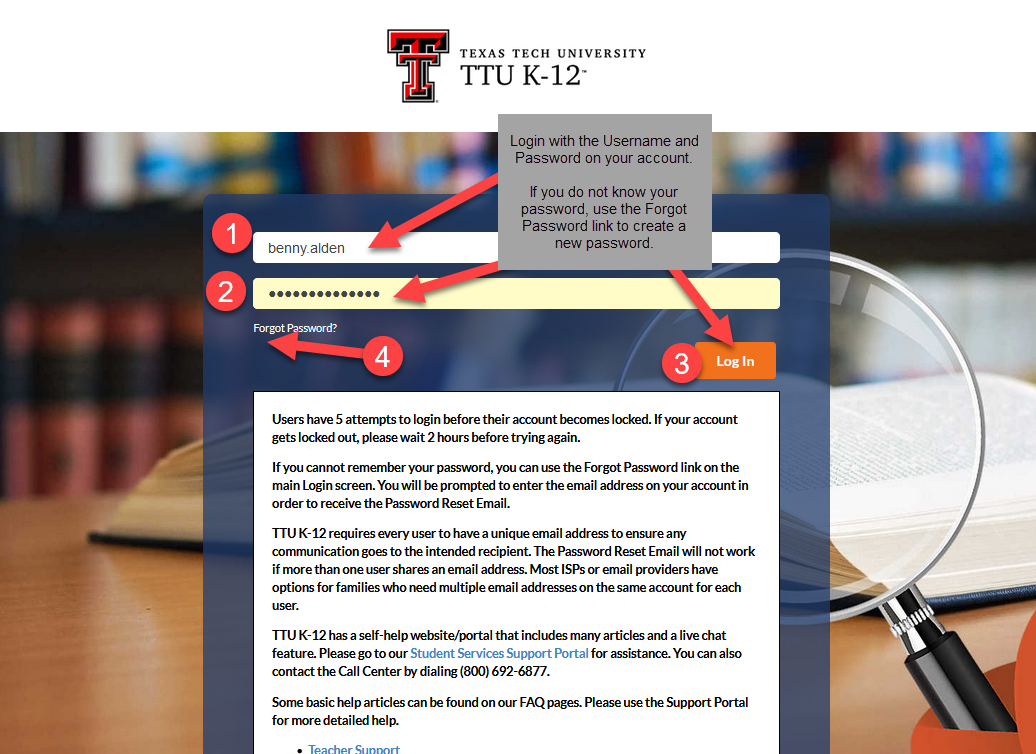
- Login with the Username you received in your Welcome Letter Email.
- You should have received an email with your Password when your account was created.
- Click the Login button.
- If you did not receive your password email or you do not know your password, click the Forgot Password link.
Forgot Password
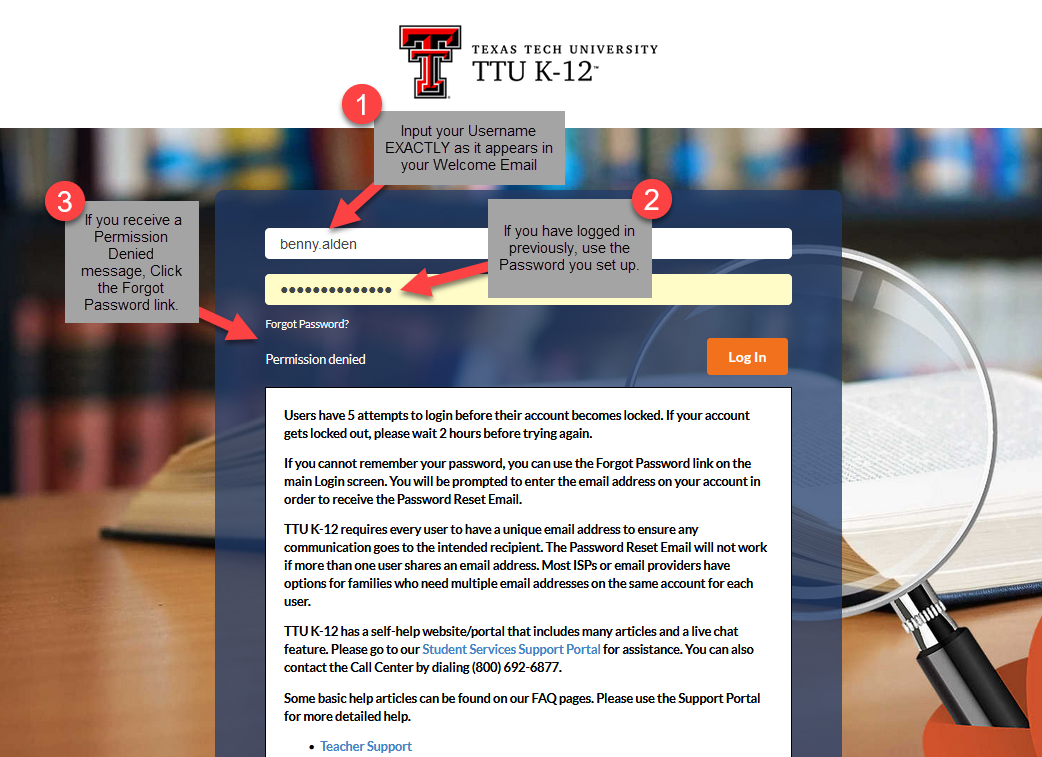
Try Again to be sure you entered your Username and Password correctly.
If you continue to see the Permission Denied message, Click the Forgot Password link.
Use the Email Address On Your Account
Once you click the Forgot Password link, you will be asked to enter the email address on your account. This could be an email you provided when you created your application or one your school provided for you.

If the email entered matches the email address on your account you will receive an email with a link to reset your password.
IMPORTANT: Each user must use a separate email address. Users cannot use the same email address for multiple students.
Parents, if you created multiple student accounts using a single email address, you will need to contact our support team via ttuk12@ttu.edu to update the email address for each student.

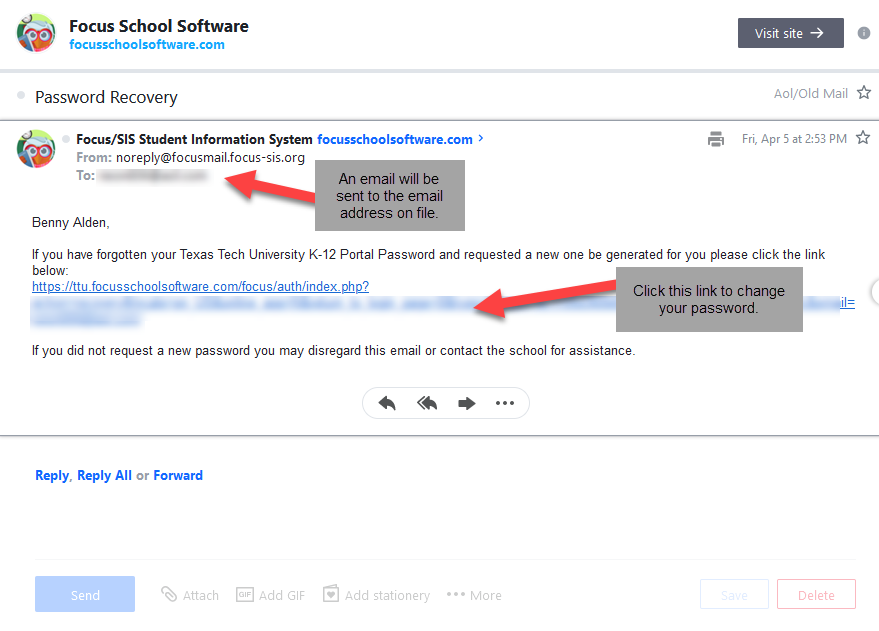
Password Reset Email
The email you receive will contain a link to reset your password.
New Login Credentials
When you click the link in your email it will ask you to click the button to view your new temporary credentials.
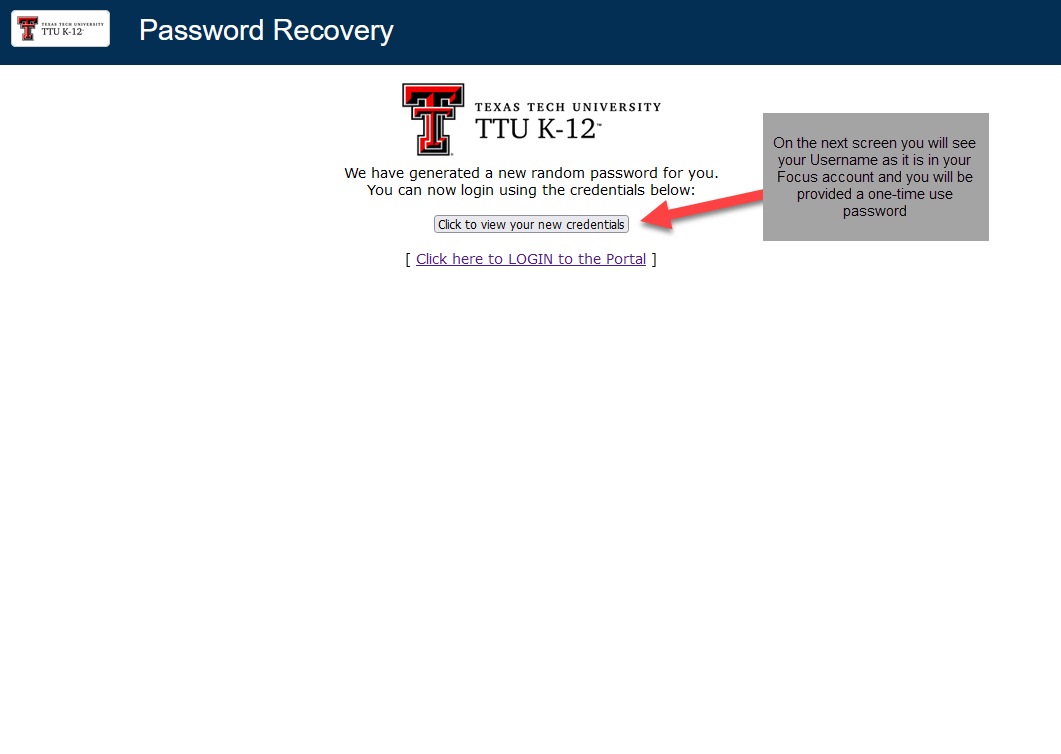
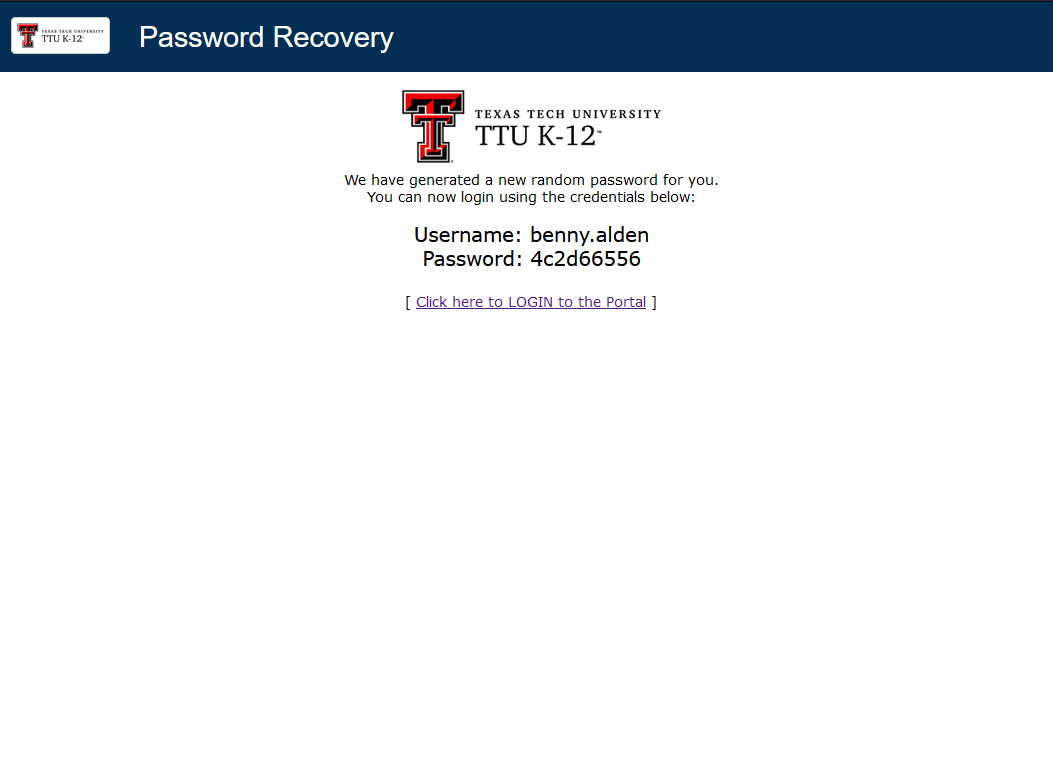
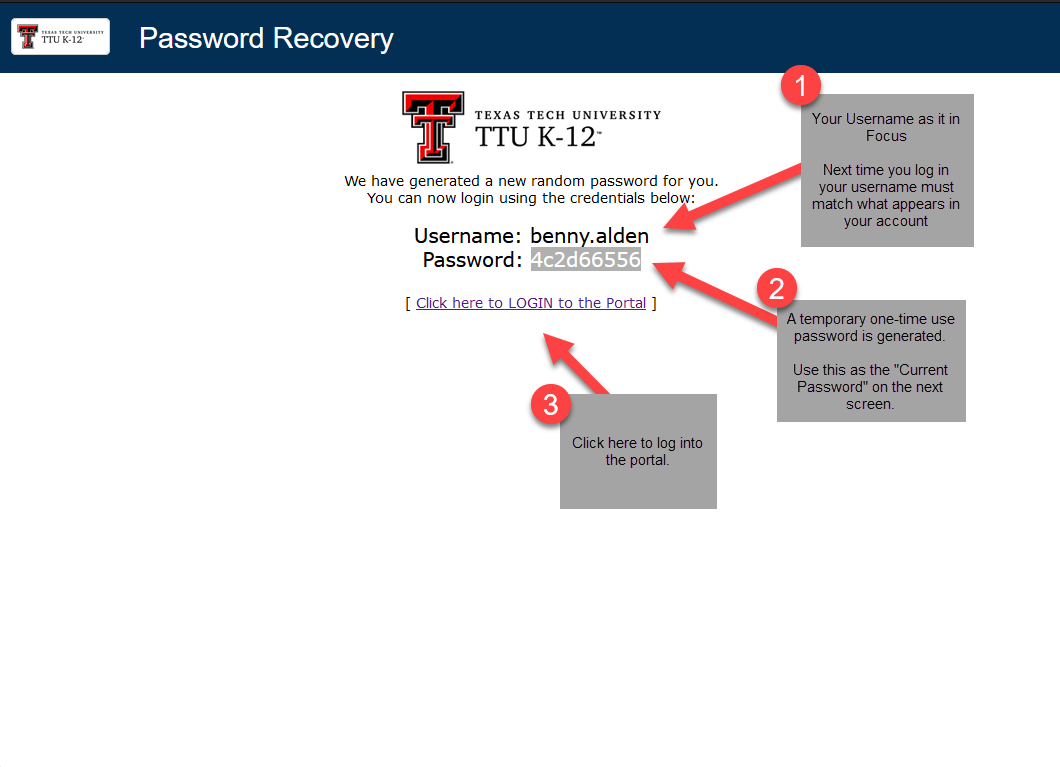
The Username should match what was sent to you in your Welcome Email. The Password displayed is a temporary one-time-use password. You will be asked to change your password on the next screen.
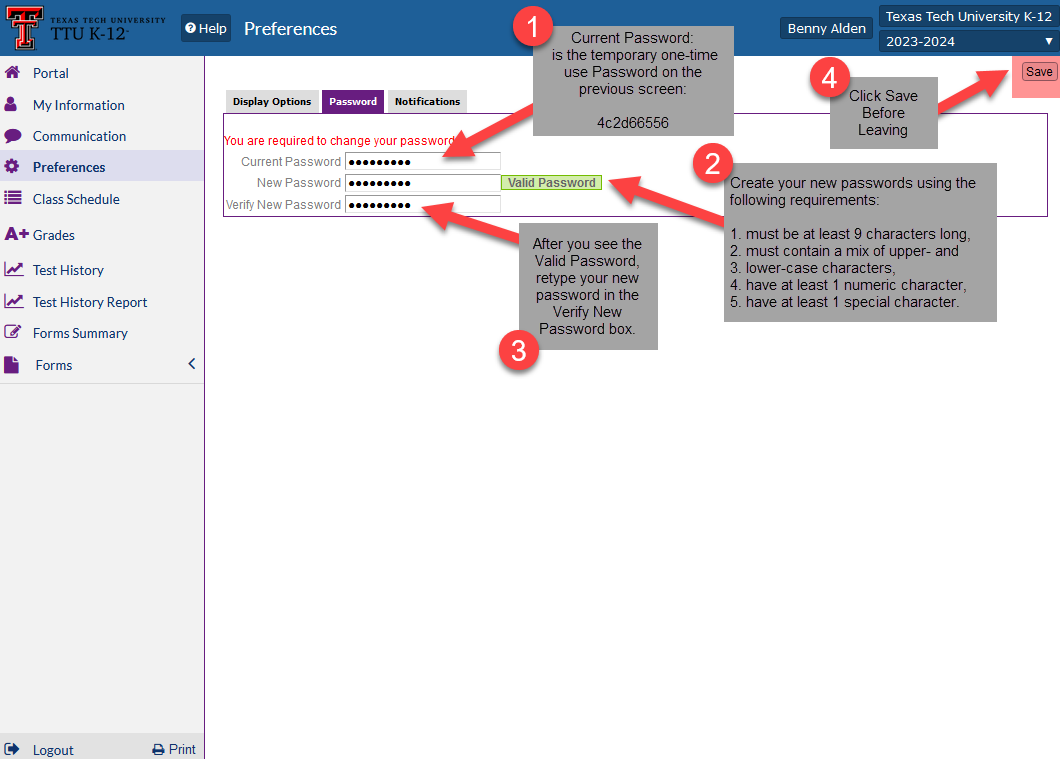
Change Your Password
Use the temporary one-time-use password from the previous screen as the CURRENT password.
Create a new strong Password.
Please note: for security reasons, passwords must meet the following requirements:
- must be at least 12 characters long,
- must contain a mix of upper- and lower-case characters,
- have at least 1 numeric character,
- have at least 1 special character.
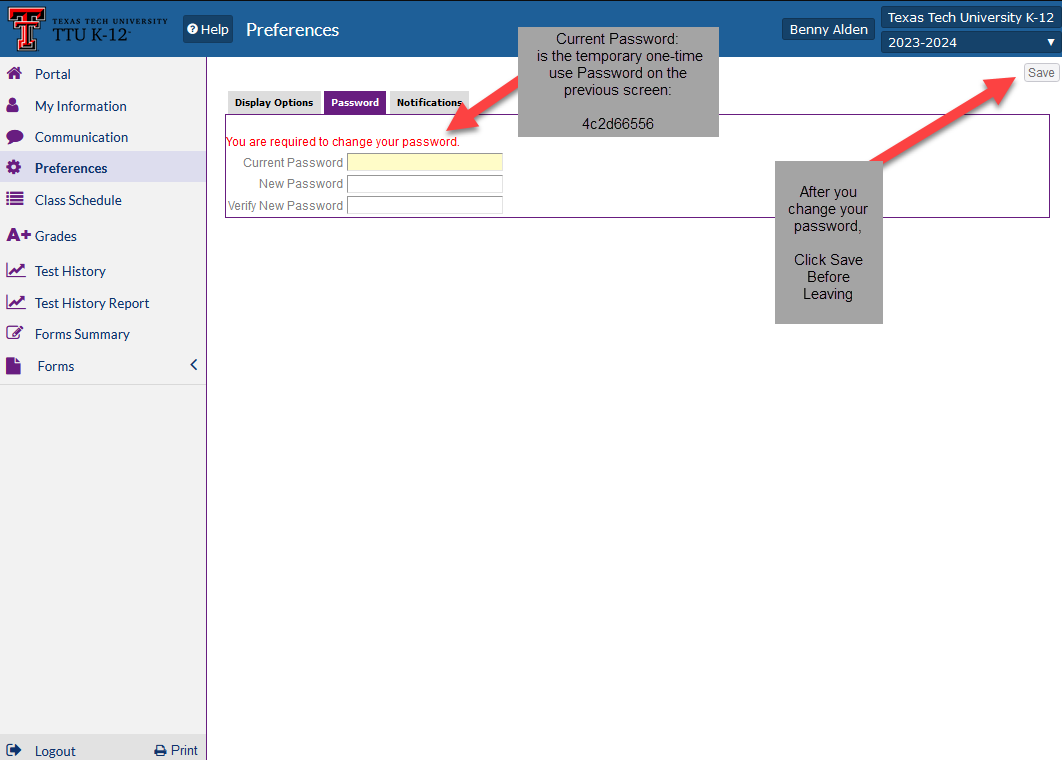
IMPORTANT: Remember to SAVE your password before leaving this screen!!!!
The password-change dialog will display a Valid Password message when the typed password meets all the requirements.
Be sure to update any saved passwords in your Browser because your old password and the temporary password will no longer work.
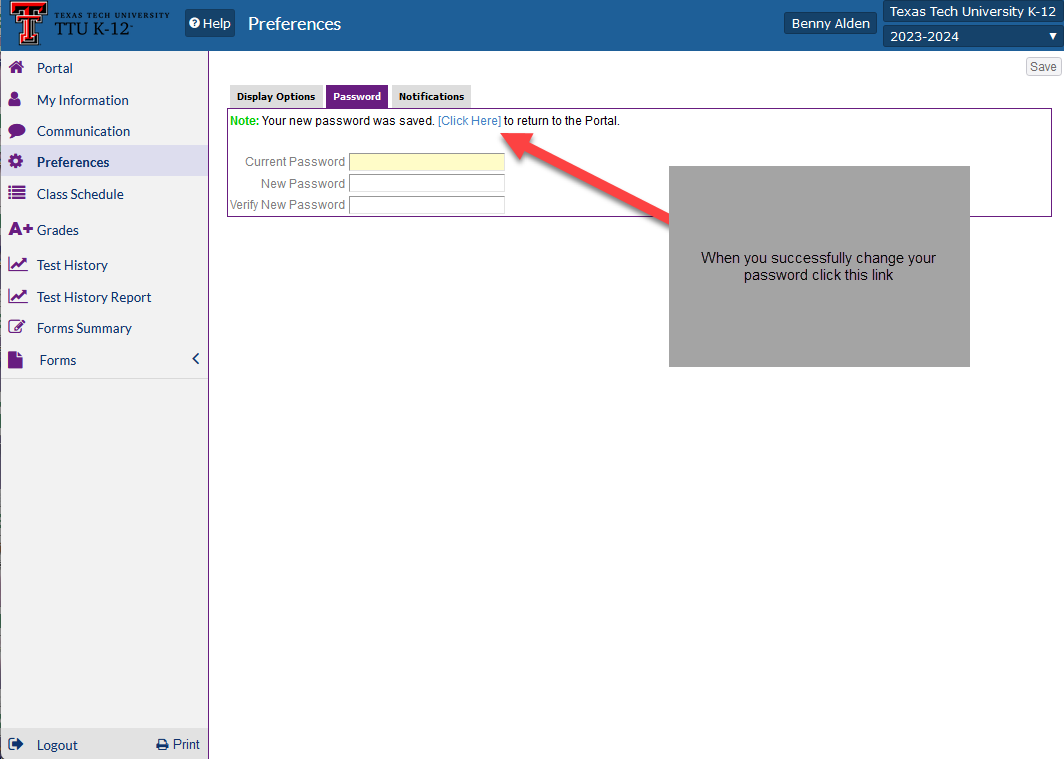
Password Change Successfully Saved
Once you have successfully changed your password, you can click the Portal link to be taken directly to your main portal page.
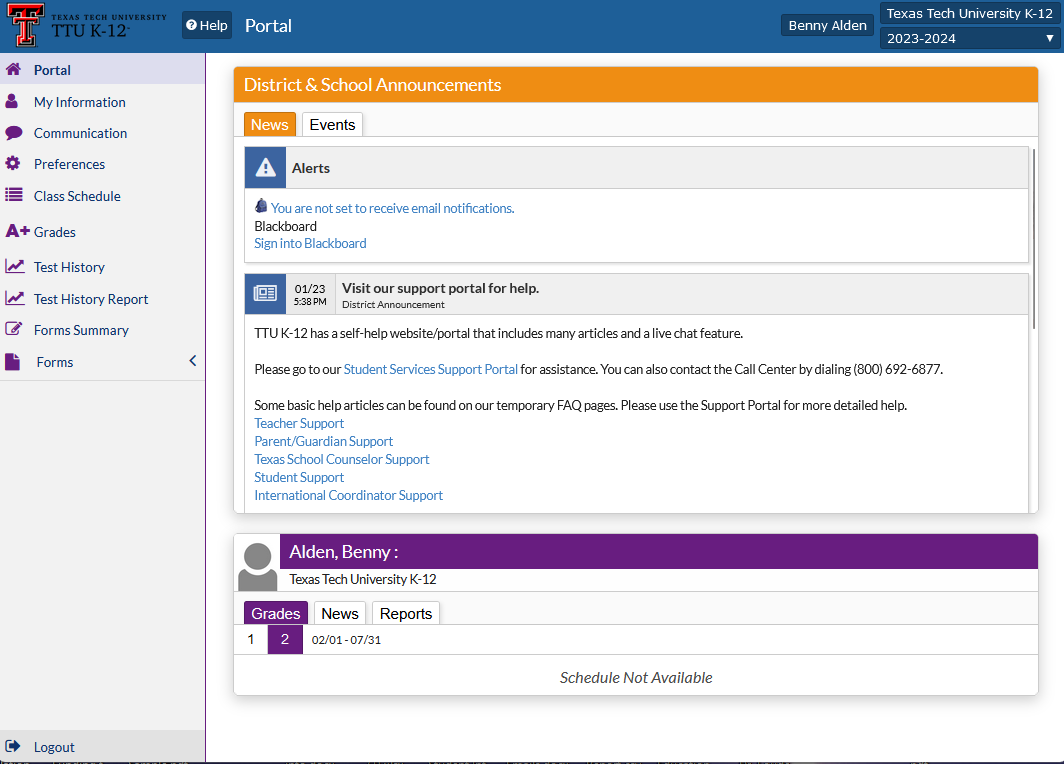
Main Student Portal Page
Your Portal page may look differently depending on the program you are enrolled in.
Sign in to Canvas
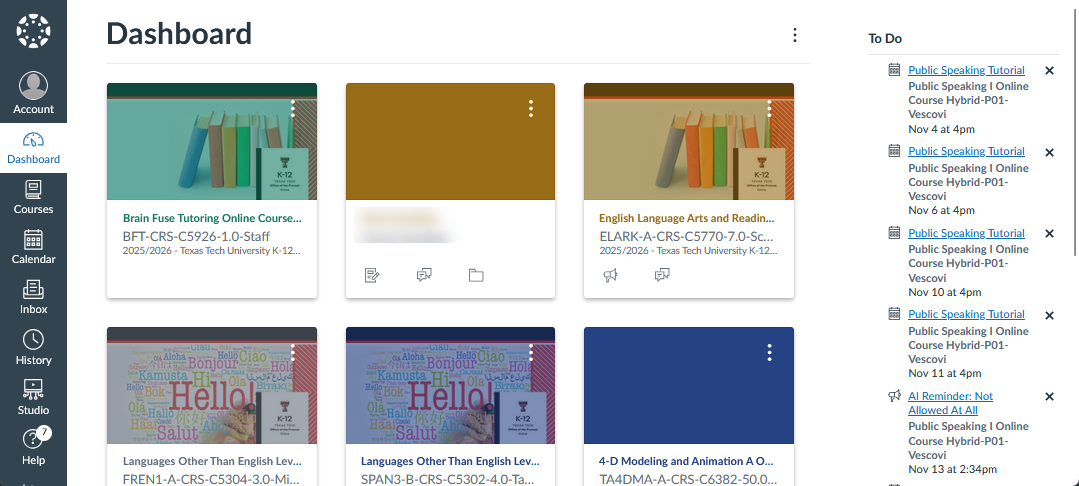
How do I access the course within the Learning Management System? To access the course in the Learning Management System, please click on "Canvas" on the portal page.

Upon logging into Canvas, you can see a list of the courses that you are enrolled in by clicking Courses on the left-hand menu:
Texas Tech K-12
-
Address
Texas Tech Plaza | 1901 University Ave, Lubbock, TX 79401 -
Phone
(800) 692-6877 -
Email
ttuk12@ttu.edu