
TechBuy Guidelines for Amazon Punchout
The following guidelines are intended to aid individuals making acquisitions with TTU funding through Amazon. The Procurement Services Department has made every effort to ensure that the guidelines comply with TTU Operating Policies and Procedures (“OPs”). However, in the event of a conflict between these guidelines and the OPs, the OPs shall prevail.
Important Information
- Departments must enter a TTU PCard or departmental PCard in the Amazon punchout.
- The credit card entered in the Amazon punchout will be charged when the items are shipped. The purchase order does not encumber funds, and invoices are not issued through TechBuy.
- Do not use a personal credit card for TTU purchases. Purchases made with a personal card are not compliant with university requirements and may not be reimbursed.
- All purchases are automatically tax-exempt.
- Departments must reconcile Amazon purchases in Emburse.
- Selecting items that say “Ships from and sold by Amazon” or “Fulfilled by Amazon”
can help prevent delivery issues
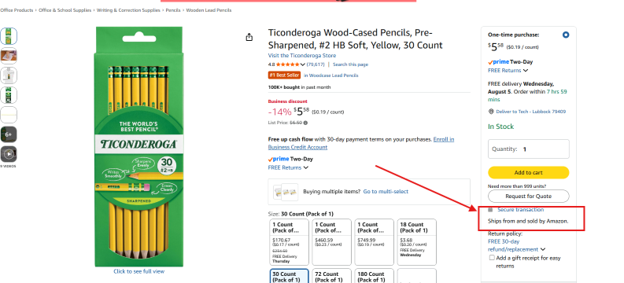
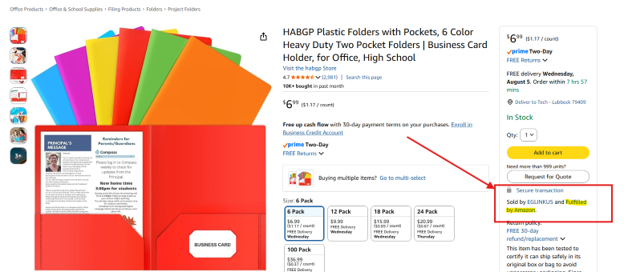
- Pop-ups must be enabled in your web browser.
- Users must have a Default Shipping Address listed in their profile and ensure their TechBuy email matches their current TTU email address. For assistance establishing these settings, please review the TechBuy Profile Setup and User Guide: Optimizing Your Account for Efficiency.
- Recommended Browsers:
- Mozilla Firefox
- Google Chrome
- Microsoft Edge
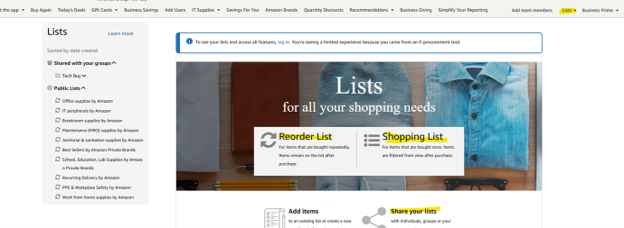
- You may use standard Amazon tools such as:
- Buy Again
- Reorder Lists
- Shopping Lists
Using the Punchout
Open Amazon in TechBuy
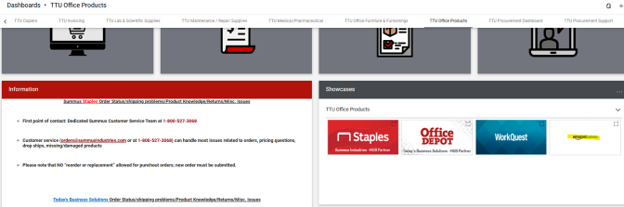
- In TechBuy, select the Amazon Punchout from the TTU Office Products dashboard.
Add Items to Your Cart
- Shop as you normally would on Amazon.
- Keep these requirements in mind:
- Some products are blocked because they are not compliant with state, federal, or TTU policies.
- If you believe an item is blocked in error, please contact purchasing.pcard@ttu.edu.
- Always compare prices with other TTU contracted vendors to ensure the best value.
- Apple computers must be purchased through the CDW Punchout, not Amazon.
Proceed to Checkout
- When you are finished shopping, select Proceed to Checkout.
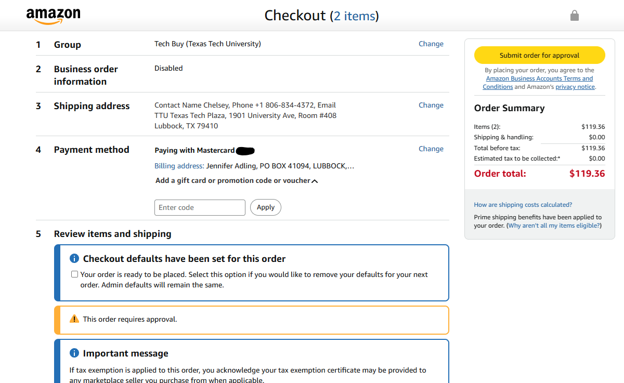
Enter Payment Information
- On the final checkout screen:
- Enter a TTU PCard.
- TTU PCard information may be stored for future use in the Amazon Punchout.
- The billing address is tied to the PCard. For assistance finding this information, please contact purchasing.pcard@ttu.edu.
- Select the Shipping Address labeled “DEFAULT ADDRESS – SELECT ADDRESS IN TECH BUY”.
- This should be selected by default after the initial order is placed.
- After entering the information, select Submit Order for Approval.
- Complete the Requisition
- You will return to TechBuy with the Amazon items in your cart. If clicking “Submit order for approval” does not bring you back into a TechBuy cart, the order will need to be recreated.
- To assign carts to other users, please reference the Creating and Managing Carts training guide
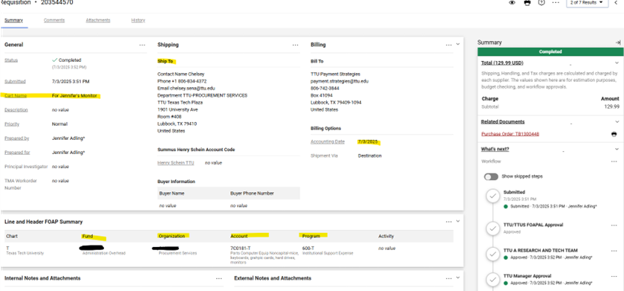
- The shopper or assignee must complete the requisition in TechBuy with the following required fields:
- Shipping location
- Accounting date (must be the current date)
- Fund | Organization | Account | Program
- The FOP charged to the transaction will be determined during PCard reconciliation. While the FOP may change from the requisition to the reconciliation, users are responsible for understanding funding allowability. Using the correct FOP sequence upfront may prevent delays during the reconciliation process.
- The account code should match the items on the line-item level. To change a line-item's account code, review the Splitting FOAPS on TechBuy Requisitions training guide.
- Amazon punchout transactions do not go through the normal budget check because they are reconciled through the PCard process. However, purchase-specific workflows may be required for some orders.
- Purchase Order (PO) Processing
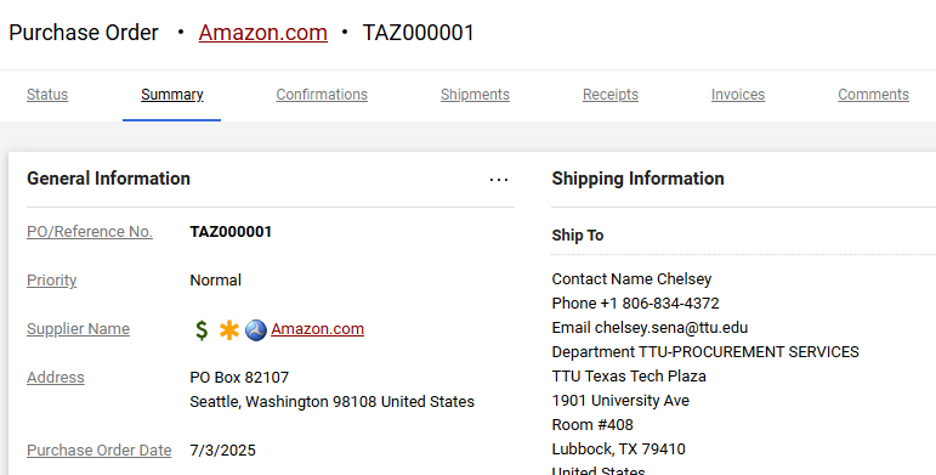
- Amazon POs will begin with a TAZ prefix.
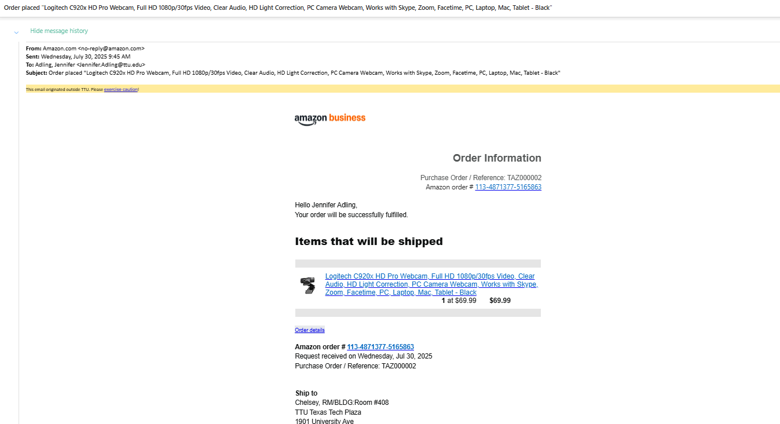
- Amazon will email an Order Confirmation when they receive the PO.
- Accessing the Invoice Needed for Reconciliation
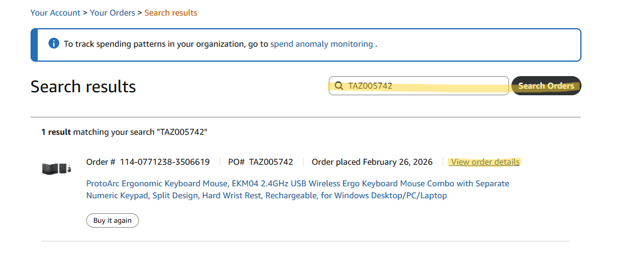
- To access a copy of the invoice for reconciliation, click back into the Amazon punchout in TechBuy, and select “Returns & Orders” in the top right corner of the punchout. Search for the order, using the TAZ purchase order number. Once you have located the correct order, click “View order details”
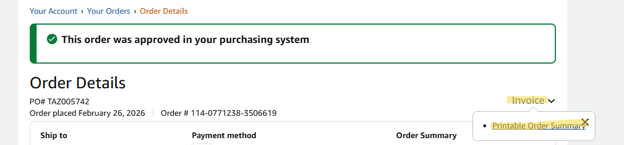
- Select “Invoice”, then “Printable Order Summary”. This document may be downloaded and attached to the reconciliation for the order in Emburse.
Rev. 8/18/2026

Procurement Services
-
Address
Box 41094, TTU Plaza, Suite 408, 1901 University Avenue, Lubbock, TX 79409-1094 -
Phone
806.742.3844 | Fax: 806.742.3820 -
Email
strategic.acquisitions@ttu.edu