
Direct Deposit Instructions
Payroll direct deposit is a system where an employer electronically transfers an employee’s net pay directly into their bank account on payday, eliminating the need for paper checks. It is a form of electronic funds transfer (EFT) that simplifies the payment process and provides employees with convenient and secure access to their earnings.
Instead of receiving a physical paycheck, employees enroll their banking information (account and routing numbers) in the Direct Deposit application. This action will electronically transfer the money into their designated account(s).
Payments are processed based on the payroll schedule and will be paid on the scheduled payday.
Enrolling in Payroll Direct Deposit
To update your direct deposit information, access the My Direct Deposit Application. A link to the application is also available in Raiderlink/Webraider under the Payroll & Tax section. Click on the Employee Payroll Accounts tab in the application.

Adding an Account
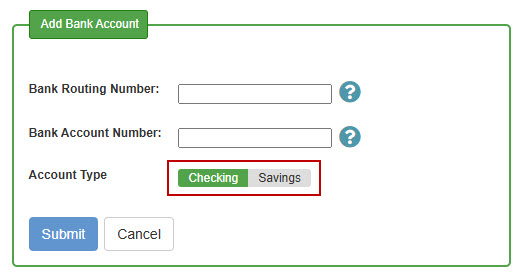
To add an account, click the Add Bank Account button.

You will be prompted to enter your account information. Enter your bank routing number and bank account number.

Choose your account type (checking or savings).
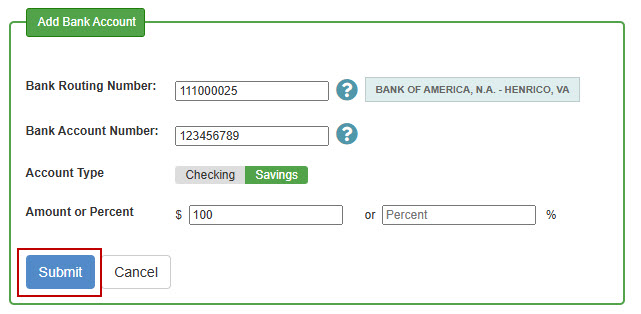
Enter an amount or percent for the account. If you have only one account, enter 100 percent. Amounts must be entered in whole dollars.

If this is the first account you have added. The system will automatically use 100 percent and you will not be prompted for an amount or percent.
Click the Submit button when you are finished to add the account.
Deleting an Account
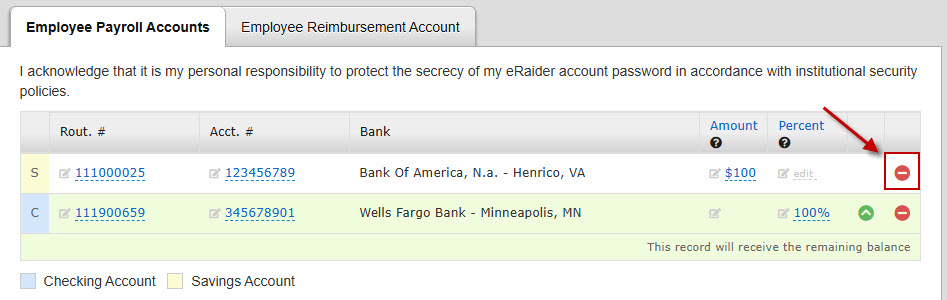
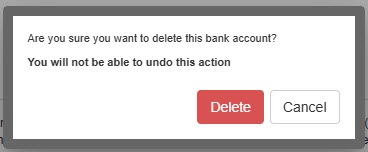
To delete an account, click on the minus (-) icon to the right of the account information. A message will ask "Are you sure you want to delete this bank? You will not be able to undo this action". If you are sure click the Delete button.
Updating an Existing Account
To update an existing account's amount or percentage, click the amount or percent for the account. After updating the amount or percent, click the checkmark button to confirm the changes.

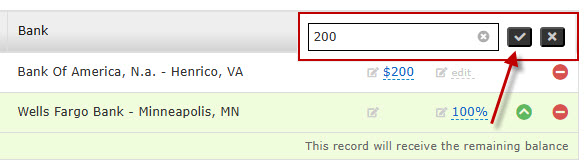
Bank routing or account numbers can be updated in a similar manner. Click routing or account number you wish to edit to update. After updating, click the checkmark to confirm the changes.


Updating Account Priorities
Employees can add up to three bank accounts when enrolling for direct deposit. The last account will be set to 100 percent by default, meaning that 100 percent of the remaining amount will be deposited into this account.
As an example, an employee has a net payroll payment of $1000.00 and the following accounts are configured with the priorities below.
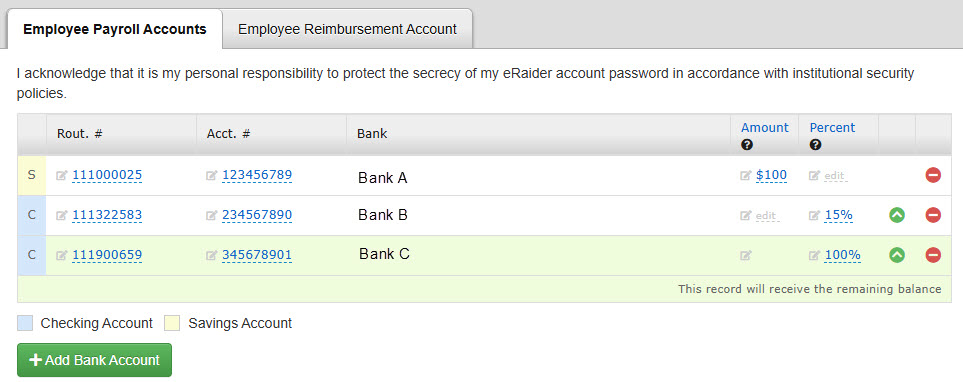
- Bank A is set up for $100 to be deposited into a savings account.
- $100 is deposited into this account, $900.00 is remaining
- Bank B is set up for 25% to be deposited into a checking account.
- $225 ($900 * 25%) is deposited into this account, $675 ($900 minus $225) is remaining
- Bank C is set up to receive 100% of the remaining amount.
- The remaining amount, $675, is deposited into this account.
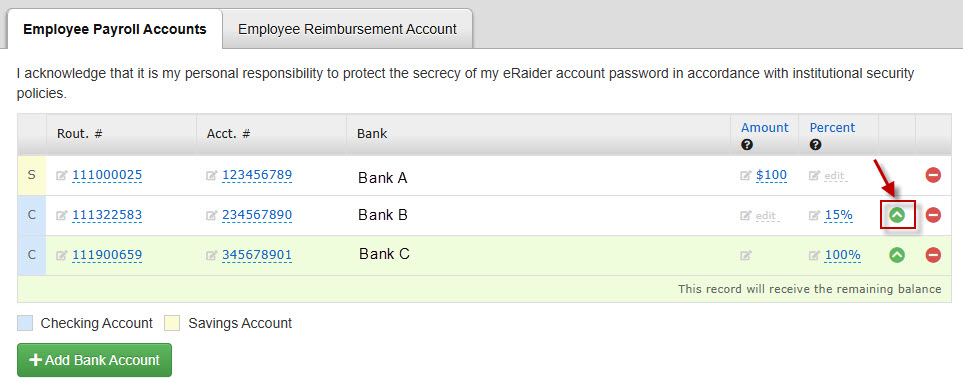
The priority of an account can be updated by clicking the arrow button to the right of the percent for the account. This will move the account up one level.
My Direct Deposit Downtime
When monthly and semi-monthly payrolls are being processed, the My Direct Deposit application will be unavailable for updates and you may receive a message that the "My Direct Deposit application is currently turned off for the Employee Payroll Accounts tab".
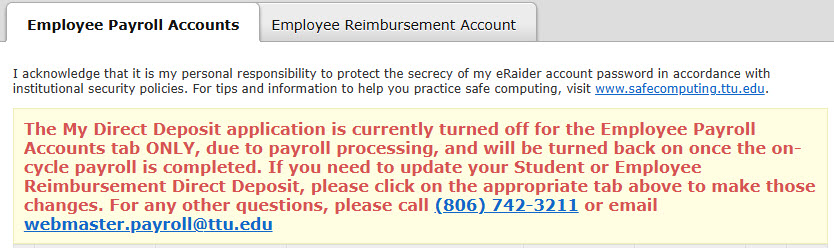
Once the on-cycle payroll is completed, you can enroll or make changes that will go into effect on the following on-cycle payroll. If you are on the on-cycle payroll that is being processed, the only option is to receive a paper check. If you are enrolled and need to remove an account, you may submit a request via our self-service portal.
Payroll & Tax Services
-
Address
Box 41092, Lubbock, TX 79409-1092 -
Phone
806.742.3211 -
Email
webmaster.payroll@ttu.edu