
Ground Floor Group Study
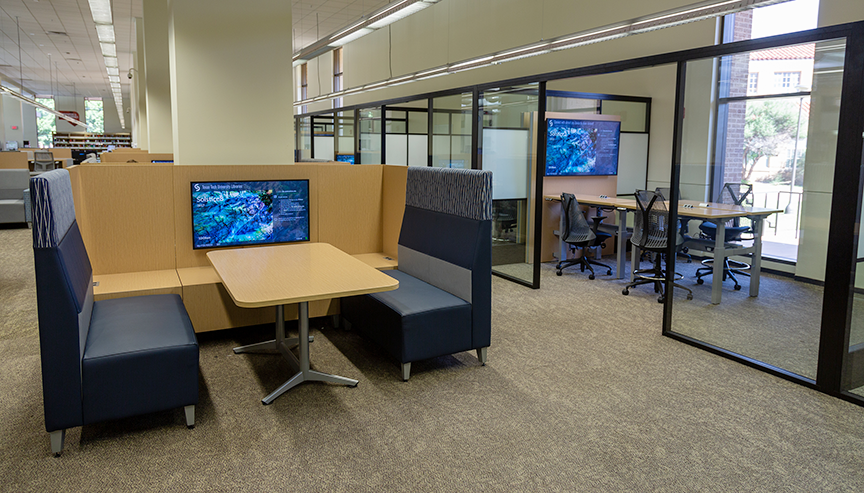
The Study Hub is a great spot for group study sessions. This area has conference tables and seating, semi-private spaces with whiteboard walls, and wall-mounted HD displays for screen sharing from personal devices. The displays support wireless screen sharing using the Mersive Solstice app, which allows any number of devices to connect simultaneously.
Wireless screen sharing instructions
 Download the Solstice app
Mersive Solstice app downloads for laptops, phones, and tablets.
Connect your device to the display
- Connect your device to the TTUnet wireless network. See instructions for connecting to TTUnet.
- Browse to the web address shown on the display, such as http://10.134.16.107.
- Download and install the Mersive Solstice app. The app may default to say that no devices are found.
- In the app's Quick Connect search box, type the web address for your display, such as http://10.134.16.107.
- Use the 4-digit screenkey for all devices connecting this session.
- Share your content!
Apple users can AirPlay to the Solstice after connecting via the Solstice app.
Moderation feature
You can turn on moderation to avoid unexpected posts or interruptions from people outside of your group. When moderation is on, moderator(s) must approve any pending posts before they will display.
- Connect to the Solstice Pod following the on-screen instructions. (See above.)
- On the app's main screen, select "Moderate." Mobile users will see this option under "Meeting."
- Toggle “Moderate Meeting” to on.
- When moderation is turned on, the moderator must approve any future connections to the Solstice Pod during that session. The moderator will receive alerts in the app on their device prompting for connection approval. The moderator can also assign additional moderators.
- The moderator(s) must approve for any non-moderator(s) to share content. The moderator(s) will receive alerts requesting approval for content being shared by a new user.
- In the Layout screen, moderator(s) can move content around on the screen or select individual users to show/hide posts or delete postings.
Virtual meetings
Solstice Conference allows you to share content with remote participants using video conference software including Zoom, Teams, and Webex.
- On the app's main screen, select "Conference." Install drivers and follow on-screen installation instructions.
- Connect to a Solstice using the 4-digit screenkey.
- Join a virtual meeting. To screen share the Solstice display, select screen #2 instead of your primary monitor.
Assistance
Have a question? Please visit the service desk for help! Do you have feedback about this space and your experience using it? Tell us at libraries.ux@ttu.edu.
University Libraries
-
Address
2802 18th Street, Lubbock, TX 79409 -
Phone
(806)742-2265 -
Email
libraries.website@ttu.edu